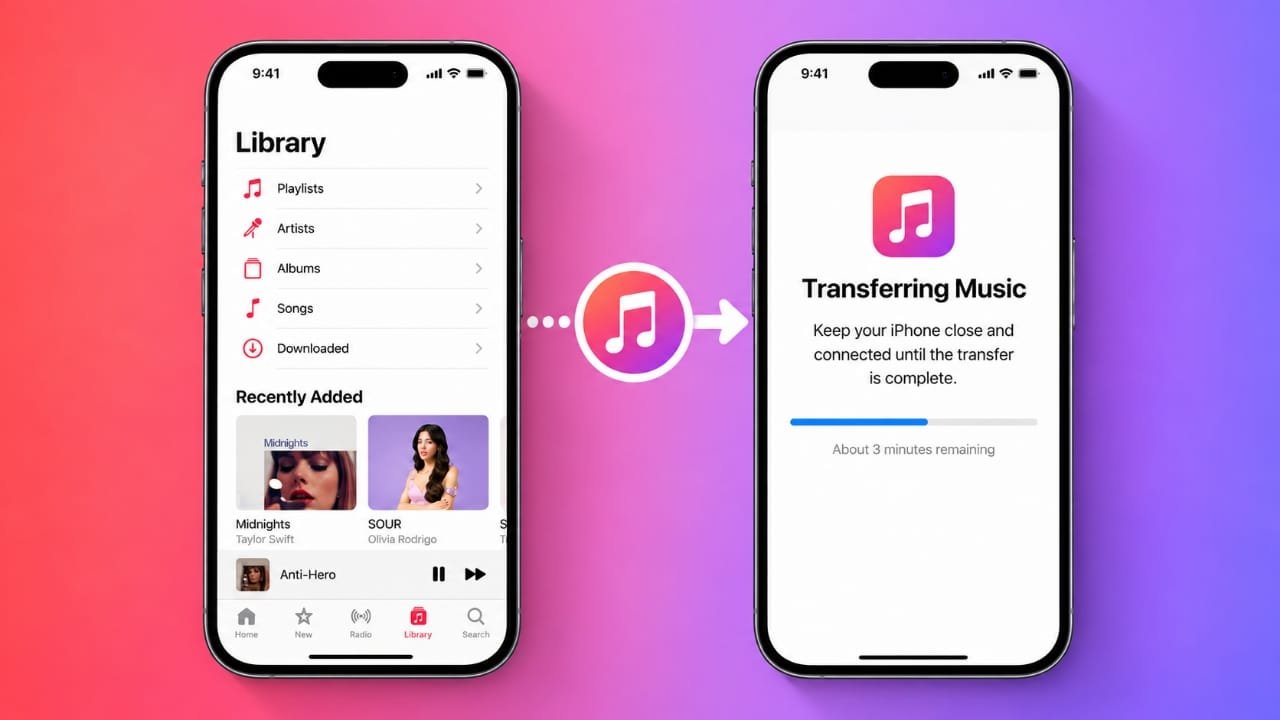
Moving your music from one iPhone to another is usually simple, but the right method depends on where your songs came from. Music stored in Apple Music, songs purchased from the iTunes Store, and files imported from CDs or other sources are handled differently.
This guide explains the safest and easiest ways to transfer your music while keeping your library organized.
Advertisements
Also read: How to Change Safari Privacy and Security Settings on iPhone
Transfer Music Using Apple Music
If you subscribe to Apple Music, this is the easiest way to move your music to a new iPhone. Your library stays synced across devices that use the same Apple Account.
Before you begin, make sure:
- You have an active Apple Music subscription.
- Both iPhones are signed in with the same Apple Account.
- An internet connection is available.
Turn On Sync Library
- Open Settings on your current iPhone.
- Tap Music.
- Enable Sync Library.
- Wait while your music library syncs with Apple Music.
- Sign in to your new iPhone using the same Apple Account.
- Open the Music app and allow your library to load.
After syncing finishes, your music collection will appear automatically without manually copying each song.
Download Previously Purchased Music
If you purchased songs from the iTunes Store, you can download them again without buying them a second time.
Follow these steps:
- Sign in with the Apple Account used to purchase the music.
- Open the iTunes Store app.
- Tap More (three-dot icon).
- Select Purchased.
- Tap Music.
- Choose the songs or albums you want.
- Tap the Download button next to each item, or download your entire collection if available.
Once the download is complete, the songs will appear in the Music app.
Note: This method only works for music purchased through the iTunes Store.
Know Where Your Music Came From
Before choosing a transfer method, identify the source of your music.
- Apple Music: Enable Sync Library.
- iTunes Store purchases: Download them again using your Apple Account.
- Songs imported from CDs or downloaded elsewhere: Use a computer or cloud storage.
- Streaming services like Spotify or YouTube Music: Simply sign in to your account.
Knowing your music source helps you choose the correct transfer method and avoid unnecessary steps.
Share Music with Home Sharing
Home Sharing lets you stream music from your computer to your iPhone over the same Wi-Fi network.
Keep in mind:
- Both devices must use the same Apple Account.
- Both devices must be connected to the same Wi-Fi network.
- Music is streamed instead of permanently copied to your iPhone.
Set Up Home Sharing on a Mac
- Open System Settings.
- Select General > Sharing.
- Turn on Media Sharing.
- Enable Home Sharing.
- Sign in with your Apple Account.
On Windows, open iTunes, enable Home Sharing, and sign in with the same account.
Access Home Sharing on iPhone
- Open the Music app.
- Go to Library.
- Tap Home Sharing.
If you don’t see it, tap Edit, enable Home Sharing, and save the changes.
Your shared music library should now be available whenever both devices are on the same Wi-Fi network.
Transfer Music from Other Sources
If your songs were copied from CDs or downloaded from other legitimate sources, you’ll need another method because they aren’t stored in Apple Music.
Several computer-based solutions are available for this purpose.
Use TouchCopy
TouchCopy allows you to copy music from an iPhone to a computer and then move it to another iPhone.
General steps include:
- Install TouchCopy on your Mac or Windows PC.
- Connect your original iPhone.
- Open the program and select Music.
- Choose the songs you want to copy.
- Export the selected music to your computer.
- Connect your new iPhone.
- Sync the copied music using the Music app on Mac or Apple Devices/iTunes on Windows.
Before syncing, make sure your music library is properly organized because syncing may replace existing music on the destination iPhone.
TouchCopy Demo Limitations
- Supports up to 100 songs in the free version.
- A paid license removes this limit.
- Available for both Mac and Windows.
Use Waveform on Windows
Windows users can also transfer music with Waveform.
The process is straightforward:
- Install Waveform from the Microsoft Store.
- Connect your original iPhone.
- Select the music you want to copy.
- Save the songs to your computer.
- Connect your new iPhone.
- Copy the saved music onto the new device.
This method can be useful if you prefer not to use traditional iTunes syncing.
Restore Music from Streaming Services
If you use a streaming platform, you usually don’t need to transfer music files manually.
Popular services include:
- Apple Music
- Spotify
- YouTube Music
- Deezer
Simply:
- Install the app on your new iPhone if needed.
- Sign in using the same account.
- Wait for your playlists, albums, and saved library to appear.
Your music remains linked to your account instead of being stored as transferable files.
Transfer Music with Cloud Storage
Cloud storage is another option for music that isn’t managed through Apple Music.
A typical process looks like this:
- Copy the music to your computer.
- Upload the files to a cloud storage service such as Google Drive or Dropbox.
- Install the same cloud app on your new iPhone.
- Sign in with your account.
- Download or access your uploaded music files.
Downloaded files are generally stored in the Files app unless you later import them into your music library.
Save Music from Dropbox
If your songs are stored in Dropbox:
- Open the Dropbox app.
- Locate the music file.
- Tap the three-dot menu.
- Choose Save to device.
- Save the file to the Files app.
The file will be available on your iPhone, although it won’t automatically appear inside Apple’s Music app.
Can You Transfer Music with AirDrop?
Many people assume AirDrop can move songs between iPhones, but that’s usually not how it works.
When you share music from the Music app, AirDrop typically sends a link to the song instead of the actual audio file. The recipient can open the link if they have access to the same music service.
Because of licensing and copyright restrictions, Apple does not allow most music files to be freely shared between devices through AirDrop.
If you purchased music from the iTunes Store, you’ll still need to sign in with the original Apple Account to download those purchases again.
Also read: How to Send GIFs on iPhone Using Messages
Final Thoughts
There are several reliable ways to transfer music from one iPhone to another, and the best choice depends on where your music is stored.
Apple Music users can simply enable Sync Library, while iTunes Store purchases can be downloaded again using the original Apple Account. For music imported from CDs or other sources, computer-based tools or cloud storage provide practical alternatives. If you use streaming services like Spotify or YouTube Music, signing into your existing account is usually all that’s required to restore your playlists and library.

I am a passionate Tech Writer with strong industry experience. I enjoy exploring the latest technological innovations and sharing clear, helpful insights with my audience.”
Advertisements