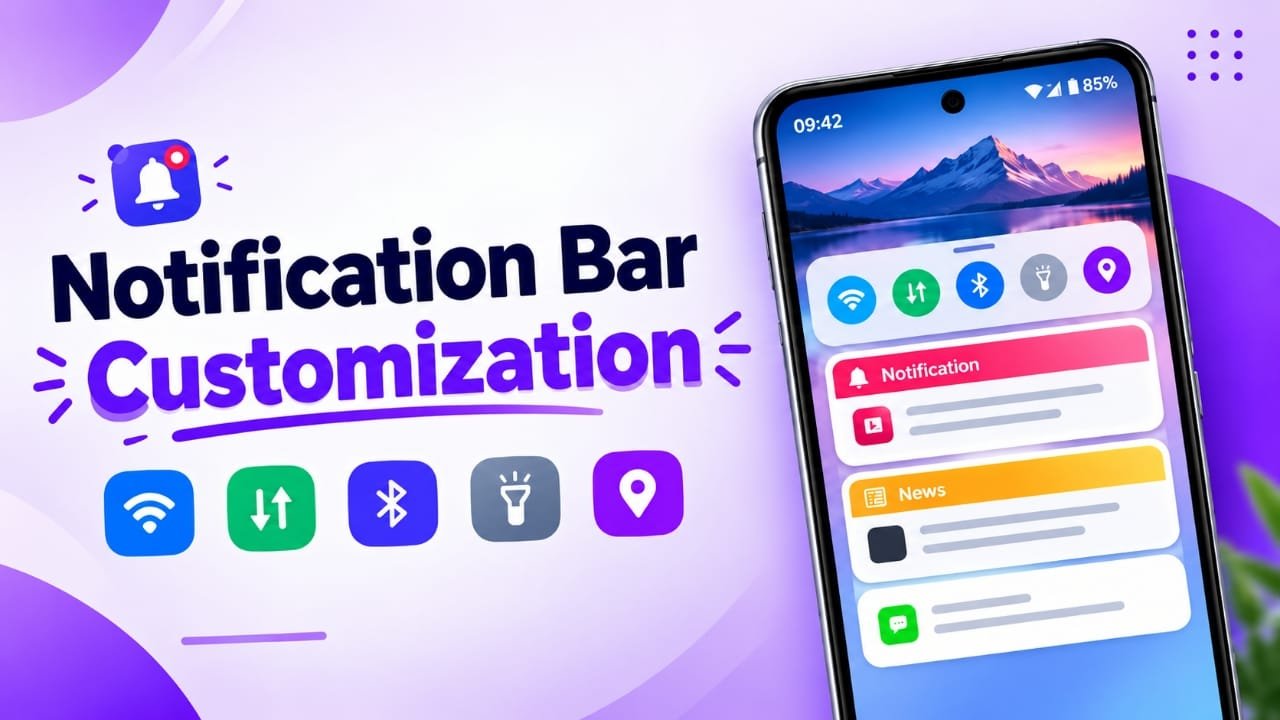
Customizing an Android phone is not limited to changing wallpapers, icons, or themes. You can also explore ways to change the appearance of the status bar and notification panel, two areas you use regularly throughout the day.
The Notification Bar Customization app is designed for users who want more control over the look of these parts of their phone. Depending on the app version and device compatibility, it may offer options for changing colours, adjusting text styles, adding background images, and accessing useful shortcuts.
Advertisements
If you enjoy personalizing your phone and want something different from the default Android interface, this app may be worth exploring. Let’s look at its main features, possible benefits, and a few things to consider before installing it.
Also read: Always on Display XPath App: Customize Your Android Lock Screen
What Is the Notification Bar Customization App?
Notification Bar Customization is an Android personalization app that focuses on the status bar and notification area. These sections display information such as the time, battery level, network signal, and incoming alerts.
The app aims to provide additional appearance settings beyond those available in your phone’s standard options. Depending on the version and supported features, you may find options such as:
- Changing status bar colours and text appearance.
- Using a custom image as a notification background.
- Adjusting certain information displayed in the status bar.
- Exploring different notification themes.
- Accessing shortcuts to frequently used phone settings.
Not every feature will necessarily work on all Android phones. Some options may depend on your device manufacturer, Android version, and the permissions available to the app.
1. Customize the Android Status Bar
The status bar is one of the most frequently viewed parts of your phone. It displays essential details, including the current time, battery status, and network connectivity.
With a compatible customization app, you may be able to change some of its visual elements to suit your preferences.
Possible customization options include:
- Status bar colours: Choose colours that complement your wallpaper or phone theme.
- Battery percentage: Adjust how the battery level is displayed, where supported.
- Time display: Explore available settings for the appearance of the clock.
- Carrier information: Change the displayed network name if the feature is supported.
- Text styling: Experiment with available text colours, sizes, or font options.
- Network indicators: Adjust certain information displays where the app and device allow it.
These options can help give your phone a more personalized appearance without requiring a complete change to the home screen.
However, Android controls many status bar elements at the system level. A third-party app may not be able to modify every icon, label, or indicator, even if it provides related settings.
2. Use a Custom Image for the Notification Background
Another feature to explore is the option to personalize the notification panel with an image.
Instead of keeping the default appearance, you may be able to select a picture from your phone’s gallery or choose an available background within the app.
Here are a few ideas you could try:
- A favourite travel photograph.
- A peaceful nature or landscape image.
- A simple design that matches your wallpaper.
- A subtle pattern with colours you enjoy.
- A personal photograph that reflects your style.
When selecting an image, consider how clearly notification text will appear over it. Pictures with too many details or colours similar to the text can make alerts difficult to read.
For the best results, choose a background that looks good without distracting you from important information. If the text becomes difficult to see, try a different image or return to the default background.
3. Access Frequently Used Phone Controls
Some versions of notification customization apps provide shortcuts to commonly used Android functions. These shortcuts can help you reach certain settings without navigating through multiple menus.
Depending on your device and the app’s supported features, available controls may include:
- Wi-Fi and mobile data settings.
- Bluetooth.
- Silent mode and vibration.
- Automatic screen rotation.
- Flashlight.
- Night mode.
- Location settings.
- Mobile hotspot.
- Do Not Disturb.
- Airplane mode.
- Screenshot tools.
- Calendar information.
For example, you might want to access the flashlight quickly or open connectivity settings while travelling. Having frequently used options nearby can make everyday tasks more convenient.
Keep in mind that these are potential features, not guaranteed functions on every device. Android permissions and manufacturer restrictions may prevent some shortcuts from changing system settings directly. In certain cases, a shortcut may simply open the relevant settings screen.
4. Explore Different Notification Themes
If you like changing your phone’s appearance regularly, the app’s theme options may be worth exploring.
Depending on the available features, you may be able to combine different colours, backgrounds, and text styles to create a notification panel that suits your preferences.
For instance, you could choose a simple look that matches your wallpaper or experiment with brighter colours for a more noticeable design.
This approach can be useful if you want to personalize your phone without replacing the entire launcher or changing every app icon.
Still, appearance is only one part of a good notification experience. Make sure that message previews, notification icons, and other important details remain easy to recognize. A design that looks attractive but makes alerts difficult to read may not be practical for everyday use.
5. Who Should Consider This App?
Notification Bar Customization may appeal to Android users who enjoy exploring personalization options beyond the usual wallpaper and home screen settings.
You might find it useful if you:
- Like experimenting with colours and interface themes.
- Want to use a personal image as a notification background.
- Prefer a different status bar appearance.
- Want convenient access to certain phone controls.
- Enjoy making your device look different from its default design.
On the other hand, you may not need a separate app if your phone already offers the appearance settings you want. Many Android devices include built-in theme options, quick settings customization, and other interface controls.
Before installing another application, check what your phone can already do. A third-party app is most useful when it provides a specific feature that is missing from your device’s built-in settings.
6. Things to Check Before Installing
Before installing Notification Bar Customization, take a few minutes to check its compatibility and permissions. This can help you avoid unnecessary problems and understand what the app can actually do.
Check Android Compatibility
Review the app’s current Google Play Store listing to see which Android versions and devices it supports. Older apps may not work correctly with newer versions of Android.
Review App Permissions
Some notification-related features may require access to notifications or special system settings. Read each permission request carefully and consider whether it is necessary for the feature you want to use.
Avoid granting permissions that you do not understand or feel comfortable providing.
Test Features One at a Time
After installing the app, try individual settings rather than changing everything at once. This makes it easier to identify which features work properly and reverse any unwanted changes.
Keep Notifications Easy to Read
Choose suitable colours and backgrounds so that important messages remain visible. If a custom design makes text difficult to read, adjust the settings or disable that customization.
Check Built-In Customization Options
Your phone may already support some of the features you want. Explore the display, wallpaper, theme, and notification settings before relying on a separate application.
Read Recent Reviews
Check recent user feedback and the app’s latest update information. These details may help you understand whether the application is maintained and how it performs on devices similar to yours.
Remember that a feature mentioned in an app description is not a guarantee that it will work on every Android phone.
Also read: How to Make Your Android Phone Look Like a Windows 11 PC
How to Find Notification Bar Customization
If you want to try the app, search for its exact name on the Google Play Store and review the available listing before installing it.
Check the developer’s details, supported Android versions, permissions, update history, and recent reviews. Similar apps may use nearly identical names, so confirm that you are viewing the intended application.
If the app does not appear in the Play Store or is not compatible with your device, avoid downloading an unknown APK file from an untrusted website. Using a trusted source is a safer way to install Android applications.

Final Thoughts
Notification Bar Customization provides another option for Android users who want to personalize the status bar and notification panel. Depending on the available features, you may be able to experiment with colours, text styles, background images, themes, and shortcuts to commonly used settings.
Its appeal lies in the ability to change parts of the interface that many users leave untouched. Even a small visual adjustment can help make a phone feel more personal.
However, the actual experience depends on your Android version, device manufacturer, and the features supported by the app. Some settings may be limited, and certain functions may require additional permissions.
If you are interested in customizing more than just your wallpaper and app icons, Notification Bar Customization may be worth investigating. Check its current listing and compatibility details first, then decide whether its features meet your needs.

I am a passionate Tech Writer with strong industry experience. I enjoy exploring the latest technological innovations and sharing clear, helpful insights with my audience.”
Advertisements