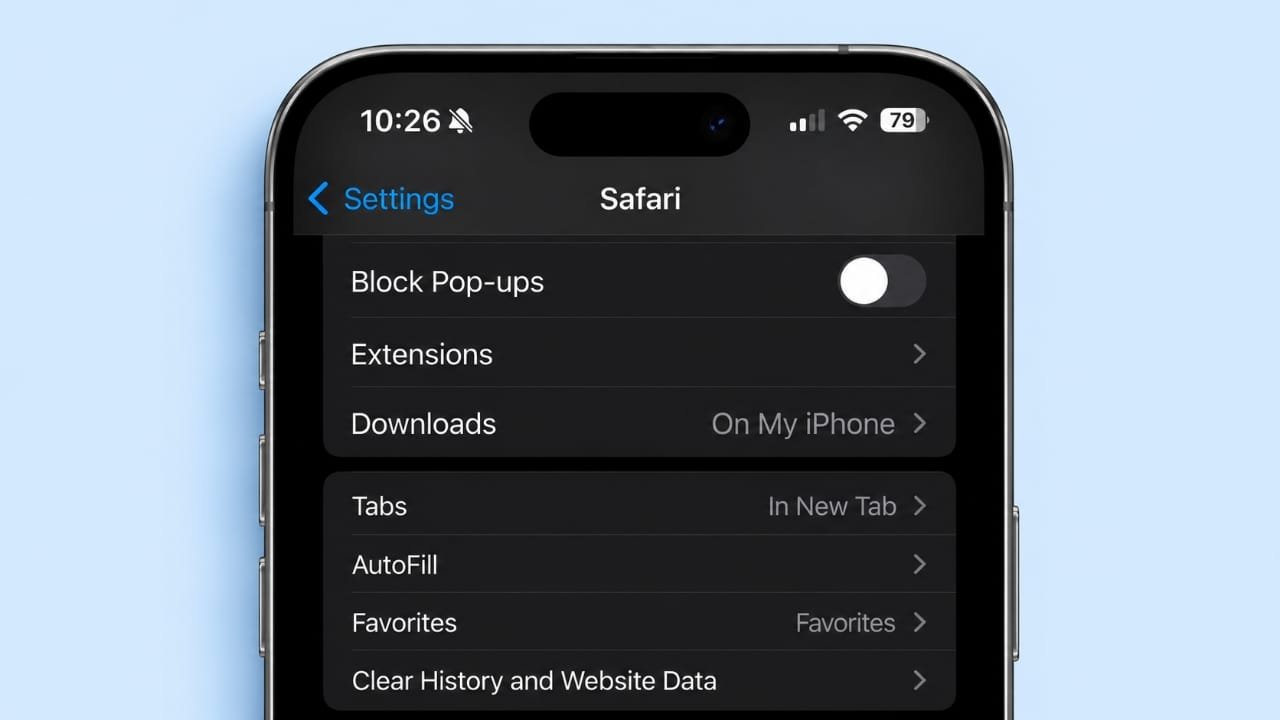
Pop-up windows are sometimes necessary when using websites on an iPhone. They may open payment pages, login windows, verification screens, or other website features. If your browser blocks these windows, you may need to change its pop-up settings.
Fortunately, you can manage pop-ups in both Safari and Google Chrome. The steps are simple, but the available options may vary depending on your iOS and browser versions.
Advertisements
In this guide, you will learn how to disable the pop-up blocker on an iPhone, turn it back on when needed, and troubleshoot common problems.
Also read: HMD Vibe 2 Max Leak Suggests 108MP Camera, 6,000mAh Battery and 120Hz Display
How to Turn Off the Pop-Up Blocker on iPhone in Safari
Safari is Apple’s default web browser on the iPhone. It blocks pop-up windows by default to reduce unwanted interruptions and help protect users from suspicious websites.
However, some legitimate websites depend on pop-ups for certain features. If a trusted website is not working correctly, you can temporarily disable Safari’s pop-up blocker.
Steps to Disable Pop-Up Blocking in Safari
Follow these instructions to change the setting:
- Open the Settings app on your iPhone.
- Scroll down and tap Apps if this option appears.
- Select Safari from the list of apps.
- Find the Block Pop-ups option.
- Turn off the switch next to it.
On some older iOS versions, Safari appears directly on the main Settings screen instead of under Apps.
Once the setting is disabled, return to Safari and open the website you want to use. Check whether the required window opens correctly.
Keep in mind that allowing pop-ups does not guarantee that every website window will work. Some websites may have additional restrictions or technical problems.
How to Turn the Safari Pop-Up Blocker Back On
After completing your task, it is a good idea to restore the original setting. This helps reduce unwanted pop-ups during everyday browsing.
To enable the blocker again:
- Open Settings on your iPhone.
- Go to Apps > Safari, or open Safari directly from Settings on older iOS versions.
- Locate Block Pop-ups.
- Turn on the switch.
Safari will then block pop-up windows according to its built-in settings.
Do These Steps Work on iPhone 14 and Newer Models?
Yes, these instructions generally apply to the iPhone 14 and newer iPhone models that support the relevant Safari settings.
The main difference is usually the location of the Safari menu. Depending on your iOS version, you may find Safari directly in Settings or inside the Apps section.
If the option is missing, check that your iPhone is running a supported and up-to-date version of iOS.
How to Turn Off the Pop-Up Blocker on iPhone in Chrome
Google Chrome is another popular browser for iPhone users. It also blocks unwanted pop-ups to reduce interruptions while visiting websites.
If a trusted website needs to open an additional window, you can check Chrome’s pop-up settings. Remember that Chrome and Safari manage their browser settings separately.
Steps to Manage Pop-Ups in Chrome on iPhone
Follow these steps:
- Open the Google Chrome app.
- Tap the three-dot menu.
- Select Settings.
- Look for Content Settings, if available.
- Tap Block Pop-ups if the option appears.
- Change the setting if Chrome provides a switch to control pop-ups.
Important: Chrome’s iPhone interface may differ from its Android and desktop versions. Some versions of Chrome for iOS do not offer a general pop-up blocker switch or the same Content Settings menu. If you cannot find these options, update Chrome and check Google’s current instructions for your version.
If the website still cannot open a required window, the issue may be related to the website itself rather than your browser settings.
Can You Allow Pop-Ups for Only One Website in Chrome?
Allowing pop-ups for a single website can be a useful alternative to disabling protection everywhere. However, the available controls depend on the browser version and platform.
If Chrome displays a message indicating that a pop-up was blocked, review the message for any available option to open the window. Only proceed if you trust the website and understand why the window is needed.
If no website-specific option appears, you may need to use the website’s recommended process or contact its support team.
Should You Keep Pop-Ups Enabled All the Time?
For most users, keeping the pop-up blocker enabled is a sensible default.
You can change the setting temporarily when a trusted website requires an additional window. After finishing your payment, login, or verification process, restore the original protection if you changed it.
You should also avoid installing unfamiliar browser extensions or content-blocking apps simply to fix a pop-up problem. Before installing any app, review its developer information, permissions, privacy policy, and user reviews.
Is It Safe to Turn Off the Pop-Up Blocker on an iPhone?
Disabling pop-up blocking is not automatically dangerous, but it can expose you to more unwanted windows. Some websites use pop-ups for legitimate purposes, while others use them to display deceptive advertisements or direct visitors to suspicious pages.
Understanding the common risks can help you browse more safely.
1. Unwanted Advertisements and Fake Security Warnings
Some websites display pop-ups claiming that your iPhone has a virus or that your device needs an urgent update. Others advertise prizes, free products, or downloads that seem too good to be true.
These messages may try to pressure you into clicking a link or sharing information.
To protect yourself:
- Avoid clicking suspicious advertisements.
- Do not trust unexpected virus warnings displayed inside a website.
- Never install software because a pop-up tells you to do so.
- Close unfamiliar websites if they repeatedly display unwanted messages.
- Turn pop-up blocking back on when you no longer need to change it.
A website displaying a warning does not necessarily mean your iPhone is infected.
2. Phishing and Personal Information Theft
Phishing websites imitate legitimate services to trick people into revealing passwords, banking information, or other private details.
A pop-up may look like a genuine login page even when it leads to a fraudulent website. This is why you should check the website address before entering sensitive information.
Follow these precautions:
- Use the official website or app whenever possible.
- Check the domain carefully before entering passwords.
- Never share one-time passwords with an unknown website or person.
- Close unexpected login windows that you did not request.
- Avoid entering banking details on pages reached through suspicious advertisements.
A pop-up blocker can reduce some unwanted interruptions, but it cannot protect you from every online threat.
Pop-Ups Still Not Working on Your iPhone? Try These Fixes
Sometimes, a website continues to block pop-ups even after you change your browser settings. The cause could be outdated browser data, a website restriction, or a temporary software issue.
Try the following solutions.
1. Clear Safari’s Browsing Data
Old website data can occasionally interfere with browsing. Clearing it may help if a website behaves unexpectedly.
To clear Safari’s browsing data:
- Open Settings.
- Select Apps > Safari on newer iOS versions, or open Safari directly in Settings on older versions.
- Find Clear History and Website Data.
- Review the available options and confirm if you want to proceed.
This action can remove browsing history and website data, and it may sign you out of some websites.
If you want to preserve your browsing history, review the available options before confirming.
2. Update Your iPhone Software
An outdated iOS version may cause compatibility issues with some websites or browser features. Software updates can also include security improvements and bug fixes.
To check for an update:
- Open Settings.
- Tap General.
- Select Software Update.
- Follow the instructions if an update is available.
Back up important information before a major software update, and make sure your device has sufficient battery power or is connected to a charger.
3. Restart Your iPhone
Temporary software problems can sometimes affect how websites load.
Restarting your iPhone is a simple troubleshooting step:
- Turn off your iPhone using the appropriate power controls.
- Wait a few seconds.
- Turn the device back on.
- Open your browser and revisit the website.
Check whether the required pop-up works after restarting.
4. Review Screen Time Restrictions
Screen Time provides controls for managing content and privacy on an iPhone. Certain restrictions may affect access to website content or related settings.
If a setting is unavailable or appears greyed out, review your restrictions.
- Open Settings.
- Select Screen Time.
- Tap Content & Privacy Restrictions, if enabled.
- Review the relevant restrictions and make changes only when appropriate.
Some options vary by iOS version. If your iPhone belongs to a school or workplace, an administrator may manage certain settings.
5. Check Whether the Website Is Causing the Problem
Not every pop-up issue comes from the browser.
A website may require JavaScript, a specific login session, or another permission before opening a new window. It may also have a technical problem of its own.
Try opening the website in another supported browser or using its official app, if available. If the issue continues, contact the website’s support team for assistance.
Frequently Asked Questions
Why do some websites need pop-ups?
Some websites use pop-up windows for payment processing, account verification, login screens, document previews, or other features. If the browser blocks the required window, part of the website may not work as expected.
Can Screen Time affect pop-up settings?
Screen Time can restrict certain content and privacy settings. The effect depends on the restriction, the iOS version, and whether the device is managed by a school or workplace.
Can an iOS update change my pop-up settings?
Software updates may change menu layouts or introduce browser-related changes. If a setting is difficult to find after an update, check its current location in Settings and review the relevant browser documentation.
What should I do if pop-ups remain blocked?
First, confirm that you changed the correct browser’s settings. Safari and Chrome do not share all their settings.
Next, update the browser, restart your iPhone, and check whether the website requires additional permissions. If the problem continues, the website itself may be responsible.
Is it better to disable pop-up blocking permanently?
For everyday browsing, keeping pop-up blocking enabled is generally a better choice. Disable it only when a trusted website genuinely needs a pop-up and your browser provides the required setting.
Does turning off pop-up blocking remove all advertisements?
No. Disabling or enabling pop-up blocking does not control every type of advertisement. Websites can display ads directly within their pages, and some unwanted content may appear through other methods.
Also read: WhatsApp Tests a Redesigned Chat Bar on Android: What’s Changing?
Conclusion
Turning off the pop-up blocker on an iPhone can help when a trusted website needs to open a payment window, login screen, or another browser window. In Safari, you can usually manage this setting through the iPhone’s Settings app. Chrome’s available controls may differ depending on the version installed on your device.
If pop-ups remain blocked, check your browser settings, update your software, restart your iPhone, and review any website restrictions.
For safer browsing, avoid suspicious pop-ups and never enter sensitive information on unfamiliar pages. If you disable pop-up protection to complete a specific task, restore the original setting afterward whenever possible.

I am a passionate Tech Writer with strong industry experience. I enjoy exploring the latest technological innovations and sharing clear, helpful insights with my audience.”
Advertisements