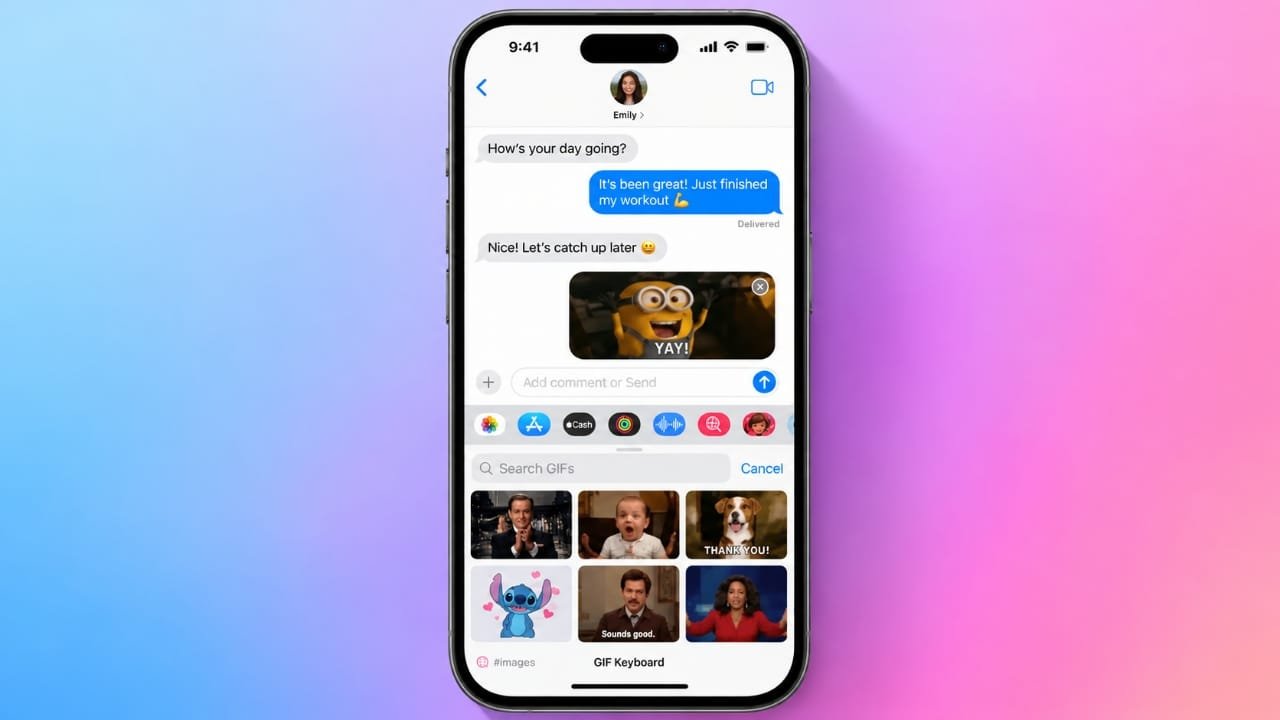
GIFs are a fun way to make conversations more expressive. The good news is that you don’t need any complicated apps to send them from your iPhone. The Messages app already includes built-in tools for finding and sharing GIFs. You can also send GIFs saved on your device or use trusted websites to discover new ones.
Also read: How to Fix an AirTag That Is Not Updating Its Location on iPhone
Advertisements
Send GIFs with the Messages App
The easiest way to share a GIF is through Apple’s built-in #images feature. It lets you search for animated images without leaving your conversation.
Search for a GIF in Messages
- Open the Messages app.
- Start a new chat or open an existing conversation.
- Tap the + (Plus) button next to the message box.
- Select #images. If you don’t see it immediately, tap More to find it.
You’ll see a collection of popular and trending GIFs. Simply browse the available options and tap the one you want to use.
Search for Specific GIFs
If you’re looking for something more specific, you can search by keyword.
- Open #images.
- Tap the search field.
- Enter a word or phrase such as birthday, funny, love, happy, or celebration.
- Browse the results and choose the GIF that best matches your message.
The selected GIF will be added to your message automatically. You can type a short message before tapping Send.
Use GIPHY for More GIF Choices
If you want a larger collection of GIFs, GIPHY is a popular option.
To add it:
- Open a conversation in Messages.
- Tap the + button.
- Open the Store.
- Search for GIPHY and install the iMessage app.
- Return to your conversation and open GIPHY from the available apps.
Search for any GIF you like, tap it, and it will be inserted into your message.
Send a GIF Saved on Your iPhone
If you’ve already saved a GIF, you can share it directly from the Photos app.
Here’s how:
- Open the conversation in Messages.
- Tap the + button.
- Choose Photos.
- Browse your photo library and select the GIF.
- Tap Done, add a message if you like, and press Send.
Find Saved GIFs Faster
On iPhones running iOS 11 or later, saved GIFs are usually grouped in the Animated album under Media Types. This makes it much easier to locate them without scrolling through your entire photo library.
Save a GIF from Messages
If someone sends you a GIF you’d like to keep, saving it only takes a few seconds.
- Open the conversation containing the GIF.
- Touch and hold the GIF.
- Tap Save.
The GIF will be stored in your Photos library, allowing you to use it again whenever you want.
Share GIFs from Websites
Sometimes you may find the perfect GIF on a website instead of inside Messages.
Copy and Paste a GIF
- Open a trusted GIF website or search for a GIF online.
- Press and hold the GIF.
- Tap Copy if the option is available.
- Return to your Messages conversation.
- Press and hold the message field, then tap Paste.
- Add your text and send the message.
Save a GIF for Later
If you’d rather keep the GIF for future use:
- Press and hold the GIF on the website.
- Select Save to Photos (if available).
- Open Messages when you’re ready to share it.
- Choose Photos, select the saved GIF, and send it.
Saving your favorite GIFs makes them easier to reuse without searching the web again.
Organize Your Favorite GIFs
If you use GIFs often, keeping them organized can save time.
Apps such as GIFwrapped let you collect and manage your favorite animations in one place. Instead of searching repeatedly, you can quickly access the GIFs you use most.
What to Do If #images Is Missing
The #images feature is available only in supported regions. If it doesn’t appear in Messages, check your iPhone’s language and region settings.
To do this:
- Open Settings.
- Go to General.
- Tap Language & Region.
- Make sure your language and region are set to a supported location.
Updating these settings may restore the feature if it’s available in your country.
Countries Where #images Is Supported
Apple currently supports #images in several regions, including:
- United States
- United Kingdom
- Canada
- Australia
- New Zealand
- Ireland
- France
- Germany
- Italy
- India
- Singapore
- Philippines
- Japan
Availability may change over time as Apple expands support.
Report an Inappropriate GIF
If you come across a GIF that seems inappropriate or violates Apple’s guidelines, you can report it.
- Open #images in Messages.
- Find the GIF you want to report.
- Touch and hold it to open the preview.
- Take a screenshot.
- Open the screenshot and tap Share.
- Choose Mail and send the screenshot to Apple’s reporting email address.
- Include a brief explanation of the issue to help Apple review your report.
If your concern involves copyright, use Apple’s official copyright reporting process instead.
Also read: WhatsApp Tests AI Content Labels for Channel Posts on iPhone
Final Thoughts
Sending GIFs on an iPhone is quick and simple. The built-in #images feature is the fastest option for everyday conversations, while the Photos app lets you reuse GIFs you’ve already saved. If you want a wider selection, apps like GIPHY and trusted GIF websites provide plenty of choices. By saving your favorites and keeping them organized, you’ll always have the perfect GIF ready to share.

I am a passionate Tech Writer with strong industry experience. I enjoy exploring the latest technological innovations and sharing clear, helpful insights with my audience.”
Advertisements