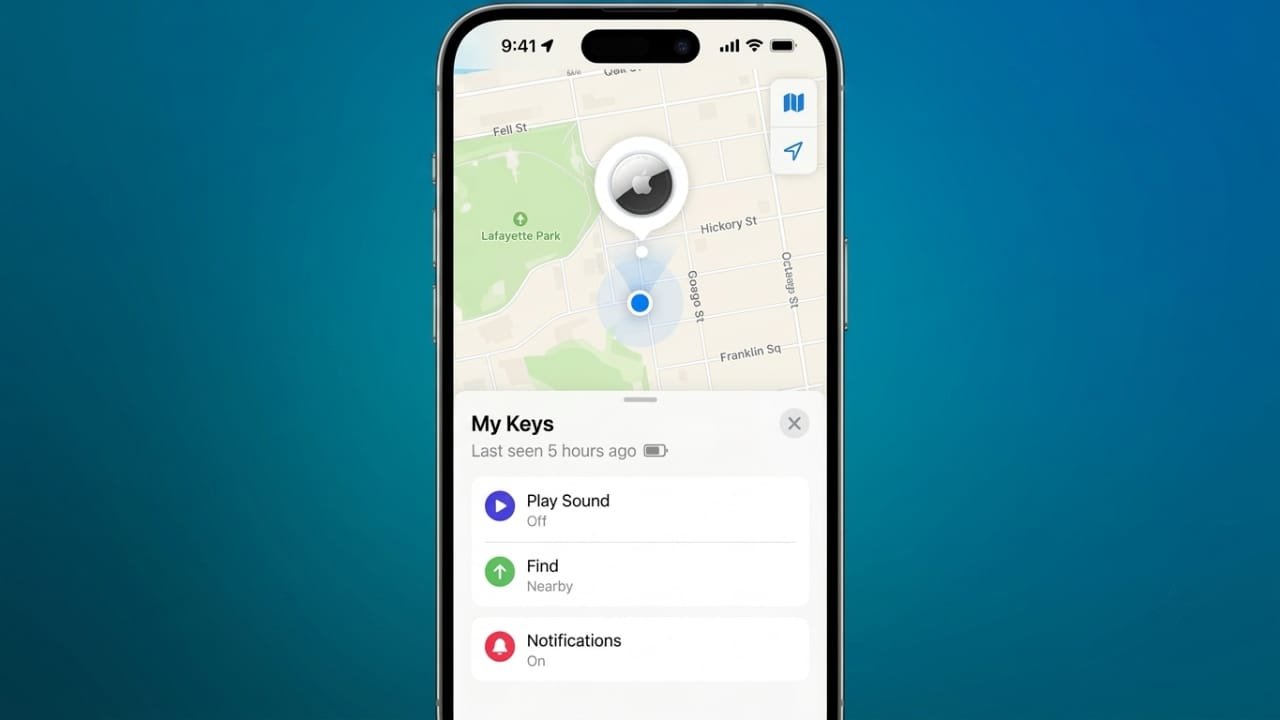
AirTags are a simple way to keep track of personal belongings such as keys, bags, or wallets. In most cases, they update their location automatically through Apple’s Find My network. However, there are times when the location shown in the Find My app does not refresh or displays outdated information.
The good news is that this issue is usually caused by settings, battery, connectivity, or environmental factors rather than a faulty AirTag. The solutions below can help you restore normal tracking.
Advertisements
Also read: WhatsApp Tests AI Content Labels for Channel Posts on iPhone
Why Your AirTag Is Not Updating
Unlike smartphones, an AirTag does not contain GPS or a cellular connection. It relies on Bluetooth to send a secure signal. When a nearby Apple device detects that signal, it securely shares the AirTag’s location with Apple’s Find My network. Your iPhone then displays the latest available location.
Because of this system, location updates depend on nearby Apple devices. AirTags are more likely to update quickly in crowded places where many Apple devices are present. In isolated locations, updates may be delayed.
Other factors that can reduce tracking accuracy include:
- Low or empty AirTag battery
- Bluetooth signal interference
- Thick walls or metal objects blocking the signal
- Underground parking areas or enclosed spaces
- Fast-moving vehicles where nearby devices have little time to detect the AirTag
What Does “No Location Found” Mean?
If the Find My app shows “No Location Found,” it does not necessarily mean the AirTag is damaged.
This message usually indicates that no nearby Apple device has detected the AirTag recently. As a result, Find My has no newer location to display.
Possible reasons include:
- The AirTag is in a place with very few Apple devices.
- It is inside a vehicle, metal container, or building that blocks Bluetooth signals.
- The battery has run out.
- The AirTag was removed from your Apple Account.
- It has been reset and is no longer paired.
If possible, move closer to the AirTag’s last known location. Once your iPhone comes within Bluetooth range, the location may update within a short time.
Easy Ways to Fix AirTag Location Problems
1. Refresh the Find My App
Open the Find My app and go to the Items tab. Pull down on the screen to refresh the list.
This checks for any new location reports already available in Apple’s network. Keep in mind that refreshing cannot contact the AirTag directly if no nearby Apple device has detected it.
2. Verify Location Services
Location permissions are essential for Find My to work properly.
Go to:
Settings → Privacy & Security → Location Services
Make sure:
- Location Services are enabled.
- Find My has Always permission.
- Precise Location is turned on.
3. Check Find My Settings
Open:
Settings → Apple Account → Find My → Find My iPhone
Confirm that these options are enabled:
- Find My iPhone
- Find My Network
- Send Last Location
These features help your devices communicate correctly with Apple’s tracking network.
4. Make Sure Bluetooth and Wi-Fi Are On
Bluetooth is required for AirTag communication, while Wi-Fi or mobile data helps your iPhone receive updated location information.
If your internet connection is weak, switch to a stronger Wi-Fi network or move to an area with better cellular coverage.
5. Disable Low Power Mode
Low Power Mode reduces certain background activities, which may occasionally affect location updates.
Go to:
Settings → Battery
Turn off Low Power Mode, then check the Find My app again.
If Focus Mode is active, temporarily disable it while troubleshooting.
6. Refresh Wireless Connections
A quick network refresh can solve temporary connection issues.
Turn Airplane Mode on for about 10 seconds, then switch it off again. After reconnecting, reopen the Find My app and check your AirTag.
7. Restart Your iPhone
Restarting your iPhone refreshes Bluetooth, wireless connections, and background services.
After the restart, place the AirTag close to your iPhone and check whether the location updates correctly.
Check the AirTag Battery
An AirTag battery usually lasts about one year under normal use. If the battery becomes weak, location updates may stop.
Open the Find My app and look for a low battery notification. If one appears, replace the battery.
How to Replace the Battery
AirTags use a CR2032 coin-cell battery.
To replace it:
- Press down on the stainless-steel back cover.
- Rotate it counterclockwise.
- Remove the old battery.
- Insert the new battery with the positive (+) side facing up.
- Wait for the confirmation sound.
- Reattach the cover and rotate it clockwise until locked.
For best results, use a quality CR2032 battery from a trusted manufacturer. Some coated batteries may not make proper contact.
Advanced Troubleshooting
If the basic steps do not solve the issue, try the following methods.
Update Your iPhone
Software updates often include improvements for the Find My network.
Go to:
Settings → General → Software Update
Install any available update, restart your iPhone, and test the AirTag again.
Reset Network Settings
Network configuration issues can sometimes interfere with wireless communication.
Navigate to:
Settings → General → Transfer or Reset iPhone → Reset → Reset Network Settings
Keep in mind that this removes saved Wi-Fi passwords, so you’ll need to reconnect afterward.
Remove and Pair the AirTag Again
If the connection appears unstable, remove the AirTag from the Find My app and pair it again.
Place the AirTag next to your unlocked iPhone and follow the on-screen instructions to complete setup.
Factory Reset the AirTag
If nothing else works, resetting the AirTag may help.
Remove the battery and reinstall it while pressing it down until you hear a sound. Repeat this process five times. The fifth sound will be different, indicating the reset is complete.
Afterward, pair the AirTag with your iPhone as a new device.
Turn On Lost Mode
If your AirTag is missing, enable Lost Mode in the Find My app.
You can optionally add a contact number and message. Whenever another Apple device detects the AirTag, you’ll receive an update.
Keep in mind that updates still depend on nearby Apple devices, so busy areas usually provide faster results than isolated locations.
Sign Out and Back Into Your Apple Account
Occasionally, account synchronization issues can affect Find My.
Sign out of your Apple Account from Settings, then sign back in after a few moments. Open the Find My app and check whether your AirTag begins updating again.
When to Contact Apple Support
If your AirTag still does not report its location after trying all of the above solutions, there may be a hardware or pairing issue. In that case, contacting Apple Support is the best option for further assistance.
Also read: How to Use Claude to Reply to Gmail Emails Automatically
Final Thoughts
Most AirTag location problems are caused by battery issues, connectivity, Bluetooth interference, or the absence of nearby Apple devices. Since AirTags depend on the Find My network rather than GPS, location updates are not always instant.
In many situations, simply moving closer to the AirTag or checking your device settings is enough to restore normal tracking. If the problem continues, updating your iPhone, resetting the AirTag, or pairing it again can often resolve the issue safely.

I am a passionate Tech Writer with strong industry experience. I enjoy exploring the latest technological innovations and sharing clear, helpful insights with my audience.”
Advertisements