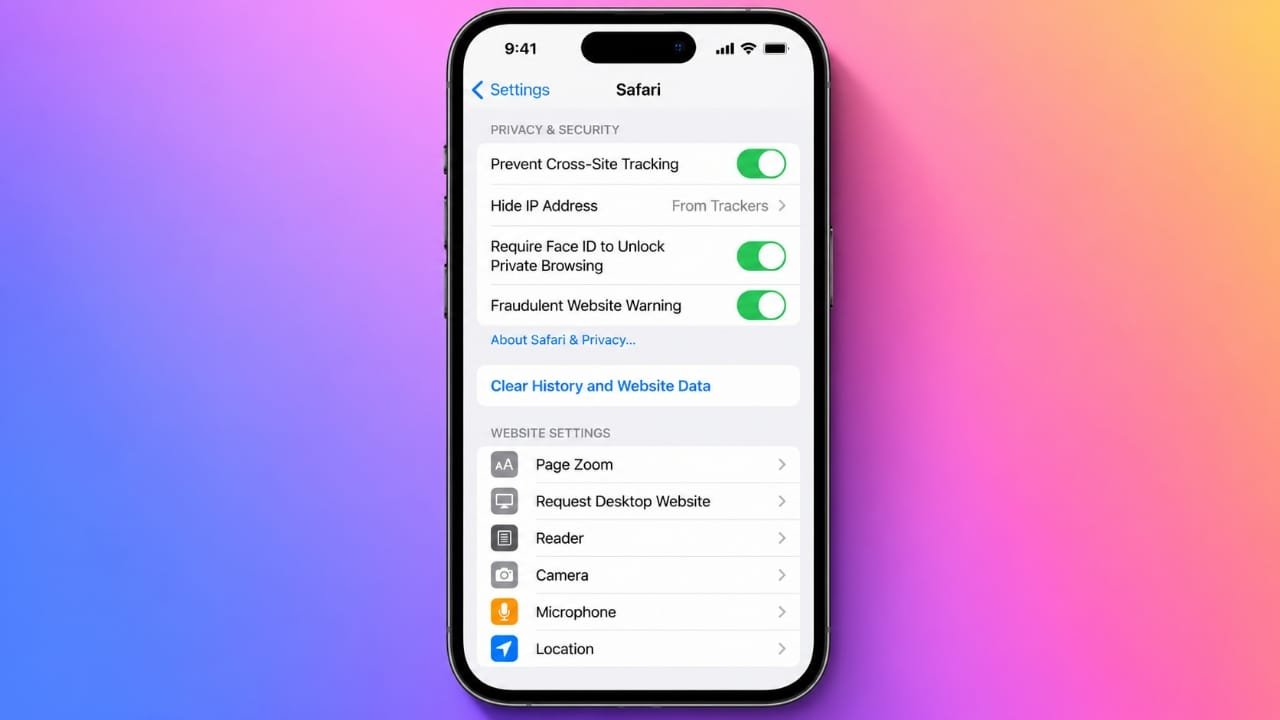
Safari comes with several built-in privacy and security features that help protect your personal information while browsing the web. By adjusting a few settings, you can reduce tracking, control website permissions, manage passwords, and make your browsing experience safer.
This guide explains the most useful Safari settings on iPhone in simple steps.
Advertisements
Also read: How to Delete Your YouTube Account or Channel: Step-by-Step Guide
Access Safari Settings
Most Safari options are available in the Settings app.
- Open Settings.
- Scroll down and tap Apps.
- Select Safari.
On older versions of iOS, Safari may appear directly in the Settings menu instead of under Apps.
Change Your Default Search Engine
Safari lets you choose the search engine you prefer instead of using the default one.
To change it:
- Open Settings > Apps > Safari.
- Tap Search Engine.
- Select your preferred option.
Depending on your iPhone and iOS version, available choices may include:
- Bing
- Yahoo
- DuckDuckGo
Your selection is saved automatically.
Use a Different Search Engine for Private Browsing
You can use one search engine for normal browsing and another for Private Browsing.
To set it up:
- Open Settings > Apps > Safari.
- Turn off Also Use in Private Browsing if available.
- Tap Private Search Engine.
- Choose the search engine you want to use in private mode.
This setting keeps your regular search preference unchanged.
Save Time with AutoFill
AutoFill makes filling out online forms faster by using information already saved on your iPhone.
To enable it:
- Open Settings > Apps > Safari > AutoFill.
- Turn on Use Contact Info.
- Make sure the correct contact card is selected under My Info.
You can also enable Credit Cards if you want Safari to remember payment details for quicker checkout.
Password management may appear under Settings > Passwords on newer iOS versions instead of AutoFill.
Choose How New Links Open
Safari lets you decide whether links should open immediately or stay in the background.
To change this:
- Go to Settings > Apps > Safari > Open Links.
- Select one of the following:
- In New Tab – Opens the new page right away.
- In Background – Opens the page without interrupting your current tab.
Choose the option that best matches how you browse.
Use Private Browsing
Private Browsing helps keep your browsing activity separate from your regular history.
While using Private Browsing:
- Browsing history isn’t added to your normal history.
- Private tabs stay separate from regular tabs.
- Private tabs can be protected with your device authentication.
Start a Private Browsing Session
To open a private tab:
- Launch Safari.
- Tap the Tabs button.
- Swipe until you see Private.
- Tap Private and open a new tab.
If your device requires authentication, unlock it using your passcode, Face ID, or Touch ID.
Your private tabs remain available until you close them, even after switching back to regular browsing.
Lock Private Tabs with Authentication
You can require authentication before viewing private tabs.
To enable this:
- Open Settings > Apps > Safari.
- Find the Private Browsing security option.
- Turn on one of the available methods:
- Require Passcode
- Require Face ID
- Require Touch ID
The available options depend on your iPhone model.
View Safari’s Privacy Report
Safari automatically blocks many tracking attempts while you browse.
To view the Privacy Report:
- Open a website in Safari.
- Tap the Page Menu beside the address bar.
- Select Privacy Report.
The report shows how many trackers Safari has blocked and provides a better understanding of website tracking activity.
Use iCloud Private Relay
If you subscribe to iCloud+, you can use Private Relay for additional privacy.
Private Relay helps by:
- Hiding your IP address from many websites.
- Encrypting your internet traffic.
- Making it harder for network providers to monitor your browsing activity.
Availability depends on your country or region.
Temporarily Show Your IP Address
Some websites need your IP address to work correctly.
To reveal it temporarily:
- Open the website in Safari.
- Tap the Page Menu.
- Choose Show IP Address.
Once you leave the website or close its tab, Safari resumes its normal privacy protection.
Improve Safari Security
Safari includes several settings that help protect your browsing experience.
Keep Cross-Site Tracking Prevention Enabled
Cross-site tracking is commonly used by advertisers to follow browsing activity across multiple websites.
To improve privacy:
- Open Settings > Apps > Safari.
- Make sure Prevent Cross-Site Tracking is turned on.
Keeping this option enabled helps reduce unwanted tracking.
Turn On Fraudulent Website Warning
Safari can detect many phishing and fake websites before you interact with them.
To enable it:
- Go to Settings > Apps >Safari.
- Turn on Fraudulent Website Warning.
This feature can help you avoid unsafe websites that try to steal personal information.
Block Cookies (If Needed)
Cookies help websites remember your preferences, but they can also be used for tracking.
To block cookies:
- Open Settings > Apps > Safari.
- Turn on Block All Cookies.
- Confirm your choice.
Keep in mind that some websites may not work properly if all cookies are blocked.
Clear Browsing History and Website Data
Removing browsing data can improve privacy, especially on shared devices.
To clear Safari data:
- Open Settings > Apps > Safari.
- Tap Clear History and Website Data.
- Confirm the action.
This removes browsing history, cookies, and other website data stored by Safari.
Manage Website Permissions
Websites sometimes request access to your camera, microphone, or location.
Safari allows you to control these permissions.
Go to:
Settings > Apps > Safari
Then choose:
- Camera
- Microphone
- Location
For each permission, you can select:
- Ask – Safari requests permission each time.
- Deny – Access is blocked.
- Allow – Websites can access the feature automatically.
Using Ask provides a good balance between convenience and privacy.
Set Permissions for Individual Websites
Instead of changing permissions for every website, you can customize settings for specific sites.
To do this:
- Open the website in Safari.
- Tap the Page Menu.
- Open Website Settings.
- Change the permissions for that website only.
This is useful for trusted websites that need additional access.
Enable Apple Pay in Safari
Safari supports Apple Pay on compatible websites.
To enable it:
- Open Settings > Apps > Safari.
- Turn on Check for Apple Pay.
When supported by the retailer, you can complete purchases without entering payment details manually each time.
Also read: How to Fix an AirTag That Is Not Updating Its Location on iPhone
Final Thoughts
Safari offers many privacy and security features that are easy to customize. Taking a few minutes to review these settings can make your browsing safer and more convenient.
Features such as Private Browsing, tracker prevention, website permission controls, and Fraudulent Website Warnings help protect your personal information while you browse. Reviewing these settings regularly ensures Safari continues to work the way you want while keeping your data more secure.

I am a passionate Tech Writer with strong industry experience. I enjoy exploring the latest technological innovations and sharing clear, helpful insights with my audience.”
Advertisements