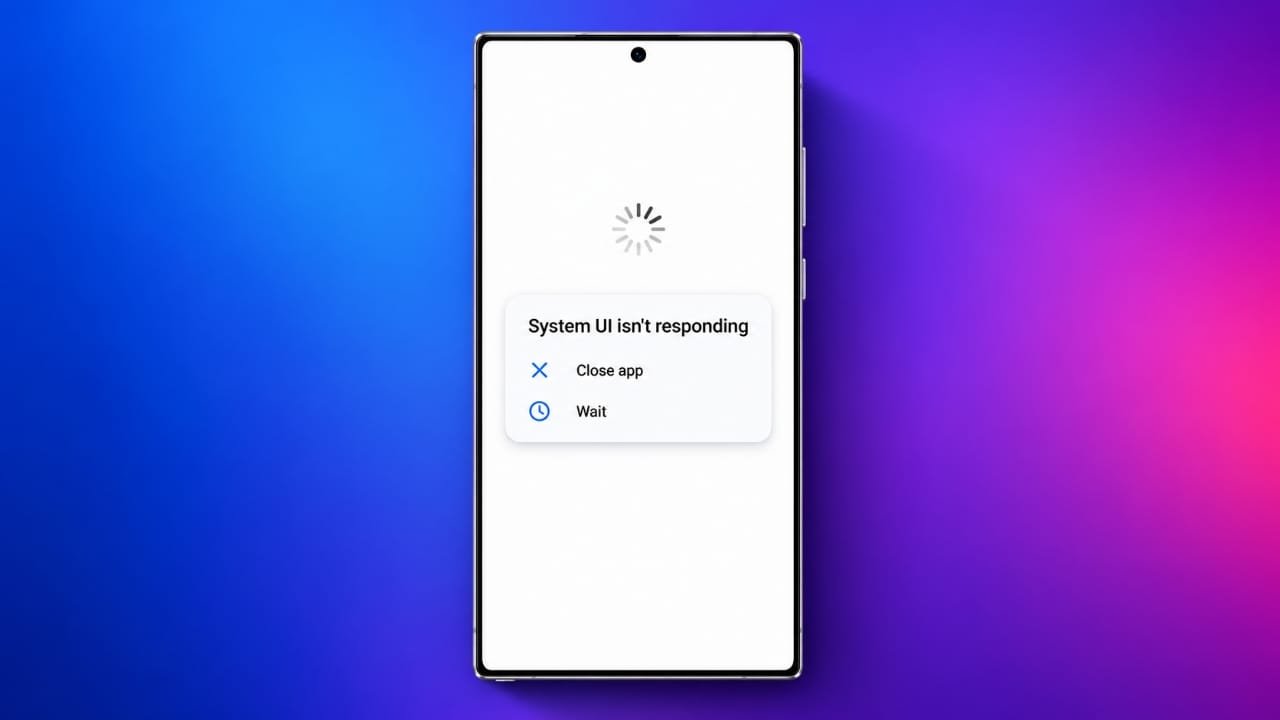
Seeing your phone suddenly turn completely white can be worrying, especially when you need to access your calls, messages, or apps. In some cases, the phone may still vibrate or receive notifications even though nothing appears correctly on the display.
A white screen does not always mean that your phone has suffered permanent damage. A temporary software problem, failed update, damaged application, physical impact, or display-related hardware issue could be responsible.
Advertisements
The right solution depends on what caused the problem. Start with the simpler troubleshooting steps before considering a repair or factory reset.
Also read: How to Contact Airtel Customer Care in India: All Support Options
Why Is My Phone Showing a White Screen?
There are several possible reasons a smartphone may become stuck on a white display.
Temporary Software Problems
Smartphones run many system processes and applications at the same time. Occasionally, an app or system process can stop responding correctly.
A temporary software crash may leave the phone frozen while the display remains completely white. Restarting the device can sometimes clear the problem.
If the issue keeps returning, however, there may be a deeper software conflict that needs further investigation.
Failed Software Updates
Operating system updates normally replace or modify important system files. If an update is interrupted or does not complete properly, the phone may have trouble starting normally.
An application that is not compatible with the current operating system can also create unexpected crashes or other display problems.
If the white screen appeared shortly after an update or a new app installation, that timing can provide a useful clue.
Physical Display Damage
A white screen can also be caused by hardware damage.
For example, a drop or impact may damage the display panel or affect an internal connector. You may notice additional symptoms such as flickering, lines, discoloration, or an unresponsive screen.
Internal hardware problems are generally better handled by a qualified repair professional rather than by opening the phone yourself.
Water or Moisture Exposure
Liquid can damage connectors and other electronic components inside a smartphone. Even when the outside of the phone looks dry, moisture may still be present internally.
If the white screen appeared after the phone came into contact with water or another liquid, avoid charging it and have it inspected if the problem continues.
Excessive Heat
High temperatures can affect electronic components. Prolonged exposure to excessive heat may cause temporary problems and, in severe cases, permanent hardware damage.
If your phone becomes unusually hot, stop using it for a while and allow it to cool naturally.
10 Ways to Troubleshoot a White Phone Screen
Before assuming that your phone needs a costly repair, try the following steps. Some methods are designed for software problems, while others can help you determine whether the issue is hardware-related.
1. Force Restart the Phone
A force restart is one of the easiest things to try when the phone is frozen.
The exact button combination depends on your smartphone model. In many Android phones, holding the Power button or the Power and Volume Down buttons together for several seconds can restart the device.
On an iPhone, the restart procedure depends on the model.
After the phone restarts, check whether the normal display has returned.
A force restart does not normally erase your personal data. It simply forces the device to restart when the normal controls are not responding.
2. Charge the Phone
A very low battery can sometimes prevent a smartphone from starting properly.
Connect the device to a compatible, reliable charger and leave it connected for around 30 minutes. Then try restarting it.
Look for signs that the phone is receiving power, such as a charging symbol, vibration, sound, or notification.
If the phone was recently exposed to water, do not connect it to a charger. Charging a wet device can create additional risks.
3. Try Safe Mode on Android
If you use Android, Safe Mode can help determine whether a third-party application is causing the problem.
Safe Mode loads the phone with most downloaded applications temporarily disabled. The exact process for entering Safe Mode differs between manufacturers.
Once you enter Safe Mode, check whether the display behaves normally.
If the problem disappears, a recently installed or updated application could be responsible. You can then review recently installed apps and remove suspicious ones.
After removing an app, restart the phone normally and check it again.
4. Clear Temporary System Data
Some software problems can be related to corrupted temporary files.
Certain Android devices provide options such as clearing a cache partition through Recovery Mode. However, Recovery Mode menus vary significantly between manufacturers and models.
If your device provides a cache-clearing option, follow the official instructions for your specific model.
Do not select unfamiliar recovery options simply because they appear on the screen. Some options can erase personal information.
5. Look for Signs of Physical Damage
Take a careful look at the phone and its display.
Check for:
- Cracks in the screen
- Dents around the phone
- Flickering
- White spots or lines
- Unusual discoloration
- Damage that appeared after a fall
If the problem started immediately after the phone was dropped, hardware damage becomes more likely.
Avoid removing the back cover or opening the phone unless you have the appropriate repair experience. Small connectors and internal components can be damaged easily.
6. Be Careful After Water Exposure
If your phone became wet, switch it off as soon as it is safe to do so.
Remove the SIM tray if your device design allows this without difficulty. Wipe the outside gently with a soft, dry cloth and keep the phone in a dry, well-ventilated place.
Do not use a hair dryer, heater, or other direct source of heat to dry the phone.
Most importantly, avoid charging a phone that may still contain moisture.
If the display continues to malfunction after liquid exposure, professional inspection is the safer option.
7. Update or Restore the Operating System
A damaged or incomplete system installation can sometimes cause persistent software problems.
If your phone becomes accessible again, check for official operating system updates.
For more serious software problems, some manufacturers provide official recovery or restoration tools that can reinstall the operating system.
Only use firmware and recovery software intended for your exact device model. Avoid random firmware files or unofficial tools because using incompatible software can create additional problems.
Before performing a major system restoration, back up important information whenever possible.
8. Use Recovery Mode or Factory Reset Carefully
Recovery tools can provide additional options when a phone cannot start normally.
For an iPhone, recovery procedures can be performed with a compatible computer using Apple’s official software. Depending on the situation, you may be given options to update or restore the device.
A full restore can erase personal information, so it should not be your first choice if less destructive troubleshooting methods are still available.
Android phones may also provide recovery options such as a factory reset.
A factory reset generally removes personal files, installed applications, and settings from the device. If you have a recent backup, you may be able to restore your information afterward.
Always check the official instructions for your particular phone model before using a reset option.
9. Check Whether an External Display Works
Some smartphones support output to an external monitor or television.
If your particular device supports this feature, connecting it to a compatible display may provide another way to determine whether the phone itself is functioning.
If the phone’s interface appears correctly on an external display while the built-in screen remains white, the internal display system could be the source of the problem.
This method is not available on every smartphone, so check your manufacturer’s specifications first.
10. Contact a Qualified Repair Professional
If the white screen remains after basic troubleshooting, professional diagnosis may be necessary.
A technician can inspect the display and other internal components using appropriate tools.
Possible causes may include:
- A damaged display panel
- A faulty display connector
- Touchscreen or backlight problems
- Problems with motherboard components
- Other internal hardware failures
The final repair cost depends on the phone model and the damaged component.
Ask for a diagnosis and estimated repair cost before approving any work.
How to Prevent Future Display Problems
A few simple habits can reduce the chances of experiencing similar problems again.
Use a Protective Case
A good protective case can reduce the impact of accidental drops.
A suitable screen protector can also help protect the display from everyday scratches and minor damage.
Keep the Software Updated
Install operating system updates through official channels whenever possible.
Apps should also be downloaded from trusted sources. If a particular application repeatedly causes crashes or unusual behavior, consider removing it.
Avoid turning off the phone or interrupting it while an important system update is being installed.
Protect Your Phone From Water and Heat
Keep your smartphone away from unnecessary moisture and extreme temperatures.
Do not leave it in a very hot vehicle for extended periods.
If the phone becomes unusually hot during normal use and repeatedly overheats, stop using it temporarily and consider getting it checked.
Back Up Important Data
Regular backups can make a major difference when troubleshooting becomes more complicated.
Photos, contacts, documents, and other important information can be backed up using supported cloud services or another secure method.
A backup is particularly useful if you eventually need to perform a factory reset or restore the operating system.
When Should You Get Professional Help?
Consider contacting a qualified technician if:
- The white screen remains after restarting the phone.
- The problem started after a drop or impact.
- The phone was exposed to water or another liquid.
- The screen shows lines, flickering, or unusual colors.
- The phone repeatedly becomes white after restarting.
- The device becomes unusually hot.
- Software recovery methods do not solve the issue.
If important data is stored on the phone, avoid repeatedly performing resets or restoration procedures before understanding whether they could erase your information.
Also read: AirTag Location Not Updating? 12 Ways to Fix It
Final Thoughts
A smartphone that suddenly shows a white screen can be caused by something as simple as a temporary software crash, but it can also indicate a display or internal hardware problem.
Start with low-risk steps such as a force restart and checking the battery. If you recently installed an app or update, consider whether the timing is connected to the problem.
For phones that have been dropped, exposed to liquid, or continue showing a white screen after troubleshooting, professional inspection may be the better choice.
Most importantly, keep regular backups of important information. This can make recovery much easier if a factory reset or repair eventually becomes necessary.
Disclaimer: The troubleshooting steps above are general information. Button combinations, recovery options, and available features vary by phone model and manufacturer. Always check the official instructions for your specific device before performing a reset, restoration, or other advanced procedure.

I am a passionate Tech Writer with strong industry experience. I enjoy exploring the latest technological innovations and sharing clear, helpful insights with my audience.”
Advertisements