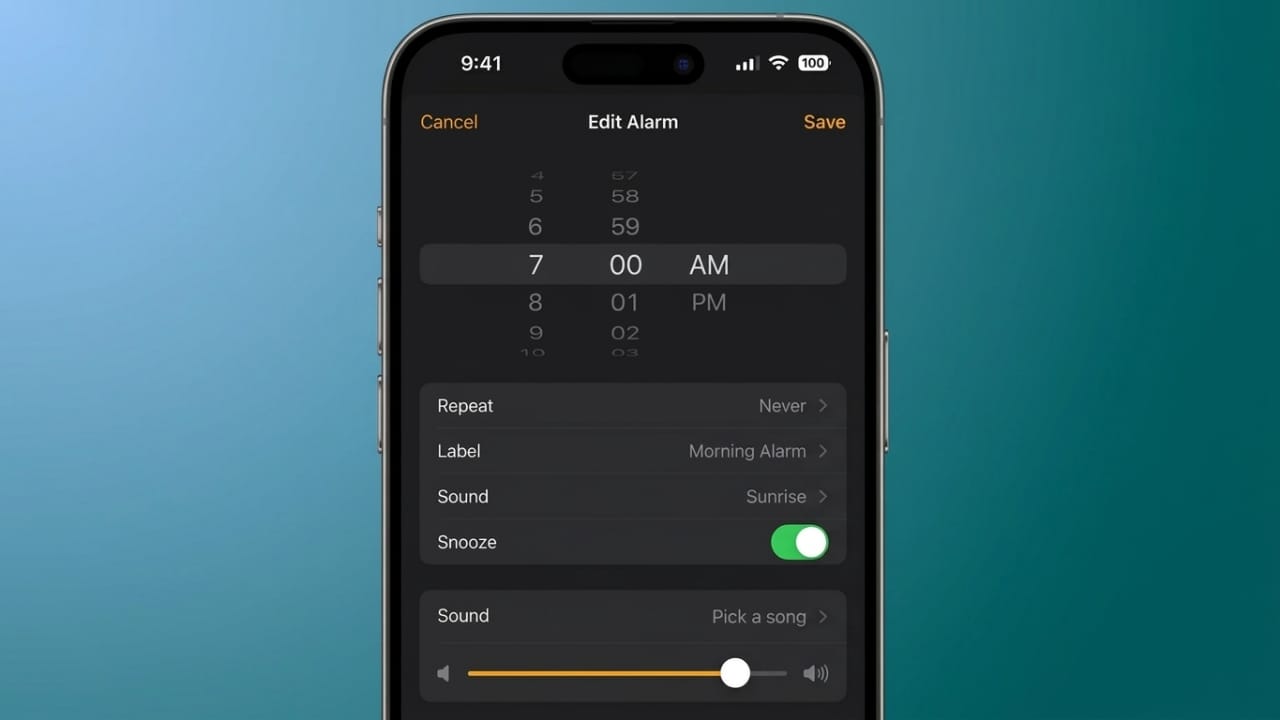
Waking up to your favorite song can make your mornings feel more pleasant. Instead of using the default alarm tone, your iPhone lets you choose music from your library as your alarm sound. The process is simple and only takes a few minutes.
In this guide, you’ll learn how to change your iPhone alarm to a song, explore the available music options, and discover a few helpful alternatives.
Advertisements
Also read: How to Convert PNG to PDF on Windows, Mac, and Mobile
Set a Song as Your iPhone Alarm
Follow these steps to use a song as your alarm:
- Open the Clock app on your iPhone.
- Tap the Alarm tab at the bottom.
- To create a new alarm, tap the + icon. To edit an existing alarm, tap Edit and select the alarm you want to change.
- Tap Sound.
- Under the Songs section, choose Pick a Song.
- Select a song from your Music library.
- Tap Back, then tap Save.
Your selected song will now play whenever that alarm goes off.
Customize Your Alarm
While editing an alarm, you can also adjust other settings to fit your daily routine.
You can:
- Set the wake-up time.
- Choose repeat days for weekdays or weekends.
- Turn Snooze on or off.
- Add a label such as “Work” or “Morning Workout.”
Don’t forget to save your changes before leaving the screen.
Which Songs Can You Use?
Your iPhone can only use music that is available in the Music app.
Supported options include:
- Downloaded Apple Music songs.
- Songs purchased from iTunes.
- Music synced from your computer.
- Custom ringtones you have created or added.
If a song is not saved in your Music library, it cannot be selected as a standard iPhone alarm.
Can You Use Spotify Songs?
Not directly.
The built-in iPhone Clock app does not allow Spotify tracks to be used as alarm sounds. If you want to wake up with Spotify music, you’ll need a third-party alarm app that supports Spotify. Some of these apps may require a Spotify Premium subscription.
The setup usually involves signing in to your Spotify account, choosing a song or playlist, and creating the alarm inside that app instead of Apple’s Clock app.
Music Alarm Options on Android
Some Android phones offer more flexibility with streaming services.
For example, many Samsung and Google Pixel devices let you choose music from supported apps such as Spotify or YouTube Music directly from the Clock app. Depending on the device and software version, other music services may also be available.
Stop Music Automatically Before Sleep
Your iPhone also includes a timer that can stop music after a set amount of time. This is useful if you like listening to music, podcasts, or relaxing sounds before going to bed.
How to Set the Stop Playing Timer
- Open the Clock app.
- Tap Timer.
- Choose how long you want the music to play.
- Tap When Timer Ends.
- Scroll to the bottom and select Stop Playing.
- Tap Set.
- Start playing your music.
- Return to the Timer screen and tap Start.
When the timer reaches zero, playback will stop automatically.
If you want your timers to play a sound again in the future, remember to change When Timer Ends back to a ringtone.
Use Music Alarms on Smart Speakers
If you use a smart speaker, you can also wake up to your favorite music.
Amazon Alexa
Alexa supports alarms with music from several streaming services, including:
- Amazon Music
- Spotify
- Pandora
- TuneIn
- SiriusXM
- iHeartRadio
You can create an alarm using voice commands or manage it through the Alexa app.
Google Assistant
Google Nest speakers also support music alarms. After selecting your preferred music service in the Google Home app, you can ask Google Assistant to wake you up with a specific song, artist, playlist, or genre.
Supported services may include:
- YouTube Music
- Spotify
- Apple Music
- Pandora
- Amazon Music
- Deezer
- iHeartRadio
Apple HomePod
If you own a HomePod, you can create personalized alarms using Siri or the Home app. You can choose songs, playlists, radio stations, or ambient sounds, and even adjust options like repeat, shuffle, and playback volume.
Also read: WhatsApp Starts Rolling Out Username Reservations Before Global Launch
Final Thoughts
Changing your iPhone alarm to a favorite song is an easy way to make mornings more enjoyable. As long as the music is available in your Music library, you can set it as your alarm in just a few taps.
You can also use the built-in sleep timer to stop music automatically at bedtime or explore smart speaker features for an even more personalized wake-up experience.

I am a passionate Tech Writer with strong industry experience. I enjoy exploring the latest technological innovations and sharing clear, helpful insights with my audience.”
Advertisements