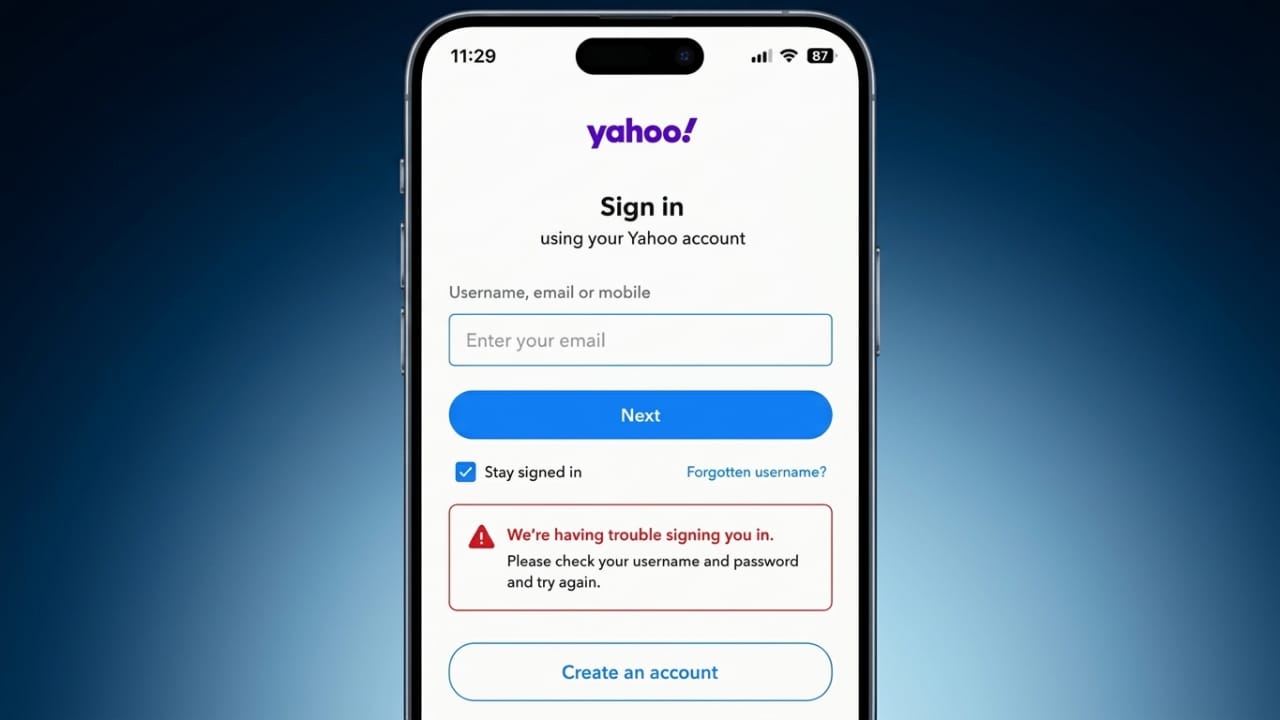
Having trouble signing in to your Yahoo Mail account can be frustrating, especially when you need to access important emails. Login issues can happen for several reasons, including an incorrect password, browser problems, security verification, or temporary service interruptions.
The good news is that most Yahoo Mail login problems are easy to fix. This guide explains the most common causes and the best solutions in simple language.
Advertisements
Also read: How to Set a Song as Your iPhone Alarm
Why Can’t You Log In to Yahoo Mail?
Before trying different fixes, it’s helpful to understand why the login is failing. In some cases, the issue is on your device. In others, Yahoo’s services may be temporarily unavailable.
Some common reasons include:
- Entering the wrong email address
- Typing an incorrect password
- Forgetting your login details
- Browser cache or cookies causing conflicts
- A temporary Yahoo server issue
- Security checks after unusual login activity
- Account temporarily locked after multiple failed attempts
- Two-step verification problems
- Using an outdated browser or Yahoo Mail app
- Slow or unstable internet connection
Finding the actual cause makes it much easier to solve the problem.
Check If Yahoo Mail Is Down
Sometimes there is nothing wrong with your account. Yahoo may be experiencing a temporary outage that affects users in different regions.
Before changing your password or account settings, check whether Yahoo Mail is currently working. You can also look at online outage reports to see if other users are facing the same problem.
If the service is temporarily unavailable, the best option is to wait until Yahoo restores normal operation.
Review Your Login Information
One of the most common reasons for login failure is entering incorrect account details.
Make Sure Your Email Address Is Correct
Carefully check your email address before signing in. Small typing mistakes can prevent access.
Look for:
- Misspelled usernames
- Missing letters or numbers
- Incorrect email domain
- Extra spaces before or after the address
Even a minor error can stop the login process.
Double-Check Your Password
Passwords are case-sensitive, so uppercase and lowercase letters must match exactly.
Before signing in:
- Turn off Caps Lock.
- Check your keyboard language.
- Type the password slowly.
- Avoid relying on autofill if it repeatedly fails.
- Review the password before submitting it.
If available, use the password visibility (eye) icon to confirm you’ve entered the correct characters.
Remove Saved Passwords From Your Browser
Your browser may still be using an old saved password. If you recently changed your Yahoo password, autofill could be entering outdated information.
Delete the saved Yahoo password from your browser and type the password manually to see if that resolves the issue.
Try a Different Yahoo Login Page
If one login page isn’t working properly, try accessing Yahoo Mail through another official Yahoo sign-in page.
Sometimes switching to a different login page helps resolve temporary connection or loading issues.
Reset Your Yahoo Password
If you’re sure the password is incorrect or you’ve forgotten it, resetting it is usually the fastest solution.
Steps to Reset Your Password
- Open the Yahoo sign-in page.
- Click Forgot Password.
- Enter your Yahoo email address.
- Complete the identity verification process.
- Create a new password.
- Sign in using your updated password.
Choose a Strong Password
A secure password should include:
- Uppercase letters
- Lowercase letters
- Numbers
- Special characters
Avoid using common words, birthdays, or simple number combinations that are easy to guess.
What Happens If Your Account Is Locked?
Yahoo temporarily locks accounts after several unsuccessful login attempts to help protect user information.
If this happens:
- Wait for some time before trying again.
- Reset your password if needed.
- Sign in from a trusted device or network.
- Complete any requested identity verification.
Once verified, you should be able to access your account again.
Clear Browser Cache and Cookies
Old browsing data can interfere with the Yahoo login process.
To clear cache and cookies:
- Open your browser settings.
- Go to Privacy or Privacy & Security.
- Select the option to clear browsing data.
- Remove cached files and cookies.
- Restart the browser.
- Try signing in again.
This simple step often fixes login-related problems.
Restart Your Browser
Temporary browser glitches can sometimes interrupt the login process.
Close the browser completely, wait a few seconds, reopen it, and try logging in again.
Fix Temporary Yahoo Errors
Yahoo may occasionally display temporary error messages during sign-in.
These errors are often caused by:
- Browser compatibility issues
- Corrupted cache
- Cookie conflicts
You can usually fix them by:
- Restarting the browser
- Clearing cache and cookies
- Trying a different browser
Try Another Browser
If Yahoo Mail won’t open in your current browser, test it in another one.
Popular options include:
- Google Chrome
- Mozilla Firefox
- Microsoft Edge
- Safari
If the login works elsewhere, the problem is likely related to your original browser.
Disable Browser Extensions
Some browser extensions can interfere with Yahoo’s login page.
Extensions that may cause problems include:
- Ad blockers
- Privacy tools
- Security add-ons
To check if an extension is responsible:
- Disable all extensions.
- Restart the browser.
- Try signing in.
- Re-enable extensions one at a time until you identify the one causing the issue.
Check Your Internet Connection
A weak or unstable internet connection may interrupt the login process.
You can try:
- Restarting your Wi-Fi router
- Switching to another network
- Running an internet speed test
- Moving closer to your Wi-Fi router
A stable connection improves the chances of a successful login.
Update Your Browser
Older browser versions may not work properly with the latest Yahoo security features.
Install any available updates, restart the browser, and try signing in again.
Update the Yahoo Mail App
If you’re using Yahoo Mail on a smartphone, make sure the app is updated.
To update it:
- Open the App Store or Google Play Store.
- Search for Yahoo Mail.
- Install the latest available update.
- Restart the app.
- Sign in again.
Keeping the app updated improves performance and fixes known issues.
Solve Two-Step Verification Problems
Two-step verification provides extra security, but it can sometimes create login difficulties.
Common issues include:
- Verification codes not arriving
- Lost or unavailable recovery devices
- Network delays
- Incorrect recovery information
Keep your recovery phone number and email address up to date so you can regain access more easily if needed.
Use Yahoo Account Key
Yahoo offers an Account Key feature that lets you approve login requests from your mobile device instead of entering a password.
If you’re already using Account Key and experience problems, you may be able to switch back to password-based login after verifying your identity.
Tips to Avoid Future Yahoo Login Problems
You can reduce the chances of login issues by following a few simple habits:
- Create a strong and unique password.
- Enable two-step verification.
- Keep your recovery information updated.
- Regularly update your browser and Yahoo Mail app.
- Avoid signing in on unsecured public Wi-Fi whenever possible.
- Check your account activity regularly.
- Always enter your login details carefully.
- Use a reliable internet connection.
These small steps help keep your Yahoo account secure and easier to access.
Also read: How to Convert PNG to PDF on Windows, Mac, and Mobile
Final Thoughts
Most Yahoo Mail login problems can be fixed without contacting support. Start by checking your email address and password, then clear your browser’s cache, update your software, and make sure your internet connection is stable.
If the issue continues, resetting your password or completing Yahoo’s security verification usually restores access. By keeping your account information updated and following good security practices, you can avoid many login problems in the future.

I am a passionate Tech Writer with strong industry experience. I enjoy exploring the latest technological innovations and sharing clear, helpful insights with my audience.”
Advertisements