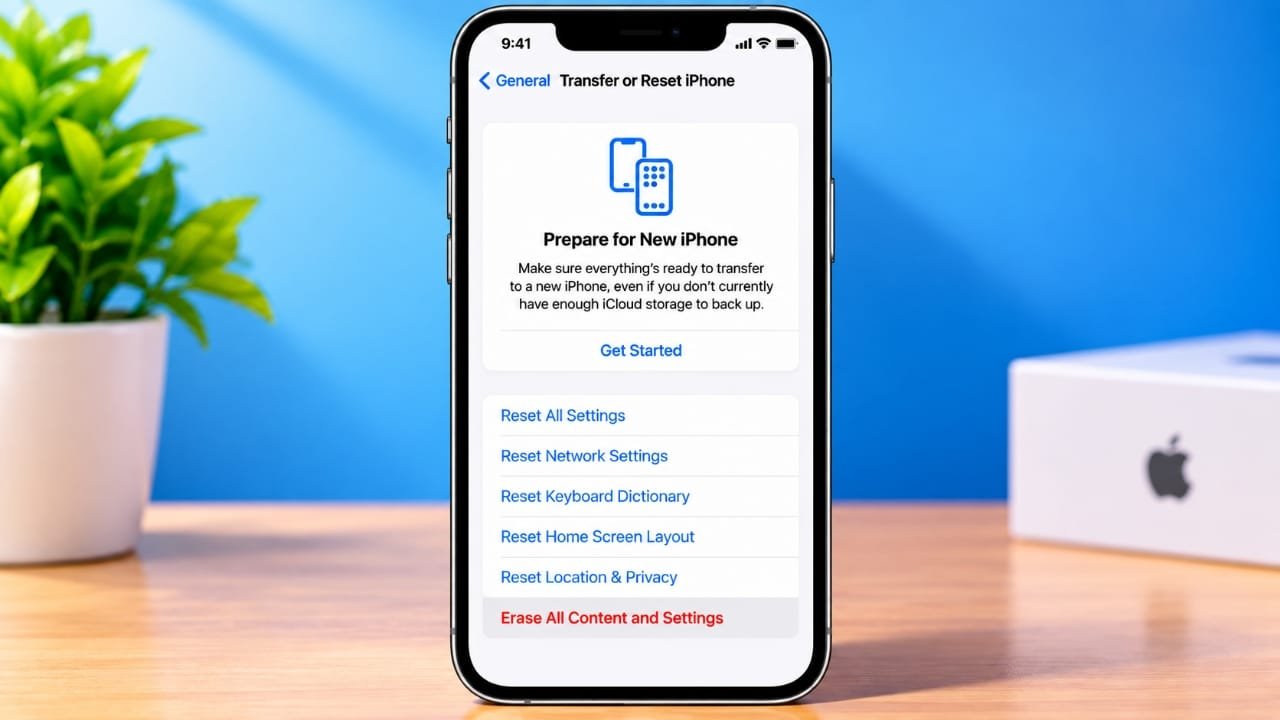
A factory reset completely erases the information stored on your iPhone 13. This can be useful when you are selling or giving away the phone, or when you need to start fresh after a serious software problem.
You can reset an iPhone 13 directly from the Settings app. If the phone cannot be used normally, you can also use a Mac or Windows PC.
Advertisements
Before you begin, make sure you have a backup of anything you want to keep.
Also read: Xiaomi 18 Pro Series Arrives With Dual 200MP Cameras and Up to 8,500mAh Battery
Back Up Your iPhone Before Resetting
A factory reset deletes photos, messages, apps, files, settings, and other information stored on the device.
If you use iCloud, your backup can be used later when setting up another iPhone. Check that the backup has completed before you erase the device.
To avoid losing recent information, it is a good idea to perform a manual backup if you are unsure when the last backup was created.
Once you have confirmed that your important data is backed up, you can continue with the reset.
How to Factory Reset an iPhone 13 From Settings
This is the simplest method when your iPhone is working normally.
- Open Settings.
- Tap General.
- Scroll down and select Transfer or Reset iPhone.
- Tap Erase All Content and Settings.
- Review the information shown on the screen.
- Tap Continue.
- Enter your iPhone passcode when asked.
- Enter your Apple Account password if required.
- Follow the instructions displayed on the iPhone.
- Wait for the erasing process to finish.
The iPhone may offer to create a final iCloud backup before the data is erased. If you need that backup, allow the process to finish before continuing.
After the reset is complete, the iPhone will restart and display the initial setup screen.
What Happens After a Factory Reset?
The reset removes personal information and customized settings from the iPhone.
This includes locally stored items such as:
- Photos and videos
- Messages
- Apps and their local data
- Personal settings
- Saved accounts and connections
- Other information stored on the device
Your iCloud data and existing cloud backup are not the same thing as the data currently stored on the iPhone. Information that has already been backed up to iCloud can generally be restored when you set up another compatible device.
If you are preparing the iPhone for another person, make sure you have saved everything you need before starting the erase process.
How to Reset an iPhone 13 Using a Computer
A computer can be useful if you cannot access the normal Settings menu or if the iPhone is experiencing certain software problems.
On a Mac, newer versions of macOS use Finder to manage an iPhone. On Windows PCs, Apple devices can be managed through the appropriate Apple software, such as the Apple Devices app or iTunes depending on the system being used.
Connect the iPhone to the Computer
Use a suitable Lightning cable to connect the iPhone 13 to the computer.
Unlock the iPhone if possible and follow any trust or connection prompts that appear.
On a Mac, open Finder and select the iPhone from the sidebar.
On Windows, open the Apple device management software available on your computer and select the connected iPhone.
Look for the option to restore the iPhone and follow the instructions provided by the software.
The restoration process erases the device and reinstalls the required software. When the process is finished, the iPhone restarts and displays the setup screen.
Factory Reset vs. Force Restart
A factory reset and a force restart do very different things.
A factory reset erases the contents of the iPhone and returns it to its initial setup state.
A force restart, sometimes called a hard reset, simply restarts the device. It does not normally delete your photos, apps, messages, or other personal information.
If your iPhone is frozen or not responding, try a force restart before considering a complete factory reset.
How to Force Restart an iPhone 13
The iPhone 13 does not have a physical Home button. To force restart it:
- Quickly press and release Volume Up.
- Quickly press and release Volume Down.
- Press and hold the Side button.
- Keep holding the Side button until the Apple logo appears.
- Release the button when the Apple logo is visible.
The phone should then restart normally.
If a power-off slider appears while you are holding the Side button, continue holding the button until the Apple logo appears.
A force restart does not normally erase the information on your iPhone.
How to Turn Off an iPhone 13
You can shut down the iPhone through Settings or with the physical buttons.
Using Settings
- Open Settings.
- Tap General.
- Scroll to the bottom.
- Tap Shut Down.
- Drag the power-off slider when it appears.
Using the Buttons
Press and hold the Side button and either Volume button at the same time.
When the power-off slider appears, release the buttons and drag the slider to turn off the iPhone.
Using Recovery Mode on an iPhone 13
Recovery Mode can be useful when the iPhone has a software problem that prevents it from starting or being restored normally.
You will need a computer with Finder or compatible Apple device software.
First, connect your iPhone to the computer using a suitable cable.
Then follow these steps:
- Quickly press and release Volume Up.
- Quickly press and release Volume Down.
- Press and hold the Side button.
- Keep holding the button until the recovery screen appears.
- Release the Side button.
The computer should detect the iPhone in recovery mode.
Depending on the situation, you may see options such as Update and Restore.
Update or Restore?
If the goal is to reinstall iOS while attempting to preserve your personal data, Update is generally the option to try first when it is available.
If the iPhone needs to be completely erased and restored, Restore is the relevant option. Restoring the device will erase its contents.
Follow the instructions shown by Finder or the Apple device software on your computer.
How to Exit Recovery Mode
If you entered recovery mode by mistake, you can usually restart the iPhone.
Press and hold the Side button until the recovery screen disappears and the Apple logo appears.
The phone should then restart normally.
What Is DFU Mode?
DFU stands for Device Firmware Update.
It is a deeper device-recovery state used for certain situations involving an iPhone’s software and firmware. It is more advanced than a normal restart or standard recovery mode.
Because the button sequence is easy to get wrong, most users should try normal troubleshooting and Recovery Mode first.
If you specifically need DFU Mode, connect the iPhone to a computer and keep Finder or the appropriate Apple device software open.
Entering DFU Mode on iPhone 13
The commonly used sequence is:
- Quickly press and release Volume Up.
- Quickly press and release Volume Down.
- Press and hold the Side button until the screen becomes black.
- Once the screen is black, keep holding the Side button and also press and hold Volume Down.
- Hold both buttons for about five seconds.
- Release the Side button while continuing to hold Volume Down.
- Keep holding Volume Down until the computer detects the device.
The iPhone screen can remain black when DFU Mode is active. The computer should provide an indication if it has detected the device.
From there, you can follow the computer’s instructions if a restore is required.
How to Leave DFU Mode
To leave DFU Mode without continuing with a restore:
- Quickly press and release Volume Up.
- Quickly press and release Volume Down.
- Press and hold the Side button.
- Continue holding it until the Apple logo appears.
The iPhone should then restart.
Other Useful iPhone 13 Button Functions
The iPhone 13 uses two volume buttons on the left side and a Side button on the right. Since there is no physical Home button, several important functions use combinations of these buttons.
Knowing these combinations can make basic troubleshooting easier.
How to Use Emergency SOS
Emergency SOS is designed for situations where you need emergency assistance.
On an iPhone 13, pressing and holding the Side button and either Volume button can bring up the Emergency SOS controls and countdown.
Use this feature only when you genuinely need emergency assistance.
Emergency SOS settings can be adjusted from:
Settings → Emergency SOS
Available options can vary depending on your region and iOS version.
How to Temporarily Disable Face ID
You can temporarily prevent Face ID from unlocking the iPhone.
Press and hold the Side button together with either Volume button. This brings up the power and emergency options.
You do not need to complete an emergency call. Cancel the screen when appropriate.
Afterward, the iPhone will require your passcode before Face ID can be used again.
Also read: Samsung Galaxy S26 Price Increased by ₹12,000 in India: Check New Prices
Final Thoughts
A factory reset is useful when you want to completely erase an iPhone 13, especially before giving the device to someone else or troubleshooting a major software issue.
The most important step is to check your backup before erasing the phone. Once the local information has been deleted, it may not be possible to recover it unless a suitable backup exists.
For a normally working iPhone, the Settings method is the easiest option. If the device is having serious software problems, a computer, Recovery Mode, or—in more advanced cases—DFU Mode may provide additional recovery options.

I am a passionate Tech Writer with strong industry experience. I enjoy exploring the latest technological innovations and sharing clear, helpful insights with my audience.”
Advertisements