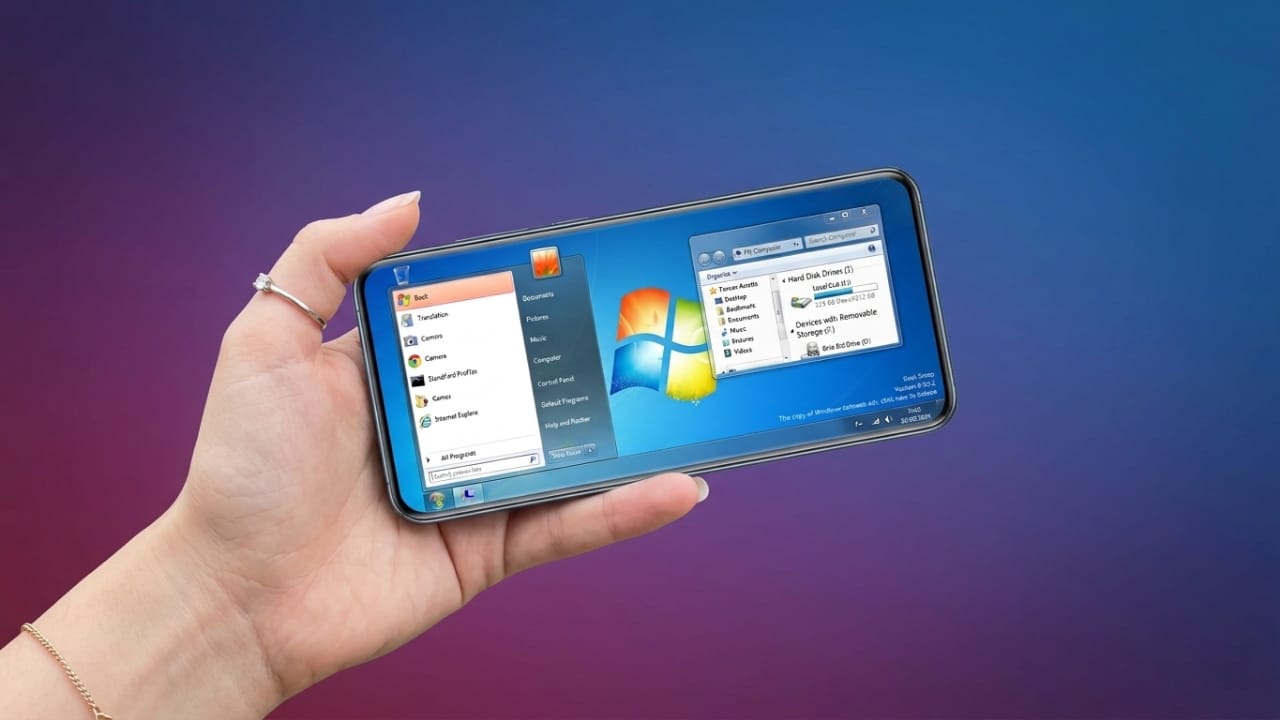
Smartphones have become powerful enough to handle many tasks that were once limited to computers. From managing files to browsing the internet and working on documents, most everyday activities can now be done directly on a mobile device.
If you enjoy the look and feel of Windows, you can make your Android phone resemble a desktop computer by using a Computer Launcher app. These launchers change the appearance of your phone and provide a desktop-inspired interface for easier navigation.
Advertisements
Also read: Battery Charging Animation 4K: Make Your Phone’s Charging Screen More Attractive
What Is a Computer Launcher?
A Computer Launcher is an Android application that transforms the appearance of your phone into a desktop-style environment. Instead of the standard Android home screen, you get a layout that looks similar to a Windows computer.
The launcher does not install the Windows operating system on your phone. It simply changes the design and user interface to provide a computer-like experience.
Benefits of Using a Computer Launcher
1. Desktop-Like Interface
One of the biggest advantages of a Computer Launcher is its desktop-inspired design. Features such as a Start Menu, desktop icons, and a file management area make the phone feel more like a computer.
Users who are familiar with Windows may find this layout comfortable and easy to use.
2. Improved Desktop Experience
The launcher places app icons directly on the desktop screen, making navigation simple and organized. Some launchers even include options similar to desktop actions, creating a more computer-like environment on Android.
3. Convenient File Management
Many Computer Launcher apps include a built-in file manager with a layout inspired by desktop operating systems. This can make it easier to browse folders, access storage, and organize files.
Users who frequently manage documents, photos, or downloads may find this feature useful.
4. Customization Options
Most launchers allow you to personalize the interface according to your preferences. You can:
- Change wallpapers
- Modify icon styles
- Customize folders
- Rearrange shortcuts
- Pin favorite apps for quick access
These options help create a workspace that matches your needs.
5. Quick Access to Apps and Widgets
Computer Launchers often support widgets and shortcuts on the desktop screen. This allows you to keep important tools, such as weather updates, calendars, or frequently used apps, within easy reach.
As a result, common tasks can be completed more quickly.
Things to Consider Before Using a Computer Launcher
While these launchers offer many useful features, they also have some limitations.
- They may use additional RAM and system resources.
- Performance can be slower on older or low-end devices.
- Some desktop-style features may not work exactly like they do on a real computer.
- Users who are new to desktop-style interfaces may need some time to adjust.
For the best experience, it is recommended to use a device with sufficient storage and memory.
How to Install a Computer Launcher
Installing a Computer Launcher is simple:
- Open the Google Play Store.
- Search for “Computer Launcher”.
- Choose a launcher with good ratings and reviews.
- Tap the Install button.
- Once installed, open the app and follow the setup instructions.
- Set it as your default launcher if prompted.
After setup, your phone’s home screen will switch to the new desktop-style interface.
How to Use a Computer Launcher
After installation, you can start exploring its features:
- Open apps through the Start Menu.
- Long-press on the desktop to access customization settings.
- Add widgets and shortcuts to the desktop screen.
- Use the built-in file manager to browse files and folders.
- Organize icons and folders according to your preference.
Most launchers are designed to be easy to use, even for beginners.

Also read: Batix – Charging Photo: Personalize Your Android Charging Screen with Custom Animations
Final Thoughts
A Computer Launcher is a simple way to give your Android phone a fresh and unique look. While it does not turn your device into a real Windows computer, it can provide a desktop-style experience that many users enjoy.
With features like a Start Menu, desktop icons, file management tools, and customization options, these launchers can make navigation more organized and visually appealing. If you like the appearance of a computer desktop, trying a Computer Launcher on your Android phone can be a fun and practical option.

I am a passionate Tech Writer with strong industry experience. I enjoy exploring the latest technological innovations and sharing clear, helpful insights with my audience.”
Advertisements