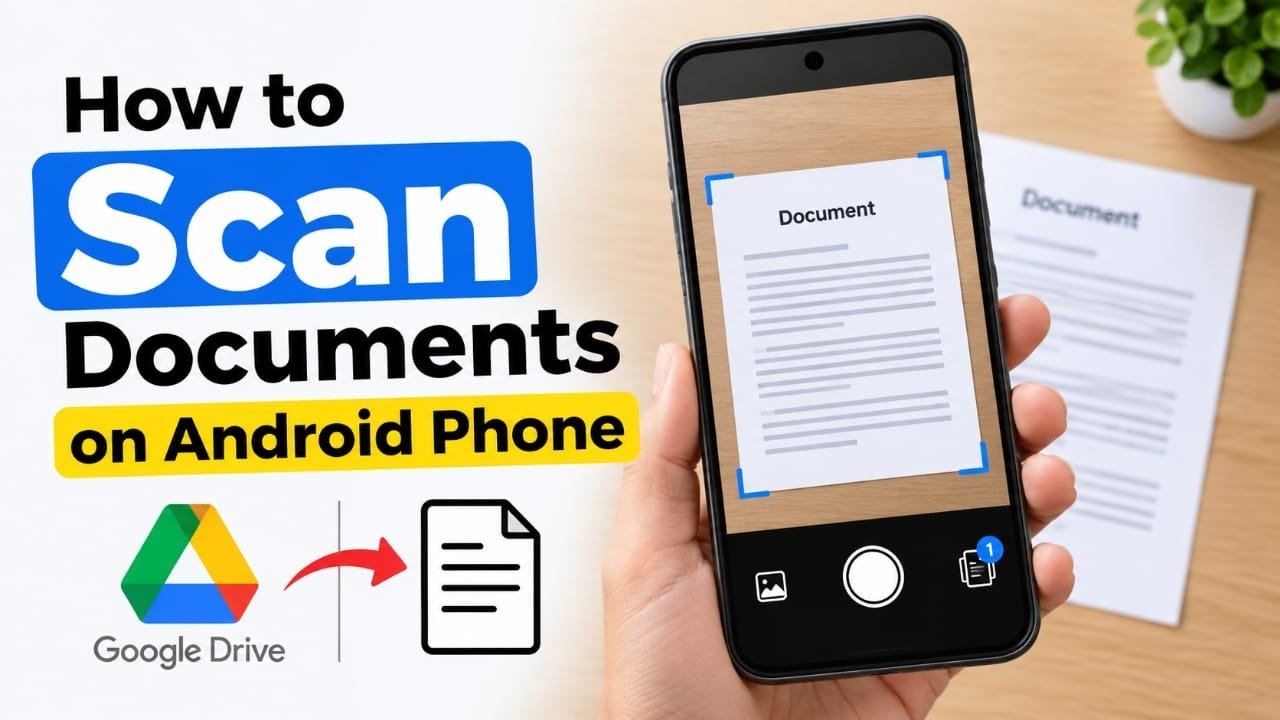
You don’t need a separate scanner to create a digital copy of a document. If you have an Android phone, you can scan papers using tools that may already be available on your device.
For many Android users, the Google Drive app provides a simple way to capture documents and save them digitally. Some phone manufacturers also include a document-scanning option directly in the Camera app.
Advertisements
Here’s how both methods work.
Also read: How to Factory Reset an iPhone 13 With or Without a Computer
How to Scan a Document Using Google Drive
Google Drive has a built-in scanning feature that lets you capture documents with your phone’s camera and save them to your Drive.
Step 1: Open Google Drive
Launch the Google Drive app on your Android phone.
Step 2: Start the Scanner
Look for the Camera option near the bottom-right corner and tap it.
Step 3: Position the Document
Place the document on a flat surface and point your phone’s camera toward it. Try to keep all four corners visible inside the camera frame.
Step 4: Adjust the Document Edges
Google Drive may automatically detect the edges of the paper and show an outline around it. Adjust the corners if any part of the document is missing or unnecessary areas are included.
Step 5: Capture the Document
Tap the capture button to take a scan.
Depending on the version of the app, you may also be able to choose between automatic and manual capture modes.
Step 6: Edit the Scan
After taking the picture, you can make some basic adjustments. Options may include:
- Crop and Rotate to fix the framing or orientation
- Filter to improve how the document looks
- Clean to remove unwanted marks or areas
Check the result before moving to the next step.
Step 7: Add More Pages
If the document has multiple pages, use the Add option to scan additional pages into the same file.
Step 8: Retake or Remove Pages
Not happy with a particular scan? Use Retake to capture it again. You can also delete individual pages if they are no longer needed.
Once everything looks correct, tap Done.
Step 9: Give the File a Name
Enter a name for your scanned document, or use the suggested name provided by the app.
Step 10: Choose a File Format
Depending on the available options, select the format you want to use, such as PDF or JPG.
Step 11: Select a Folder
Choose where you want the scanned file to be stored in Google Drive.
Step 12: Save the Document
Tap Save to finish. Your scanned document will then be stored in the selected location.
How to Scan Documents Using the Camera App
Some Android phone brands include a document-scanning feature in their default Camera app. The exact option and its location can vary depending on the phone manufacturer and software version.
Step 1: Open the Camera
Launch the default Camera app on your phone.
Step 2: Place the Document Properly
Put the document on a flat surface and point the camera toward it. Keep the entire page visible and try to avoid shadows or glare.
Step 3: Look for the Document Scanner
If your phone supports document scanning, the Camera app may automatically detect the page and display a document or page icon.
Tap the icon when it appears.
Step 4: Check the Scan
Review the captured document. If the result isn’t clear or the edges aren’t correct, use the available option to capture it again.
Step 5: Save the Document
Tap Save. Depending on your phone, the scanned file may be stored in the Gallery, Photos, or Files app.
Because the available features differ between manufacturers, your phone may have slightly different buttons or scanning options.
Tips for Getting a Better Scan
A few simple steps can make your digital copies easier to read:
- Keep the document on a flat surface.
- Use good lighting and avoid strong shadows.
- Hold the phone directly above the paper when possible.
- Make sure all important text is inside the frame.
- Check the final scan before saving it.
- For multi-page documents, make sure every page is captured in the correct order.
Frequently Asked Questions
Can I scan a document with an Android phone?
Yes. You can use Google Drive’s scanning feature, or use a document-scanning option available in your phone’s Camera app if your device supports it.
Do I need a separate scanner?
No. For basic document scanning, your Android phone’s camera and an available scanning feature can be enough.
Do I need to install a third-party scanning app?
Not necessarily. Google Drive includes a document-scanning feature, and some Android phones also provide scanning tools through their built-in Camera app.
Where are Google Drive scans saved?
Documents scanned through Google Drive are saved to your Google Drive account in the location you select when saving the file.
Can I scan multiple pages into one document?
Yes. When using Google Drive’s scanner, you can add additional pages before saving the final document, provided the feature is available in your version of the app.
Also read: Xiaomi 18 Pro Series Arrives With Dual 200MP Cameras and Up to 8,500mAh Battery
Final Words
Scanning a document with an Android phone is a convenient alternative to using a traditional scanner. Google Drive is a straightforward option for creating digital copies, while some Android phones offer similar tools directly through the Camera app.
The exact buttons and features can vary by phone model and software version, but the basic process is simple: position the document, capture it, check the result, and save the digital copy.

I am a passionate Tech Writer with strong industry experience. I enjoy exploring the latest technological innovations and sharing clear, helpful insights with my audience.”
Advertisements