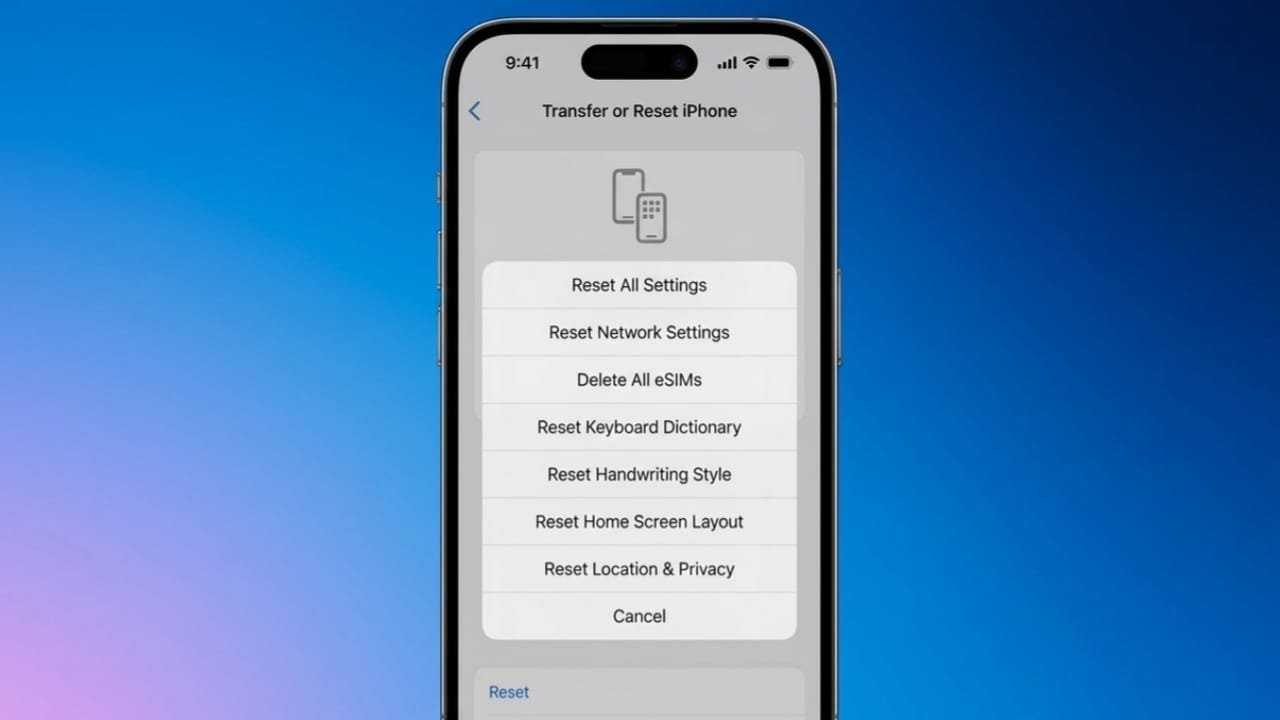
If your iPhone is having trouble connecting to Wi-Fi, mobile data, or Bluetooth, resetting the network settings can often solve the issue. This option restores all network-related settings to their original state without deleting your personal files.
Your photos, videos, apps, messages, and documents stay safe. Only network settings are removed, giving your iPhone a fresh start for connections.
Advertisements
Also read: Google Pixel 11 Pro Fold Launched: Price, Specifications, AI Features, and Availability
When Should You Reset Network Settings?
A network reset is useful when basic troubleshooting, such as restarting your iPhone, doesn’t solve the problem.
You may want to reset your network settings if:
- Wi-Fi keeps disconnecting or won’t connect.
- Mobile data suddenly stops working.
- Bluetooth connections are unstable.
- VPN disconnects repeatedly.
- Internet speed becomes unusually slow.
- Your iPhone frequently loses cellular signal.
- Network problems continue even after restarting the device.
Since this reset only affects network settings, your personal content remains untouched.
Back Up Your iPhone First
Although this process does not erase your files, creating a backup is still a good idea. If needed, you can restore your previous settings or recover important information later.
How to Reset Network Settings on iPhone
Follow these steps:
- Open Settings.
- Tap General.
- Select Transfer or Reset iPhone.
- Tap Reset.
- Choose Reset Network Settings.
- Enter your device passcode.
- Confirm your choice.
- Wait for your iPhone to restart.
The restart usually takes less than a minute. After unlocking your device, it should reconnect to your mobile network automatically.
If your cellular connection still doesn’t work, contact your mobile carrier or Apple Support for further assistance.
What Changes After the Reset?
Resetting network settings removes saved connection information while leaving your personal data intact.
The following changes will occur:
- Saved Wi-Fi networks are removed.
- Stored Wi-Fi passwords are deleted.
- VPN settings return to their default state.
- Cellular network settings are refreshed.
- Previously connected networks are cleared.
- Trusted network certificates may need to be approved again.
- Your iPhone name changes back to the default “iPhone.”
- Cellular data roaming settings may be turned off.
Wi-Fi may switch off briefly during the process but will automatically turn back on after the restart.
VPN and Management Profiles
If your VPN was installed through a configuration profile, resetting network settings may not remove it completely.
To remove a configuration profile:
- Open Settings.
- Go to General.
- Tap VPN & Device Management.
- Select the profile.
- Tap Remove Profile.
If your iPhone is managed by an organization through Mobile Device Management (MDM), you’ll need to remove the management profile separately from the same menu. Doing so may also remove related certificates and managed accounts.
Be Careful with Other Reset Options
iPhone offers several reset options, and each one serves a different purpose.
Available options include:
- Reset All Settings
- Reset Network Settings
- Reset Keyboard Dictionary
- Reset Home Screen Layout
- Reset Location & Privacy
Avoid choosing Erase All Content and Settings unless you intend to completely erase your device, as it permanently removes your personal data.
Some iPhones also provide an option to remove stored eSIM profiles. If you use this feature, you’ll need to set up your eSIM again or insert a physical SIM card.
Reconnect to Your Networks
After the reset, you’ll need to reconnect to your networks manually.
Connect to Wi-Fi
- Open Settings.
- Tap Wi-Fi.
- Select your network.
- Enter the Wi-Fi password.
- Tap Join.
Your internet connection should be restored if the network is working correctly.
Set Up Your VPN Again
If you use a VPN, open your VPN app after the reset and complete the setup using the information provided by your VPN service.
Check Your Mobile Network
Most iPhones reconnect to the cellular network automatically. If yours doesn’t, restart the device once more or contact your mobile service provider for help.
Try These Simple Fixes Before Resetting
A network reset is helpful, but it’s usually best to try a few easier solutions first.
Turn Airplane Mode On and Off
This refreshes your wireless connections.
- Open Settings.
- Enable Airplane Mode.
- Wait about one minute.
- Turn it off again.
- Test your connection.
Restart Your iPhone
Restarting can fix temporary software or network glitches.
- Turn off your iPhone using the Power button (or Power + Volume button on some models).
- Wait a few seconds.
- Turn it back on.
- Unlock the device and check your connection.
Forget and Rejoin the Wi-Fi Network
If only one Wi-Fi network is causing problems:
- Open Settings.
- Tap Wi-Fi.
- Tap the Info (i) button next to the network.
- Select Forget This Network.
- Confirm your choice.
- Reconnect by entering the Wi-Fi password again.
This often resolves connection issues caused by outdated network information.
Also read: ChatGPT May Soon Let You Create and Send WhatsApp Stickers Directly
Final Thoughts
Resetting your iPhone’s network settings is a simple and effective way to fix common Wi-Fi, mobile data, Bluetooth, and VPN issues. Because it only resets network-related settings, your personal files remain safe.
Before using this option, try basic troubleshooting methods like restarting your device or reconnecting to your Wi-Fi network. If the issue continues even after the reset, your mobile carrier or Apple Support can help identify the underlying problem.

I am a passionate Tech Writer with strong industry experience. I enjoy exploring the latest technological innovations and sharing clear, helpful insights with my audience.”
Advertisements