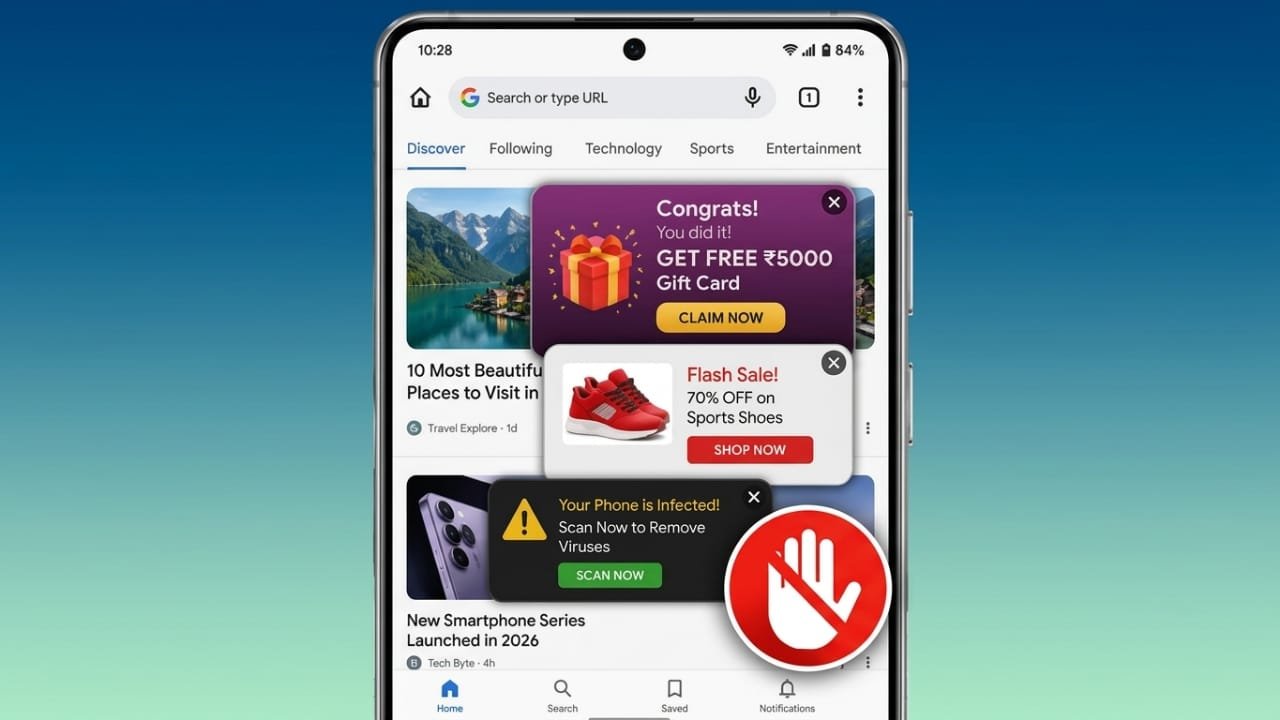
Pop-up ads can quickly ruin your browsing experience on an Android phone. They interrupt what you’re doing, slow down browsing, and sometimes lead to fake websites or misleading offers. The good news is that you can reduce or stop most pop-up ads by changing a few settings and checking your device for suspicious apps.
This guide explains the safest and easiest ways to block unwanted pop-ups on Android.
Advertisements
Also read: How to Stop Your Phone From Overheating and Keep It Running Smoothly
Block Pop-Up Ads Through Your Browser
Many pop-up ads appear while visiting websites. Most Android browsers include built-in tools that can block these interruptions.
Google Chrome
Google Chrome offers settings that help prevent pop-ups and unwanted redirects.
Follow these steps:
- Open Google Chrome.
- Tap the three-dot menu.
- Select Settings.
- Open Site settings.
- Tap Pop-ups and redirects and turn on the blocking option.
- Go back to Site settings.
- Open Ads (or Intrusive ads, depending on your version).
- Enable ad blocking.
These settings can reduce unwanted windows while browsing. If a trusted website needs pop-ups for features like payments or downloads, you can allow them temporarily.
Use Incognito Mode
When visiting unfamiliar websites, browsing in Incognito Mode can reduce tracking and prevent many unwanted pop-ups. It also doesn’t save your browsing history on your device.
Mozilla Firefox
Firefox blocks many pop-ups automatically and includes extra privacy features.
To browse privately:
- Open Firefox.
- Tap the three-dot menu.
- Select New Private Tab.
You can also improve privacy by enabling Enhanced Tracking Protection in Strict mode. This blocks many tracking scripts that are often used to display unwanted ads.
If you use extensions, install only trusted and highly rated ones from the official Firefox add-ons library.
Samsung Internet
Samsung Internet has built-in pop-up protection.
Steps:
- Open Samsung Internet.
- Tap the menu icon.
- Go to Settings.
- Open Privacy Dashboard (or Sites and Downloads on some older versions).
- Turn on Block pop-ups.
The exact menu may vary depending on your phone model and software version.
Opera Browser
Opera includes a built-in ad blocker, so you can browse with fewer advertisements without installing additional tools. Simply enable the feature if prompted and browse normally.
Microsoft Edge
Microsoft Edge also allows you to block pop-ups.
Steps:
- Open Microsoft Edge.
- Tap the three-dot menu.
- Select Settings.
- Open Site permissions.
- Tap Pop-ups and redirects.
- Disable pop-ups.
Only allow pop-ups for websites you trust.
Avast Secure Browser
Avast Secure Browser includes its own ad-blocking features.
After installing the browser:
- Complete the initial setup.
- Open the Security and Privacy Center.
- Find Block Ads and Trackers.
- Choose Basic, Balanced, or Strict protection based on your needs.
Stop Ads Caused by Installed Apps
Sometimes the browser isn’t the problem. Certain apps display ads across your phone or send advertising notifications.
Turn Off Unwanted Notifications
Some apps use notifications to show advertisements.
To disable them:
- Open Settings.
- Tap Apps.
- Choose the app sending unwanted notifications.
- Open Notifications.
- Turn notifications off.
You can also press and hold a notification directly from the notification panel and choose to silence future alerts.
Remove “Display Over Other Apps” Permission
Some apps show floating ads on top of other apps.
On most Android phones:
- Open Settings.
- Go to Apps.
- Open Special App Access.
- Select Display over other apps.
- Disable this permission for any suspicious app.
On Samsung devices, this option may appear as Appear on top.
If the ads disappear after removing the permission, consider uninstalling that app.
Clear Browser Cache
A corrupted or outdated cache can sometimes cause repeated redirects.
Steps:
- Open Settings.
- Go to Apps.
- Select your browser.
- Tap Force Stop.
- Open Storage.
- Tap Clear Cache.
This removes temporary files without deleting your personal data.
Check for Suspicious Apps
If ads continue appearing everywhere, an installed app may be responsible.
Look for apps that:
- Were installed recently.
- Have no recognizable name or icon.
- Ask for unnecessary permissions.
- Pretend to be popular apps.
Review Installed Apps
- Open Google Play Store.
- Tap your profile picture.
- Select Manage apps & device.
- Open Manage.
- Review your installed apps.
Remove anything you don’t recognize or no longer need.
Scan Your Phone with Play Protect
Google Play Protect checks apps for harmful behavior.
To run a scan:
- Open Google Play Store.
- Tap your profile icon.
- Select Play Protect.
- Tap Scan.
For additional security, you can also use a reputable antivirus app from the Google Play Store.
Uninstall Suspicious Apps
If you identify an app causing unwanted ads, remove it.
You can:
- Press and hold the app icon and tap Uninstall, or
- Go to Settings > Apps, select the app, and choose Uninstall.
Test Your Phone in Safe Mode
Safe Mode temporarily disables third-party apps, making it easier to identify whether an installed app is causing the problem.
General steps:
- Press and hold the Power button.
- Touch and hold Power Off or Restart.
- Select Safe Mode when the option appears.
If the ads disappear in Safe Mode, a third-party app is likely responsible. Restart your phone normally and remove recently installed or updated apps one by one.
Use Private DNS
Private DNS services can block many advertising and tracking domains across your device.
To enable it:
- Open Settings.
- Go to Network & Internet or Connections.
- Tap Private DNS.
- Choose Private DNS provider hostname.
- Enter the hostname of a trusted provider.
- Save your changes.
Reliable services such as NextDNS and AdGuard DNS can improve privacy, although they cannot block every advertisement.
Use Trusted Ad-Blocking Tools
If you want stronger protection while browsing, consider using a trusted ad blocker or a browser with built-in ad blocking.
Benefits may include:
- Fewer pop-up ads
- Faster page loading
- Lower mobile data usage
- Better privacy
Always download security and ad-blocking apps only from the Google Play Store and avoid unknown apps that make unrealistic promises.
Also read: How to Activate an Airtel eSIM in 2026: Complete Step-by-Step Guide
Final Thoughts
Stopping pop-up ads on Android doesn’t require advanced technical skills. Start by enabling your browser’s built-in protection, then review your installed apps, permissions, and notification settings. Running Play Protect, using Private DNS, and choosing trusted browsers can further improve your browsing experience.
By following these simple steps, you can enjoy a cleaner, safer, and less distracting Android experience while reducing unwanted advertisements.

I am a passionate Tech Writer with strong industry experience. I enjoy exploring the latest technological innovations and sharing clear, helpful insights with my audience.”
Advertisements