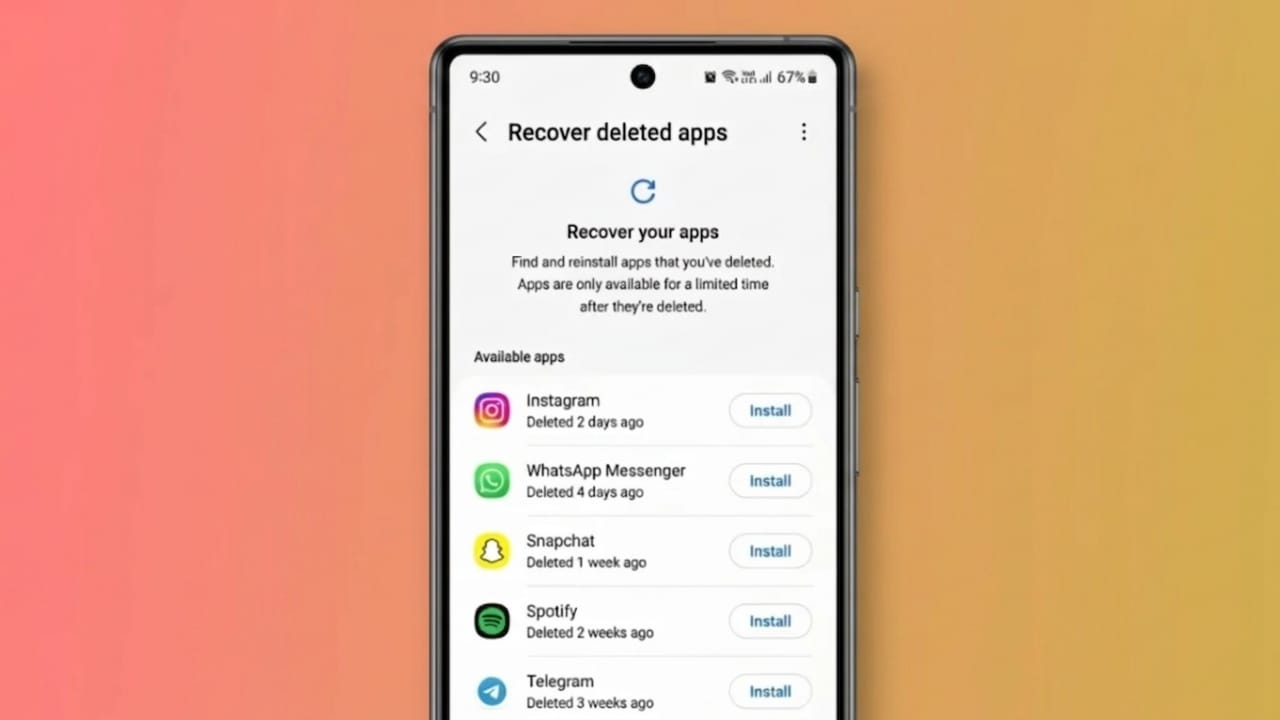
Removing an app by accident can be annoying, especially when it contains useful information, custom settings, or saved game progress. The good news is that Android makes it fairly easy to reinstall apps that were previously downloaded to your device.
Whether you accidentally uninstalled an app or recently reset your phone, there are several ways to get your apps back quickly.
Advertisements
Also read: How to Check Links Safely and Protect Yourself from Online Scams
Is It Possible to Recover Deleted Apps on Android?
Yes, in most situations it is.
Apps downloaded from the Google Play Store are connected to the Google account used during installation. Because of this, you can usually find and reinstall previously downloaded apps without searching for them again.
However, recovering the app itself and recovering its data are two different things. Whether your information returns depends on how the app stores and backs up data.
Method 1: Reinstall Deleted Apps Using the Google Play Store
The Google Play Store keeps a record of apps associated with your account. This is usually the fastest way to restore a deleted app.
Step 1: Open Google Play Store
Launch the Play Store on your Android device.
Step 2: Access Your Account
Tap your profile picture in the upper-right corner of the screen.
Step 3: Open App Management
Select Manage Apps & Device from the menu.
Step 4: Go to the Manage Section
Tap the Manage tab to view apps linked to your account.
Step 5: View Apps That Are Not Installed
Use the filter option and choose Not Installed.
You will see a list of apps that were previously downloaded using your Google account but are not currently available on your device.
Step 6: Install the App Again
Choose the app you want to restore and tap Install.
After the installation finishes, the app will appear on your phone just like before.
Method 2: Restore Apps After a Factory Reset
If you recently reset your phone or switched to a new Android device, Android may offer to restore your previous apps during the setup process.
When signing in with your Google account:
- Select a backup if available
- Choose the device backup you want to restore
- Allow Android to reinstall your previously used apps
This feature can save a lot of time by automatically bringing back many of your favorite apps.
Method 3: Restore Archived Apps
Some Android devices can automatically archive apps that are rarely used to free up storage space.
Archived apps are not completely removed. Their icons often remain visible, although they may appear faded.
To restore an archived app:
- Tap the app icon.
- Wait while Android downloads the necessary files.
- Open the app as usual.
In many cases, your settings and saved preferences remain available after restoration.
What Happens to App Data After Uninstalling?
The result depends on how the app stores information.
Many modern apps save data online through cloud services. When you sign back in, your information can often be restored automatically.
Examples of data that may return include:
- Account details
- Saved settings
- User preferences
- Documents and files
- Game progress
Apps that commonly use cloud storage include:
- Google services
- WhatsApp (with backups enabled)
- Spotify
On the other hand, some apps store data only on the device. If those apps are removed without a backup, the stored information may be lost.
How to View Apps You Installed in the Past
Your Google Play account maintains a history of apps downloaded with your account.
This history can help you:
- Find old apps you used before
- Reinstall purchased applications
- Restore productivity tools
- Download previously played games
Even apps installed years ago may still appear in your account history if they remain available on the Play Store.
What If the App Is No Longer Available?
Sometimes an app disappears from the Play Store entirely.
This can happen when:
- The developer removes the app
- The app no longer meets Play Store requirements
- The service has been discontinued
If an app has been removed, reinstalling it through the Play Store may not be possible. In such situations, checking the developer’s official website or support channels may help you find alternative options.
Tips to Protect Your Apps and Data
Turn On Google Backup
Keeping Google Backup enabled helps preserve important settings and app-related information.
You can find this option in:
Settings → Google → Backup
Keep Apps Updated
Regular updates improve stability, security, and compatibility with newer Android versions.
Use Cloud Backup Features
Many apps provide their own backup and sync options. Enabling these features can help protect important information.
Check Before Uninstalling
Before removing an app, verify whether your data has been backed up. This is especially important for apps containing notes, files, or game progress.
Why Apps Sometimes Seem to Disappear
Apps do not always vanish because they were deleted. Other possible reasons include:
- Accidental uninstallation
- Factory reset
- Moving to a new device
- App archiving
- Software glitches
- Disabled applications
Reviewing your Play Store app history can help determine what happened and whether the app can be restored.
Why Knowing This Is Useful
Many people store valuable information inside mobile apps, including documents, photos, notes, messages, and personal records.
Understanding how to recover deleted apps can save time and reduce frustration when an important app unexpectedly disappears.
Also read: How to Make Your Android Phone Charge Faster Safely
Conclusion
Getting deleted apps back on Android is usually a simple process. Thanks to Google Play Store history and Android backup features, most apps can be reinstalled within minutes.
For better protection, keep backups enabled and use apps that support cloud synchronization. Doing so makes it much easier to recover both your apps and your important data whenever needed.

I am a passionate Tech Writer with strong industry experience. I enjoy exploring the latest technological innovations and sharing clear, helpful insights with my audience.”
Advertisements