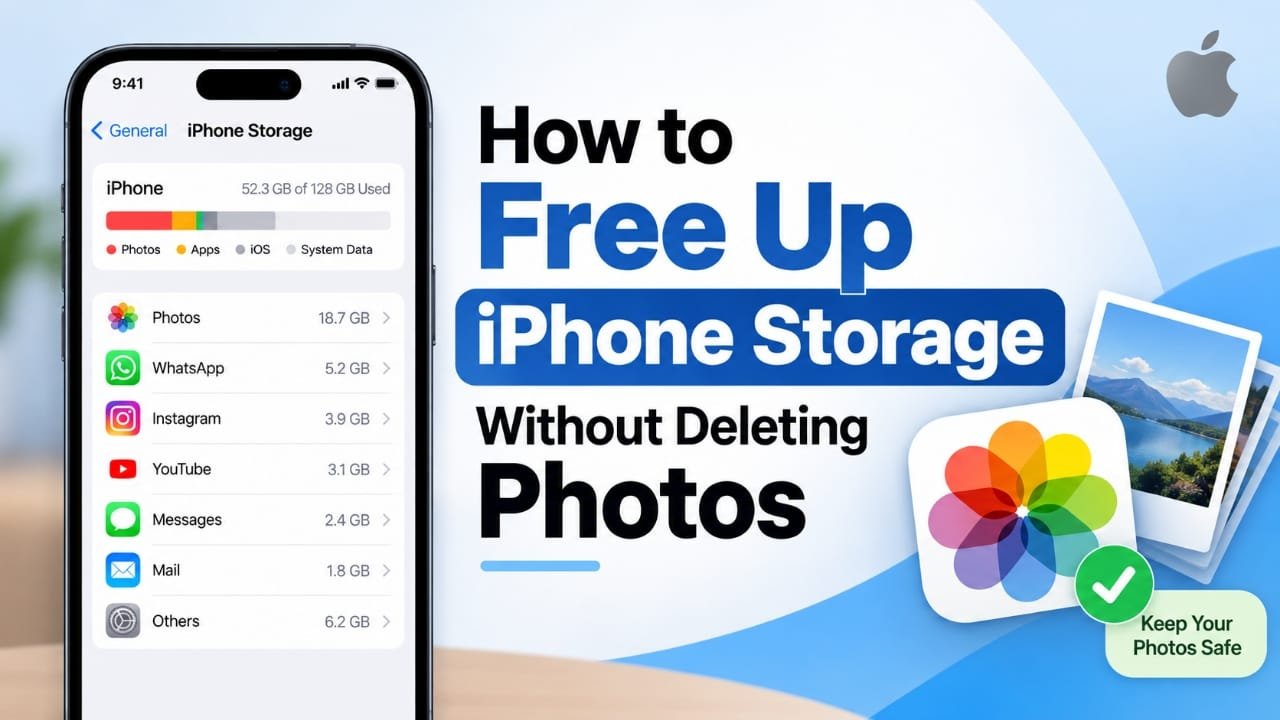
Running out of storage on an iPhone can be annoying, especially when your photo and video library contains memories you do not want to lose. While deleting old photos is one way to create more space, it is not the only option.
You can recover a noticeable amount of storage by optimising your photo library, removing duplicate files, offloading apps you rarely use, and clearing unnecessary data.
Advertisements
Here are some practical ways to make more room on your iPhone without permanently deleting your important photos.
Also read: How to Free Up WhatsApp Storage Without Deleting Your Chats
Check What Is Using Your iPhone Storage
Before removing anything, it is a good idea to see exactly where your storage is going. Your iPhone provides a detailed breakdown of the space being used by apps, photos, messages and other content.
To check it:
- Open Settings.
- Tap General.
- Select iPhone Storage.
- Review the storage recommendations and the list of installed apps.
You will see which categories and apps are consuming the most space. This makes it easier to decide where you can safely free up storage.
If your photo library is one of the biggest users of space, there are several ways to reduce its impact without losing access to your pictures.
Use Optimise iPhone Storage With iCloud Photos
If you have a large collection of photos and videos, Optimise iPhone Storage can be one of the most useful options.
With this feature enabled, the original, full-resolution versions of your photos and videos are kept in iCloud. Your iPhone can then store smaller, space-saving versions on the device when necessary.
You can still view your photos normally, while the original version can be downloaded when you need it.
To turn it on:
- Open Settings.
- Tap your name at the top.
- Select iCloud.
- Tap Photos.
- Turn on Sync this iPhone.
- Choose Optimise iPhone Storage.
Keep in mind that iCloud storage and your iPhone’s internal storage are separate. An Apple Account includes 5GB of iCloud storage at no charge. If you need additional cloud storage, you can consider an iCloud+ plan.
You can check your available iCloud space by going to Settings > [your name] > iCloud and looking at the storage section.
Remove Duplicate Photos and Videos
Duplicate photos can quietly consume a lot of storage, particularly if you regularly save images from social media, receive files through messaging apps, or use AirDrop.
The Photos app includes a Duplicates section that can help you find repeated photos and videos.
To check it:
- Open the Photos app.
- Tap Collections.
- Scroll down to Utilities.
- Tap Duplicates.
- Review the files that have been identified.
- Use Merge where appropriate.
Merging duplicates can help reduce unnecessary copies while keeping the better version of the image. Before merging or removing anything, review the items carefully to make sure you are comfortable with the result.
Offload Apps You Rarely Use
You do not always need to completely remove an app just because it is taking up space.
The iPhone has an Offload App option that removes the app itself while keeping its documents and data. Its icon can remain on the Home Screen, allowing you to reinstall it later when needed.
To find apps that are using a lot of storage:
- Go to Settings.
- Open General.
- Tap iPhone Storage.
- Select an app you rarely use.
- Choose Offload App, if the option is available.
This can be particularly useful for large games and apps that you only use occasionally.
Review Unnecessary Files and Data
Photos are not always responsible for a storage shortage. Documents, downloads and media files can also build up over time.
Open Settings > General > iPhone Storage and review the recommendations shown there. You can then decide which items or apps are worth cleaning up.
It is also worth checking the Files app for old downloads, documents, videos or other files that you no longer need.
Check Messaging Apps for Large Media Files
Apps such as WhatsApp and Telegram can accumulate a large amount of storage through photos, videos, documents and other attachments.
If you frequently receive media through these apps, check their storage-management sections and look for large or unnecessary files.
Instead of deleting everything at once, review the files individually and remove only content you no longer need.
Move Photos to a Computer or External Storage
If you have a very large photo collection and do not want to use additional iCloud storage, another option is to transfer your photos and videos to a computer or compatible external storage.
You can connect your iPhone to a Mac or Windows PC, transfer the files, and verify that the copies are safely stored before considering whether to remove them from the iPhone.
Always make sure you have a working backup or confirmed copy before deleting photos from your phone.
Make Storage Checks a Regular Habit
If your iPhone repeatedly displays an “iPhone Storage Almost Full” warning, checking your storage every once in a while can help prevent the problem from becoming serious.
Look at the storage breakdown and pay attention to:
- Large apps and games
- Duplicate photos and videos
- Downloaded files
- Messaging-app media
- Offline streaming content
- Old documents
- Apps you no longer use
You do not need to clean everything at once. Removing a few unnecessary items regularly can make storage management much easier.
Frequently Asked Questions
Does Optimise iPhone Storage delete my photos?
No. The feature is designed to save space on the iPhone while keeping the original, full-resolution photos and videos in iCloud. The device can store space-saving versions when appropriate.
Is iCloud free to use?
Yes. An Apple Account includes 5GB of iCloud storage for free. Additional storage is available through paid iCloud+ plans.
Does iCloud add more physical storage to my iPhone?
No. iCloud storage and your iPhone’s built-in storage are two separate types of storage. Using iCloud can help reduce how much space your photos and other data require on the device, but it does not increase the iPhone’s physical storage capacity.
Also read: Smartphone Prices Are Rising in 2026: Why Your Next Phone Could Cost More
Final Thoughts
You do not have to start deleting your favourite photos every time your iPhone runs low on storage. Start by checking the storage breakdown, then look for duplicates, unused apps, unnecessary files and large media attachments.
If you use iCloud Photos, Optimise iPhone Storage can also help reduce the amount of space your photo library uses on the device while keeping your original collection available through iCloud.

I am a passionate Tech Writer with strong industry experience. I enjoy exploring the latest technological innovations and sharing clear, helpful insights with my audience.”
Advertisements