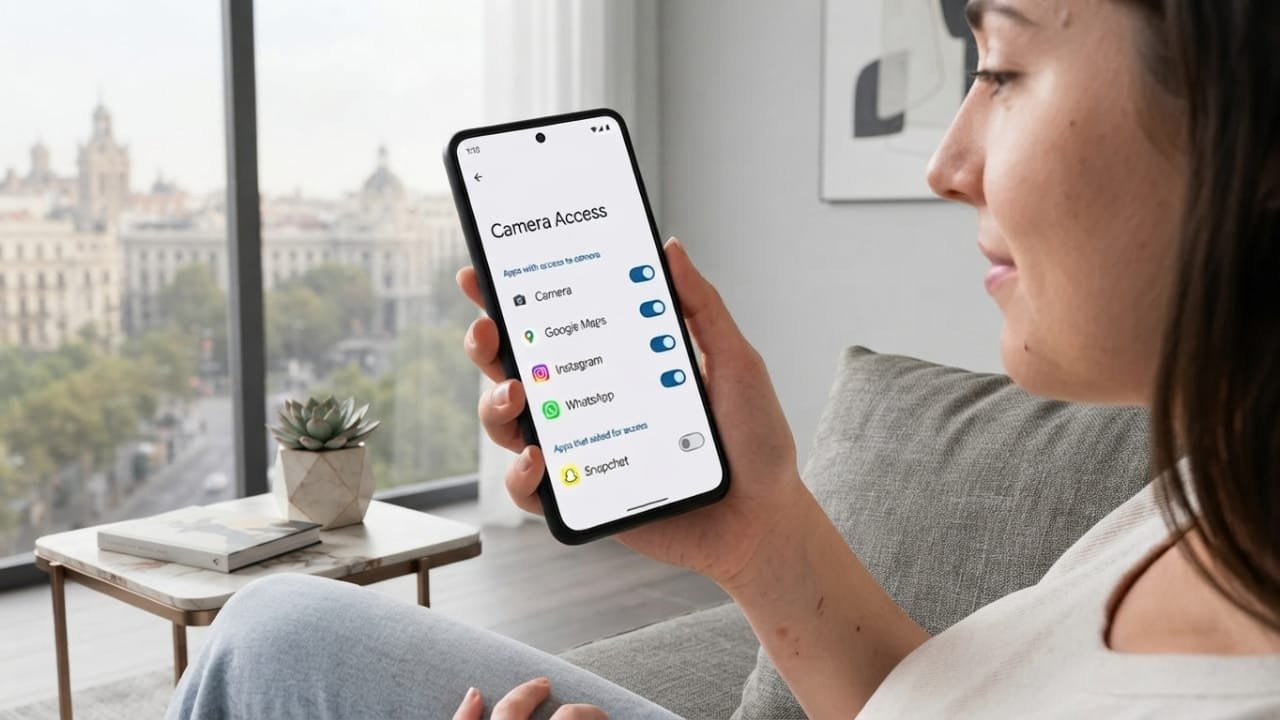
Your phone’s camera is an important privacy feature, so it is worth knowing which apps are allowed to use it. Many apps need camera access for useful features, such as taking photos, scanning QR codes, making video calls, or uploading images. However, you may not want every app to have this permission.
Android provides built-in privacy settings that let you review camera permissions and change them whenever you want. Here’s how you can check and manage camera access on your Android phone.
Advertisements
Also read: Samsung August 2026 Security Update: 56 Vulnerabilities Fixed on Galaxy Devices
Why Should You Check Camera Permissions?
Apps can ask for different permissions depending on the features they offer. Some may need access to your camera, while others may work perfectly without it.
Checking your camera permissions from time to time can help you:
- Keep better control over your privacy
- See which apps can use your camera
- Remove access from apps that no longer need it
- Identify permissions you may have allowed accidentally
- Keep your phone’s privacy settings organized
How to Find Apps With Camera Access
The exact names of Android settings can vary slightly depending on your phone manufacturer and Android version. In most cases, you can find the camera permission list by following these steps:
- Open the Settings app on your Android phone.
- Look for Privacy & Security or Security & Privacy.
- Tap Permission Manager.
- Select Camera.
You should now see the apps that have requested or received permission to use your camera.
On some phones, you may find the permission settings under Apps > Permission Manager instead.
Check Which Apps Are Allowed to Use the Camera
Android may show camera permissions using different categories depending on your device and Android version.
For example, you may see options such as:
- Allowed while using the app
- Ask every time
- Not allowed
The available options can differ between Android versions and phone brands.
Go through the list and consider whether each app actually needs camera access. If you find an app that does not need the camera for its normal features, you can change its permission.
How to Stop an App From Using Your Camera
If you no longer want a particular app to have camera access, you can usually remove the permission from the same settings page.
- Open the Camera permission list.
- Select the app you want to manage.
- Choose Don’t allow.
After that, the app will not be able to use the camera unless you give it permission again.
Keep in mind that some features may stop working if they depend on camera access. For example, an app used for video calls may not be able to start a camera-based call until you allow the permission again.
Check Recent Camera Activity With Privacy Dashboard
Many newer Android devices also provide a Privacy Dashboard. This feature can give you a quick overview of how apps have recently used certain permissions.
To check it:
- Open Settings.
- Go to Privacy.
- Tap Privacy Dashboard.
- Select Camera if it is available.
Depending on your Android version, you may be able to see which apps accessed the camera recently and when that access occurred.
This can be useful if you want to review camera activity without checking every app individually.
Pay Attention to the Camera Indicator
Recent Android versions can show a privacy indicator when an app is actively using the camera. On supported devices, you may see a small green indicator near the top of the screen.
If you notice the indicator while using an app that should not normally need the camera, check your recent apps and camera permissions. The exact appearance and behavior of the indicator can vary depending on your Android version and device.
Simple Ways to Improve Camera Privacy
You don’t need to constantly change your phone’s settings. A quick review every so often is usually enough.
Here are a few useful habits:
- Give camera access only to apps that genuinely need it.
- Remove permissions from apps you no longer use.
- Check unfamiliar apps and their permissions.
- Keep your Android software updated.
- Install apps from reliable sources.
- Review permissions after installing a new app.
Frequently Asked Questions
Can an Android app access my camera without permission?
Normally, an app must have the appropriate camera permission to access the camera through Android’s standard app permission system. Android also provides privacy indicators and controls on supported versions to help users understand camera access.
What happens when I deny camera permission?
The app will not be able to use the camera through that permission until you allow access again. Features that require the camera may not work while the permission is disabled.
Does removing camera permission uninstall the app?
No. Changing a permission does not remove the app from your phone. It only changes what the app is allowed to access.
Can I give camera permission back later?
Yes. You can return to the app’s permission settings and allow camera access again when needed.
Also read: Google Releases August 2026 Pixel Update With Performance, Touchscreen, and Security Improvements
Final Thoughts
Checking camera permissions on Android is a simple way to stay in control of your phone’s privacy. The built-in permission settings let you see which apps can use the camera and remove access when you no longer want to provide it.
It’s a good idea to review these permissions occasionally, especially after installing new apps or when you stop using an app. Taking a minute to check your settings can help you better understand and manage what your apps are allowed to access.

I am a passionate Tech Writer with strong industry experience. I enjoy exploring the latest technological innovations and sharing clear, helpful insights with my audience.”
Advertisements