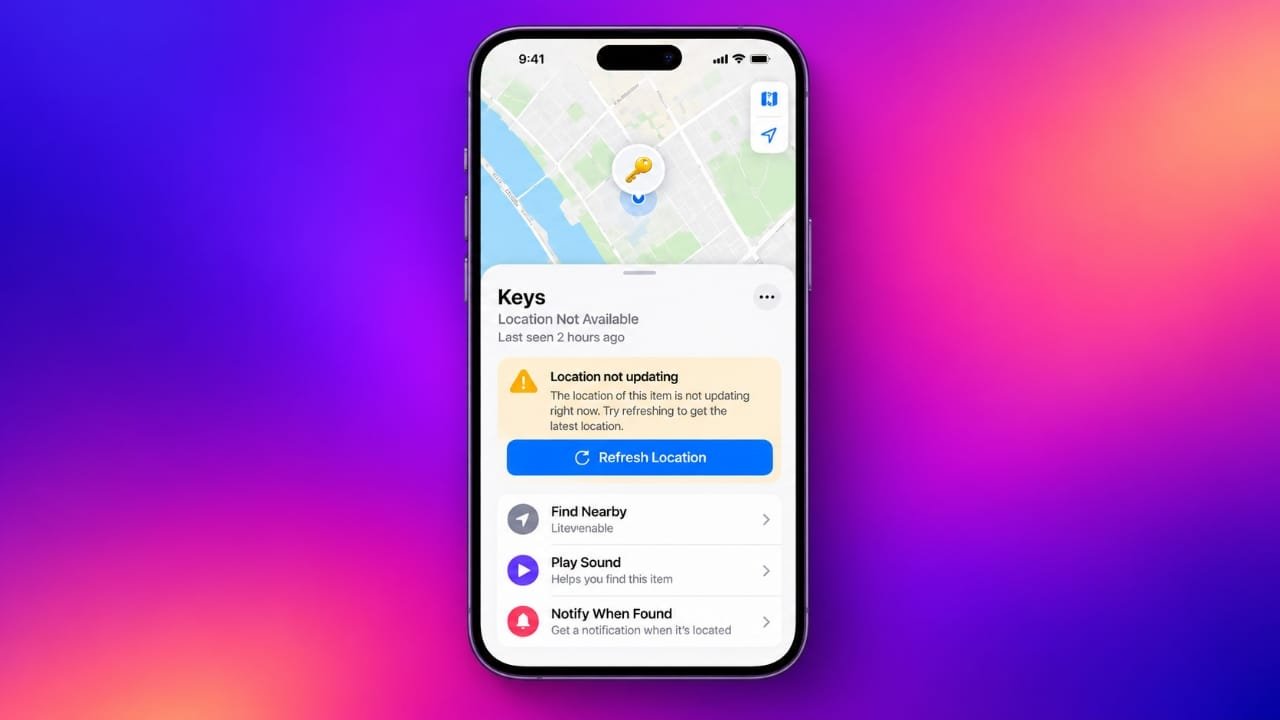
Is your AirTag showing an old location or refusing to update in the Find My app? This can be frustrating, especially when you are trying to find keys, a bag, luggage, or another important item.
In some cases, Find My may display a message such as “No Location Found.” The problem can be caused by connectivity, settings, a weak battery, software issues, or the AirTag simply being away from other Apple devices.
Advertisements
The good news is that you can try several troubleshooting steps before contacting Apple Support.
Also read: Why Is Your AirTag Beeping and How Can You Stop It?
Why Is My AirTag Location Not Updating?
AirTags work with Apple’s Find My network. When an AirTag is away from your iPhone, nearby Apple devices can detect its Bluetooth signal and anonymously send its approximate location to the Find My network.
If there are no nearby participating Apple devices, the location may remain unchanged until the AirTag is detected again.
Other possible causes include:
- Bluetooth is disabled on your iPhone.
- Location Services are turned off.
- Find My network settings are disabled.
- The AirTag battery is weak or depleted.
- Your iPhone has a temporary software problem.
- Airplane Mode is enabled.
- Your iPhone or AirTag needs a software or connection refresh.
- The AirTag is in an area with few nearby Apple devices.
Before trying complicated solutions, start with the basic checks below.
1. Refresh the Find My App
Sometimes the Find My app may continue showing previously received information.
Try opening the app again and checking your AirTag:
- Open Find My on your iPhone.
- Tap Items at the bottom.
- Select your AirTag.
- Wait for a few moments to see whether new information appears.
You can also completely close the Find My app and open it again. If another Apple device detects the AirTag, its location may update afterward.
2. Make Sure Location Services Are Enabled
Find My depends on Location Services for location-related features. If this setting is disabled, some location functions may not work as expected.
On your iPhone:
- Open Settings.
- Go to Privacy & Security.
- Tap Location Services.
- Make sure Location Services is turned on.
- Find Find My in the app list and review its permission.
- If available, check the Precise Location option.
After making any changes, open Find My again and check the AirTag.
3. Check the Find My Network Setting
The Find My network is important when your AirTag is not within direct Bluetooth range of your iPhone.
To check the setting:
- Open Settings.
- Tap your Apple Account.
- Select Find My.
- Tap Find My iPhone.
- Make sure Find My network is enabled.
This allows your device to participate in Apple’s Find My network and can be useful for locating compatible devices when they are not directly connected to your iPhone.
4. Check Bluetooth and Wi-Fi
Bluetooth is used for communication between your iPhone and nearby AirTags. Connection problems can therefore affect tracking.
Check the following:
- Make sure Bluetooth is turned on.
- Turn Wi-Fi on when available.
- If Bluetooth is already enabled, switch it off and back on.
- Reopen Find My after reconnecting.
Wi-Fi is not what directly tracks an AirTag, but having your iPhone connected can help ensure its own network connection is working normally.
5. Turn Off Low Power Mode Temporarily
Low Power Mode changes how some background activities work on an iPhone. It may not necessarily be the cause of an AirTag problem, but temporarily disabling it can help rule out power-related restrictions.
Go to:
Settings → Battery → Low Power Mode
Turn it off and then check your AirTag again in Find My.
If the location starts updating normally, you can decide whether to keep Low Power Mode disabled.
6. Check Airplane Mode
Airplane Mode can disable or restrict wireless connections on your iPhone.
Open Control Center and check whether Airplane Mode is active. If it is, turn it off and make sure Bluetooth and Wi-Fi are working normally.
Then open Find My and check the AirTag again.
7. Restart Your iPhone
A simple restart can sometimes fix temporary problems involving wireless connections or system services.
To restart your iPhone:
- Turn off the device using the appropriate power controls.
- Wait until the iPhone completely shuts down.
- Turn it on again.
- Open Find My.
- Select your AirTag and check its status.
This is a quick step and is worth trying before making more significant changes.
Advanced Fixes for AirTag Location Problems
If the basic troubleshooting steps did not help, you can move on to the following options.
8. Check the AirTag Battery
AirTags use a replaceable CR2032 battery. A weak or depleted battery can prevent the AirTag from communicating normally.
To replace the battery:
- Place your fingers on the metal cover.
- Press the cover down.
- Rotate it counterclockwise.
- Remove the cover.
- Take out the old battery.
- Insert a compatible CR2032 battery with the positive side facing upward.
- Put the cover back into position.
- Rotate it clockwise until it is secure.
Some CR2032 batteries use a bitterant coating designed to discourage children from swallowing them. Apple notes that certain coated batteries may not work properly with AirTag, so check the battery packaging for compatibility before buying one.
9. Update Your iPhone
Keeping iOS up to date can help avoid problems caused by outdated software.
To check for an update:
- Open Settings.
- Tap General.
- Select Software Update.
- Install an available compatible update.
After the update finishes, open Find My and check whether your AirTag location is updating.
10. Reset Network Settings
If your iPhone has persistent connectivity problems, resetting network settings may help.
Go to:
Settings → General → Transfer or Reset iPhone → Reset → Reset Network Settings
You may need to enter your iPhone passcode.
Keep in mind that this removes saved Wi-Fi passwords and resets certain network-related settings. You will need to reconnect to Wi-Fi networks afterward.
Because this is a more disruptive step, try the simpler solutions first.
11. Remove and Set Up the AirTag Again
If the AirTag is still having connection or setup problems, removing it from Find My and pairing it again may help.
First:
- Open Find My.
- Tap Items.
- Select the AirTag.
- Scroll down.
- Choose Remove Item.
- Confirm the removal.
Then bring the AirTag close to your iPhone and follow the on-screen instructions to pair it again.
Before doing this, make sure you understand that removing the AirTag will require you to set it up again.
12. Reset the AirTag
If normal troubleshooting has not worked, you can reset the AirTag.
The reset process involves removing and reinserting its battery several times:
- Remove the AirTag’s metal cover.
- Take out the battery.
- Put the battery back in and press it down until you hear a sound.
- Repeat the removal and reinsertion process several times according to Apple’s reset procedure.
- After the final confirmation sound, reinstall the cover.
- Bring the AirTag near your iPhone and set it up again.
Follow Apple’s current instructions carefully when performing a reset, as the sequence needs to be completed correctly.
What About Lost Mode?
If your AirTag is attached to something that has gone missing, you can also enable Lost Mode in Find My.
To do this:
- Open Find My.
- Go to Items.
- Select the missing AirTag.
- Find the Lost Mode option.
- Follow the instructions to enable it.
- Add the requested contact information.
Lost Mode does not force an AirTag to produce a new location. However, it can make it easier for someone who finds your lost item to contact you.
Check Your Apple Account
If you are still unable to use the AirTag properly, check whether your iPhone is signed in to the expected Apple Account.
Open Settings and review the account shown at the top. Then check your Find My settings and confirm that the AirTag is associated with the correct account.
Avoid signing out of your Apple Account simply as a troubleshooting experiment. Doing so can affect other Apple services and may create additional setup steps.
If you suspect an account-related problem, Apple Support can provide guidance.
When Should You Contact Apple Support?
If your AirTag still does not update after trying the troubleshooting steps above, contacting Apple Support may be the best option.
There could be a hardware problem, a pairing issue, or another account or software-related problem that requires additional investigation.
Apple Support can also guide you through the appropriate reset or replacement options if necessary.
Also read: How to Fix an Android Microphone That Isn’t Working
Final Thoughts
An AirTag that is not updating does not always mean the device is broken. The AirTag may simply be outside Bluetooth range and not have another nearby Apple device available to relay its location.
Start with the easiest checks, such as refreshing Find My, checking Bluetooth and Find My settings, restarting your iPhone, and checking the AirTag battery.
If those steps do not solve the problem, move on to software updates, network troubleshooting, re-pairing, or resetting the AirTag. If the issue continues after that, contacting Apple Support is the safest next step.

I am a passionate Tech Writer with strong industry experience. I enjoy exploring the latest technological innovations and sharing clear, helpful insights with my audience.”
Advertisements