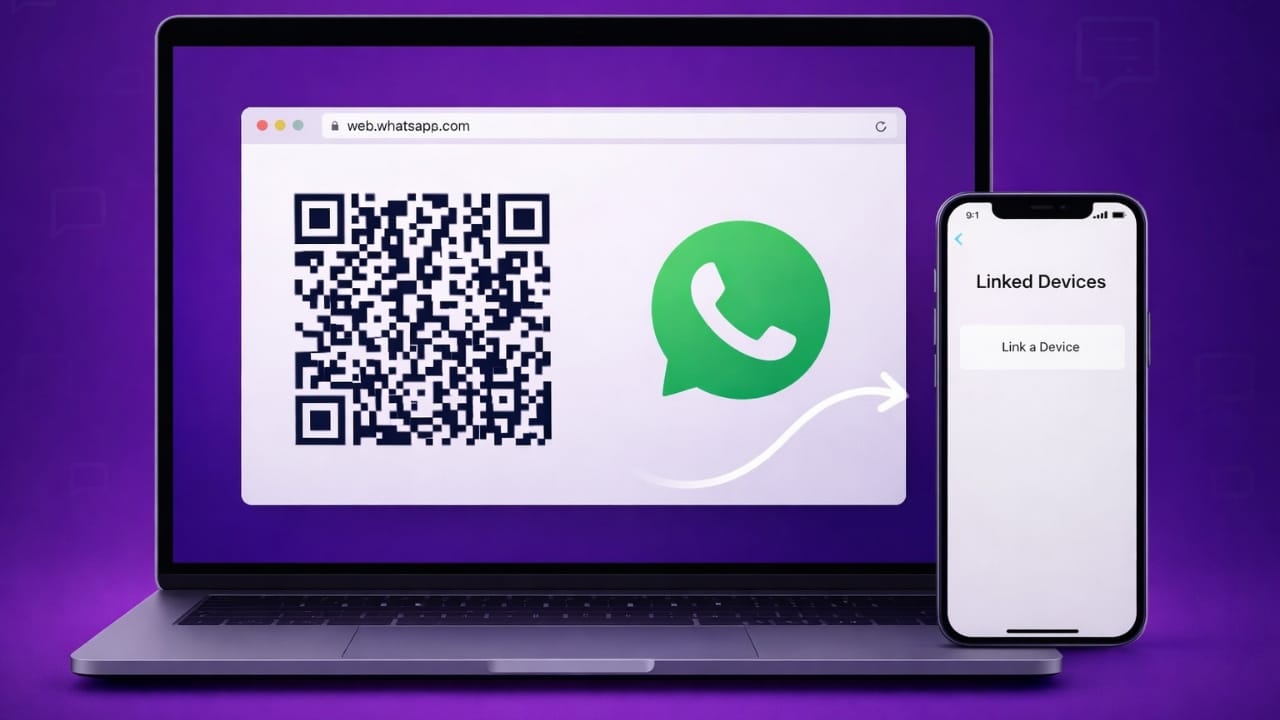
Using WhatsApp on a computer does not always require installing extra software. If you have a Mac or Windows PC, you can access your WhatsApp account directly through a web browser. This method is quick, safe, and officially supported by WhatsApp.
All you need is your smartphone, a good internet connection, and any modern browser such as Chrome, Edge, Safari, or Firefox.
Advertisements
Also read: How to Use Voice Features for Phone Access on Android and iPhone (Complete Beginner Guide)
What Is WhatsApp Web?
WhatsApp Web is the browser-based version of WhatsApp. It mirrors your mobile account on your computer screen and keeps everything in sync.
With WhatsApp Web, you can:
- Send and receive messages
- View and share photos or videos
- Type faster using a full keyboard
- Access your chats on a larger screen
- Use WhatsApp without installing a desktop app
Everything works through your browser, making it simple and lightweight.
Steps to Log In to WhatsApp on PC Using a Browser
Step 1: Open WhatsApp Web on Your Computer
- Launch your preferred browser on your PC or Mac
- Go to web.whatsapp.com
- A QR code will appear on the screen
Step 2: Open WhatsApp on Your Phone
- Unlock your phone and open WhatsApp
- On Android, tap the three-dot menu at the top
- On iPhone, open Settings
- Select Linked Devices
Step 3: Connect Your Phone to the Browser
- Tap Link a Device
- Your phone camera will turn on
- Scan the QR code shown on your computer
- Within seconds, your chats will load on the browser
Using WhatsApp on Your Computer
Once connected, you can:
- Chat with contacts and groups
- Send files, images, and videos
- Reply faster using your keyboard
- Switch between chats easily
- Continue conversations without interruption
All messages stay synced with your phone automatically.
Can WhatsApp Web Work Without Your Phone Nearby?
Yes, after the first setup, WhatsApp Web can stay logged in even if your phone is not close to you. However:
- Your phone must be connected during the initial linking
- Your WhatsApp account should already be active
- The browser session remains active unless you log out
How to Log Out of WhatsApp Web
You can sign out anytime using either your computer or phone.
From the Computer:
- Click the three-dot menu on WhatsApp Web
- Choose Log Out
From the Phone:
- Open WhatsApp
- Go to Linked Devices
- Select the active session
- Tap Log Out
Also read: Time-Based Phone Lock on Android: A Simple Guide to Screen Lock Time Passwords
Final Words
Accessing WhatsApp on your Mac or Windows computer through a browser is fast and hassle-free. There is no need to install any app or use extra storage. Just scan the QR code, and your chats are ready on your screen. It is a convenient option for anyone who spends long hours working on a laptop and wants to stay connected with ease.

I am a passionate Tech Writer with strong industry experience. I enjoy exploring the latest technological innovations and sharing clear, helpful insights with my audience.”
Advertisements