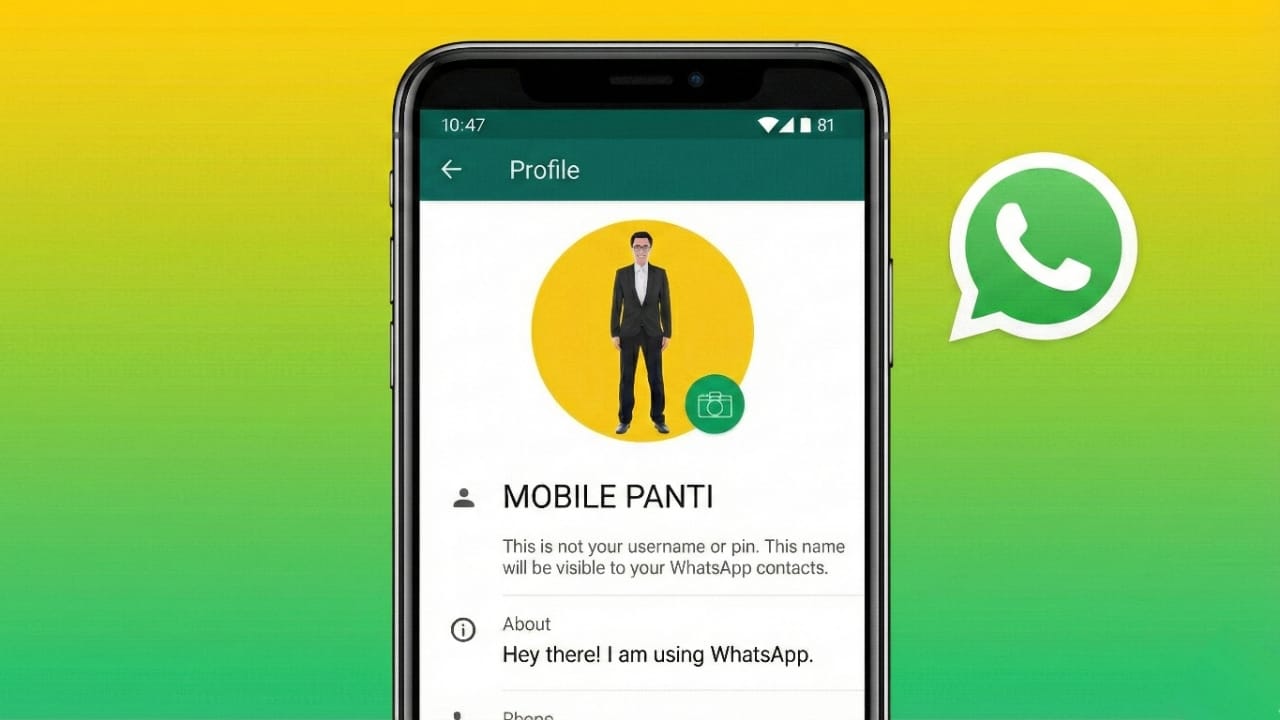
Many WhatsApp users feel disappointed when their profile photo gets cut from the sides or top. You select a nice picture, but after uploading it, parts of your face or background disappear. This happens because WhatsApp follows a fixed display style. The good news is that you can still show your complete photo if you prepare it the right way.
This article explains why cropping happens and how you can safely display a full profile picture without breaking any WhatsApp rules.
Advertisements
Also read: How to Edit or Delete Messages on WhatsApp – Easy Step-by-Step Guide
Why WhatsApp Cuts Profile Photos
WhatsApp shows every profile picture inside a square frame. When you upload a photo that is tall or wide, the app automatically zooms in to fill that square. Because of this design:
- Faces may not fit properly
- Side details get removed
- Group photos lose people from the edges
This is normal behavior, not a technical issue.
Is There an Official Full DP Option on WhatsApp?
No. WhatsApp does not provide any setting to upload a rectangular or full-size profile picture. Every image must fit into a square.
However, you can make your full photo visible by adjusting it before uploading.
Method 1: Use WhatsApp’s Crop Option Carefully
This is the simplest and safest method.
Steps:
- Open WhatsApp
- Go to Settings
- Tap your profile photo
- Choose Edit and select a picture
- Pinch to zoom out as much as possible
- Position the image neatly inside the square
This works well if your photo already has some space around the subject.
Method 2: Add Extra Space Around the Photo
If WhatsApp keeps zooming in, adding background space is the best solution.
You can use any basic photo editor to place your image in the center of a square canvas.
Why this works:
- The full photo stays visible
- Nothing important gets cut
- The DP looks balanced and clean
Choose a simple background color like white, black, or light grey for a neat appearance.
Method 3: Resize the Image Using Online Tools
Some online tools allow you to convert your photo into a square without cropping it.
Basic process:
- Upload your photo to a square image resizer
- Select square output
- Add padding or background color
- Download the edited image
- Upload it as your WhatsApp profile picture
This method is safe and follows WhatsApp’s usage guidelines.
What You Should Avoid
To protect your account, stay away from:
- Modified or unofficial WhatsApp versions
- Apps that ask for your WhatsApp login
- Tools claiming to unlock secret WhatsApp features
- Any method that breaks WhatsApp’s terms
Using such apps can result in account restrictions or bans.
Does a Full DP Look Good on WhatsApp?
Yes, if it is done properly.
A well-prepared full profile picture:
- Looks professional
- Shows the complete face or subject
- Appears clear in chats and contact lists
- Keeps good image quality
Just avoid making the image too small or blurry.
Tips for a Better WhatsApp Profile Picture
- Use a clear, high-quality photo
- Keep the subject in the center
- Avoid cluttered backgrounds
- Use natural or soft lighting
- Stay within WhatsApp’s image size limits
Optional App for Easy Adjustment
If manual editing feels difficult, you can use a simple image editor app that fits your full photo into a square frame.
One optional tool is Full Image DP Editor. It allows you to add background space, adjust alignment, choose colors, and export the image in a square format suitable for WhatsApp.
You can explore the app here if needed:
Install
Using such apps is optional. WhatsApp will work the same either way.
Also read: How to Change Font Style on WhatsApp (Simple and Safe Ways)
Final Words
WhatsApp does not support full-size profile pictures directly, but that does not mean you are stuck with cropped images. By adjusting your photo beforehand—either by adding space or resizing it into a square—you can easily show your complete picture.
The key is simple: don’t try to change WhatsApp. Prepare your image correctly before uploading, and you will get a clean, full-looking profile photo without any risk.

I am a passionate Tech Writer with strong industry experience. I enjoy exploring the latest technological innovations and sharing clear, helpful insights with my audience.”
Advertisements