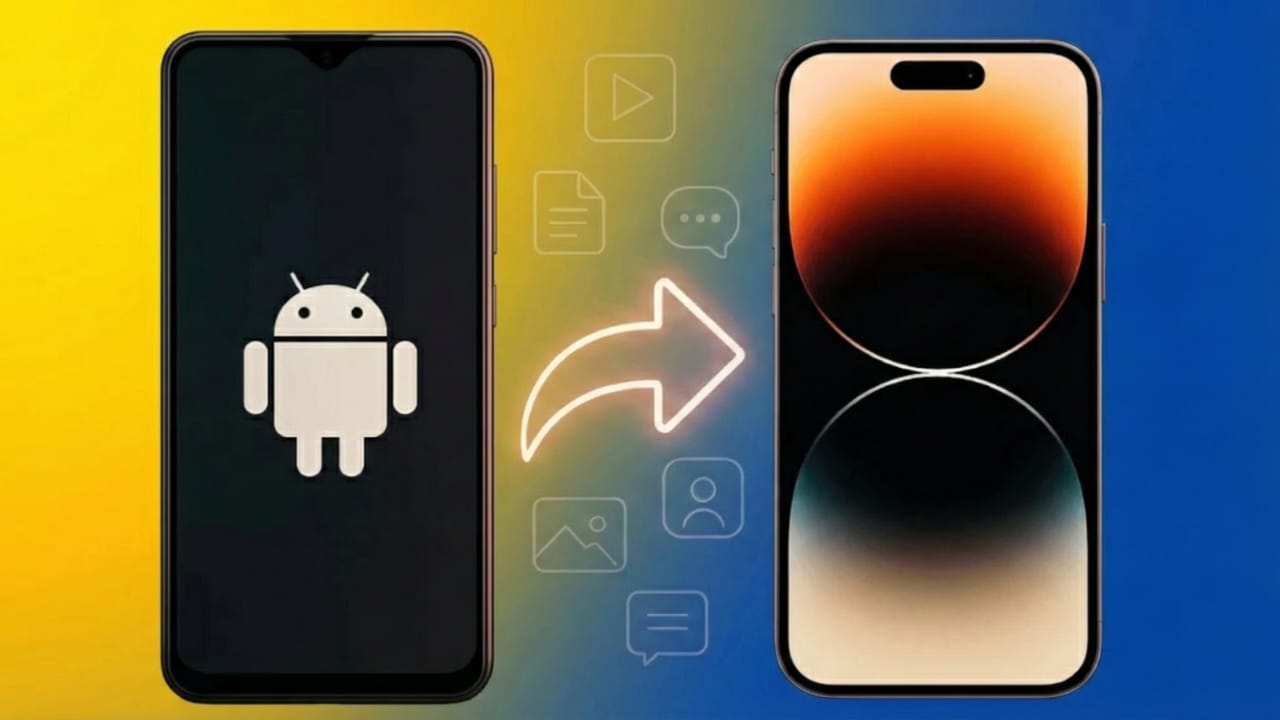
Switching from an Android phone to an iPhone can feel stressful, especially when you think about moving all your important files. Your contacts, photos, chats, videos, and documents matter, and no one wants to start fresh without them. Thankfully, both Apple and Google offer simple ways to shift your data securely.
Below is a clear and beginner-friendly guide to help you move everything safely.
Also read: How to Protect Your Pinterest Account from Hackers (Beginner’s Guide)
1. Use the “Move to iOS” App – The Most Reliable Option
Apple designed the Move to iOS app to make the transition smooth for Android users. It allows you to copy most of your essential information in one process.
What the App Can Transfer
- Contacts
- Text messages
- Photos and videos
- Calendar events
- Google accounts
- WhatsApp data
- Supported app information
How to Use It
- Power on your new iPhone and begin the setup steps.
- Select Move Data from Android.
- Install Move to iOS from the Google Play Store on your Android phone.
- Open the app and allow the required permissions.
- Enter the code displayed on the iPhone.
- Pick the items you want to migrate.
- Wait until the transfer finishes.
Keep both devices close and connected to power for the best results.
2. Move Your WhatsApp Chats Easily
WhatsApp now provides an official transfer feature, making it simple to carry your entire chat history to your new iPhone.
Steps to Follow
- Update WhatsApp on both devices.
- On your Android phone, open WhatsApp and go to Settings > Chats > Transfer Chats to iPhone.
- Scan the QR code shown on your iPhone.
- Wait while the app moves your messages and media.
Once done, your chats will appear just as they did on Android.
3. Transfer Photos and Videos with Google Photos
If you already use Google Photos for backup, viewing your images on an iPhone becomes effortless.
What to Do
- Open Google Photos on Android and ensure backup sync is enabled.
- Install Google Photos on your iPhone.
- Sign in with the same Google account.
Your entire photo library will load automatically, even without using your iPhone’s storage.
4. Move Documents Using Cloud Storage
For documents such as PDFs, notes, and downloaded files, cloud services like Google Drive or Dropbox work perfectly.
How to Transfer
- Upload your files from Android to your chosen cloud app.
- Install the same app on your iPhone.
- Log in and download the files you need.
This method keeps everything sorted and doesn’t require any cables.
5. Sync Contacts Through Your Google Account
If you want a simple contact transfer method that works even after your iPhone setup is complete, this is a great choice.
Steps
- On your Android device, make sure your contacts are synced to your Google account.
- On the iPhone, open Settings > Mail > Accounts > Add Account.
- Sign in using your Google account.
- Enable the Contacts toggle.
Your saved numbers will appear on your iPhone within moments.
6. Move Music Files to Your iPhone
Music doesn’t shift automatically, so you’ll need to transfer it manually.
How to Do It
- Connect your Android phone to your computer.
- Copy the music files or folder to your system.
- Connect your iPhone and open Finder or iTunes.
- Drag the songs into the device’s music section.
Your tracks will sync and appear in the Apple Music app.
7. Optional: Use Third-Party Transfer Tools
If you want more control or need to move data that official apps don’t support, some paid tools can help. Popular options include:
- MobileTrans
- AnyTrans
- iCareFone
These tools may offer additional features, but they are optional.
Also read: How to Protect Your LinkedIn Account: A Simple and Complete Guide
Final Thoughts
Transferring your data from Android to iPhone is now easier than ever. The Move to iOS app handles most of the work, while Google Photos, Google Drive, and WhatsApp’s built-in transfer options take care of the rest. With the methods above, you can switch phones confidently without losing your important information.

I am a passionate Tech Writer with strong industry experience. I enjoy exploring the latest technological innovations and sharing clear, helpful insights with my audience.”