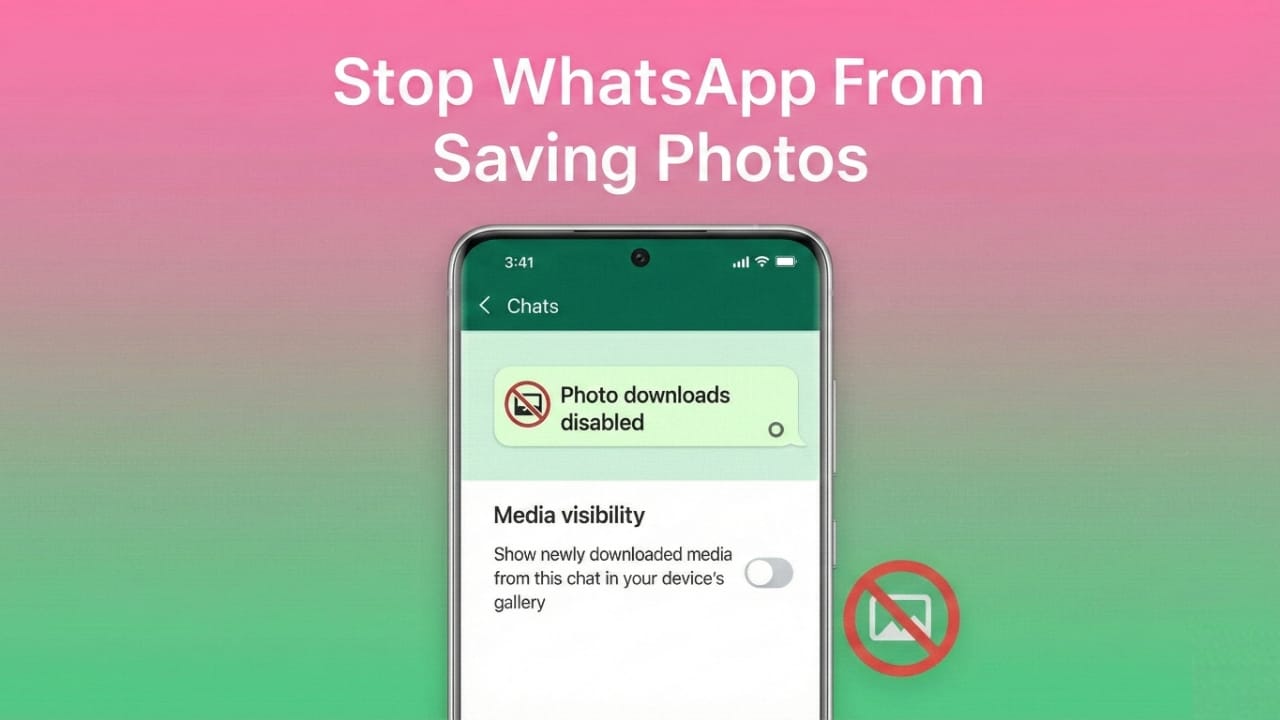
Does your gallery keep filling up with memes, screenshots, and random images from WhatsApp? It happens to almost everyone. WhatsApp is set to download photos automatically, and over time this takes up storage and makes your gallery look messy.
The good thing is—you can turn this off in just a few taps. After that, only the photos you choose will appear in your gallery.
Advertisements
Here’s a simple guide to help you stop WhatsApp from saving photos on your Android or iPhone.
Also read: How to Change WhatsApp Chat Themes – Easy Guide for Everyone
1. Why Turn Off Automatic Saving?
Most users disable auto-saving because:
- The phone gallery becomes crowded with forwarded pictures.
- Storage space gets used faster than expected.
- You want more privacy and don’t want every photo to appear in the camera roll.
- You prefer saving only the important images manually.
Once auto-saving is off, all photos stay inside WhatsApp unless you decide to store them on your device.
2. How to Stop Auto Saving for All Chats
If you want WhatsApp to stop saving photos from every chat, follow the steps for your device.
For Android Users:
- Open WhatsApp.
- Tap the three dots in the top-right corner.
- Go to Settings → Chats.
- Turn off Media visibility.
This prevents WhatsApp images from appearing in your gallery.
Next, stop automatic downloads:
- Open Settings again.
- Go to Storage and data.
- Under the sections
- When using mobile data
- When connected to Wi-Fi
- When roaming,
uncheck Photos.
This ensures no photos download on their own.
For iPhone Users:
- Open WhatsApp.
- Go to Settings → Chats.
- Turn off Save to Camera Roll.
Now WhatsApp will no longer put images into your Photos app automatically.
3. Stop Auto Saving for Selected Chats Only
If you don’t want to disable the feature for the entire app, you can control it for specific contacts or groups.
On Android:
- Open the chat.
- Tap the person’s or group’s name.
- Select Media visibility.
- Choose No.
On iPhone:
- Open the chat.
- Tap the name at the top.
- Tap Save to Camera Roll.
- Select Never.
Now only that particular chat will stop saving photos.
4. How to Save Photos Manually
Turning off auto download doesn’t stop you from saving images when you actually want them.
To save a photo:
- Open the image.
- Tap the three dots on Android or the share icon on iPhone.
- Select Save.
This gives you full control over what stays in your gallery.
5. Extra Tips to Keep WhatsApp Storage Clean
If WhatsApp is still using too much space, try these simple tricks:
- Go to Settings → Storage and data → Manage storage to delete large or unneeded files.
- Move old media to services like Google Photos or another cloud app.
- Avoid downloading every forwarded picture unless necessary.
These small practices keep your phone faster and more organised.
Also read: How to Edit or Delete Messages on WhatsApp – Easy Step-by-Step Guide
Final Thoughts
WhatsApp tries to save all media by default, but you don’t have to let your gallery get overloaded. By switching off automatic saving—either for all chats or only a few—you gain more control, more privacy, and a cleaner phone. After applying these steps, your storage and gallery will instantly feel more manageable.

I am a passionate Tech Writer with strong industry experience. I enjoy exploring the latest technological innovations and sharing clear, helpful insights with my audience.”
Advertisements