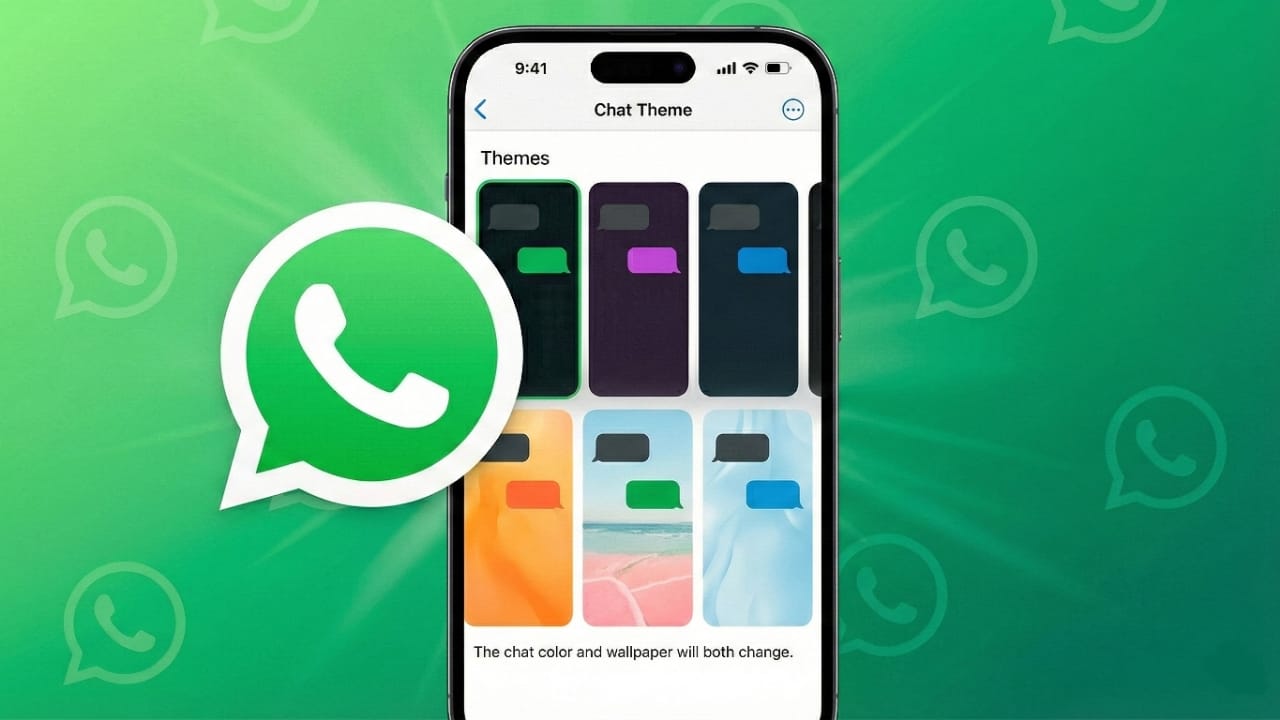
Using WhatsApp every day can feel a bit dull when the chat screen always looks the same. Thankfully, WhatsApp lets you update themes and wallpapers so your chats feel more personal and comfortable.
Below is a simple guide to help you change the look of your chat screen on both Android and iPhone.
Advertisements
Also read: How to Edit or Delete Messages on WhatsApp – Easy Step-by-Step Guide
1. Why You Should Update Your WhatsApp Chat Theme
Changing the theme isn’t just about making your screen look pretty. A fresh layout can actually improve your overall chatting experience. It can help with:
- Reducing eye strain, especially if you chat at night
- Adding a touch of your personality
- Making important chats easier to spot
- Matching the look of the app with your mood
- Keeping your chat window clean and pleasant to look at
Even a small tweak can make chatting feel more enjoyable.
2. How to Switch Chat Themes or Wallpapers (Android / iPhone)
WhatsApp includes simple options to give your chat area a new appearance. Follow these steps:
- Open WhatsApp
- Tap the three dots on Android or open Settings on iPhone
- Select Chats
- Choose Theme or Wallpaper
- Pick one of the available styles:
- Light mode
- Dark mode
- Solid colour backgrounds
- Your own photos
- WhatsApp’s built-in wallpapers
- Apply the design you like
Your chat screen will update right away.
3. Use a Custom Wallpaper for One Specific Chat
You can set a unique background for a single person or group if you want that chat to stand out.
Here’s how:
- Open the chat
- Tap the contact’s name or group name
- Select Wallpaper or Wallpaper and theme
- Choose a picture from your phone or use WhatsApp’s default options
- Adjust the image if needed
- Tap Set
Only that one chat will use the new wallpaper.
4. Ideas for Creative WhatsApp Wallpapers
You can experiment with different styles to make your chat screen look appealing:
- Soft solid colours for a clean and simple look
- Dark backgrounds for comfortable night-time use
- Nature scenes for a calm feel
- Personal photos for close friends or family chats
- Abstract or geometric designs for a modern vibe
Pick something that looks nice but doesn’t distract you while reading messages.
5. Tips to Improve Your Chat Theme
Before finalising a wallpaper, keep these points in mind:
- Avoid images that are too bright or busy
- Make sure the text remains readable
- Simple colours often work best
- Check that the background doesn’t clash with chat bubbles
- For low-light settings, darker tones work better
Sometimes, the simplest wallpapers provide the smoothest experience.
Also read: How to Move WhatsApp and Telegram Chats From One Android Phone to Another Without Losing Media
Final Thoughts
Changing your WhatsApp theme is a quick way to refresh the look of your chat screen. Whether you prefer dark mode, light mode, or a custom background, the right theme can make your conversations feel more personal and enjoyable. Try a few combinations and choose the one that matches your style and mood.

I am a passionate Tech Writer with strong industry experience. I enjoy exploring the latest technological innovations and sharing clear, helpful insights with my audience.”
Advertisements