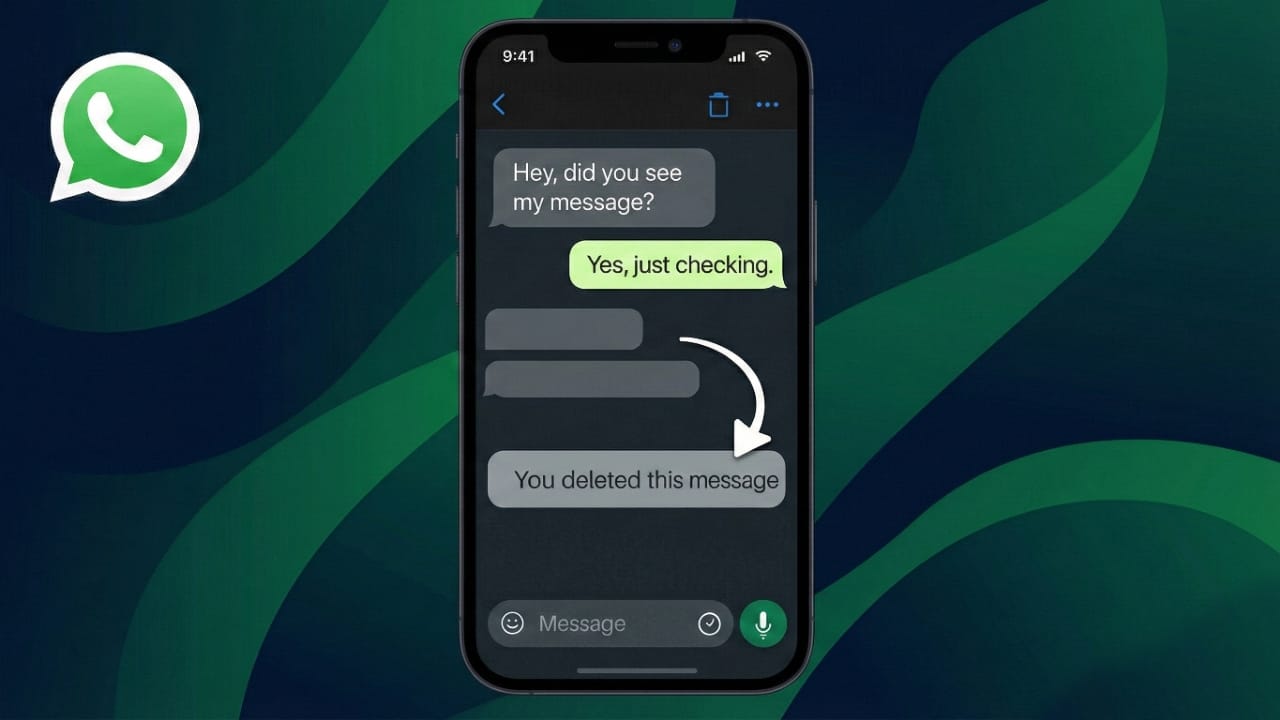
We all send messages in a hurry. Sometimes a spelling error slips in, a message goes to the wrong chat, or you type something you didn’t really want to send. WhatsApp makes it easy to fix these small mistakes with two features: Delete and Edit. This guide explains how both options work in a clear and beginner-friendly way.
1. Why These Options Are Helpful
Being able to remove or update a message helps you:
- Correct errors instantly
- Avoid confusion in personal or group chats
- Update details that were wrong
- Keep your chats tidy and accurate
These features give you better control over what stays in your conversations.
2. How to Delete Messages on WhatsApp
Sometimes you want a message to disappear completely. WhatsApp lets you remove a message in two ways:
- Delete for Everyone: The message is removed from your chat and the other person’s chat.
- Delete for Me: Only your phone removes the message; others can still see it.
Also read: How to Create a Telegram Channel – A Simple Beginner-Friendly Guide
Steps to delete a message
- Open WhatsApp
- Open the conversation containing the message
- Tap and hold the message
- Select the trash icon
- Choose Delete for Everyone or Delete for Me
- Confirm the action
When you delete a message for everyone, WhatsApp shows a note saying “This message was deleted.”
Important things to know
- “Delete for Everyone” works only for a limited time after sending.
- If the receiver already saw the message, deleting won’t undo what they read.
- In group chats, the delete feature works the same unless the admin has set restrictions.
3. How to Edit a WhatsApp Message
Editing is useful when you don’t want to remove the entire message but only want to fix a small mistake.
Steps to edit a message
- Open the chat
- Tap and hold the message you want to change
- Tap Edit
- Update the text
- Tap the checkmark or confirm button
After editing, WhatsApp adds a small “Edited” label below the message.
Keep in mind
- Only text messages can be edited.
- Editing is also time-limited; you can’t edit messages after a certain period.
- The recipient will know that the message was edited.
- Older WhatsApp versions may not show the edit option.
4. Delete or Edit? How to Decide
Here’s a quick way to choose the right option:
Use Delete if:
- You messaged the wrong chat
- The message contains private or incorrect information
- The entire message needs to be removed
- There is a major error that cannot be fixed with a small edit
Use Edit if:
- You only need to correct a spelling mistake
- A date, link, or number needs updating
- The main message is fine but needs a minor change
- You prefer not to remove the message from the chat
5. Extra Tips for Smooth Messaging
- Keep WhatsApp updated to use the latest features
- Check your message before tapping send
- In group chats, see if the admin has restricted editing or deleting
- You can enable disappearing messages if you want chats to clear automatically
- Remember: deleted messages still leave a small notice in the chat
Also read: How to Reset Your Instagram Feed – A Clean & Easy Guide
Final Thoughts
Fixing mistakes on WhatsApp is quick and simple. Whether you want to erase a message completely or just adjust a word or two, these tools help you keep your conversations clean and accurate. Use them wisely, and you’ll always feel confident about what you send.

I am a passionate Tech Writer with strong industry experience. I enjoy exploring the latest technological innovations and sharing clear, helpful insights with my audience.”