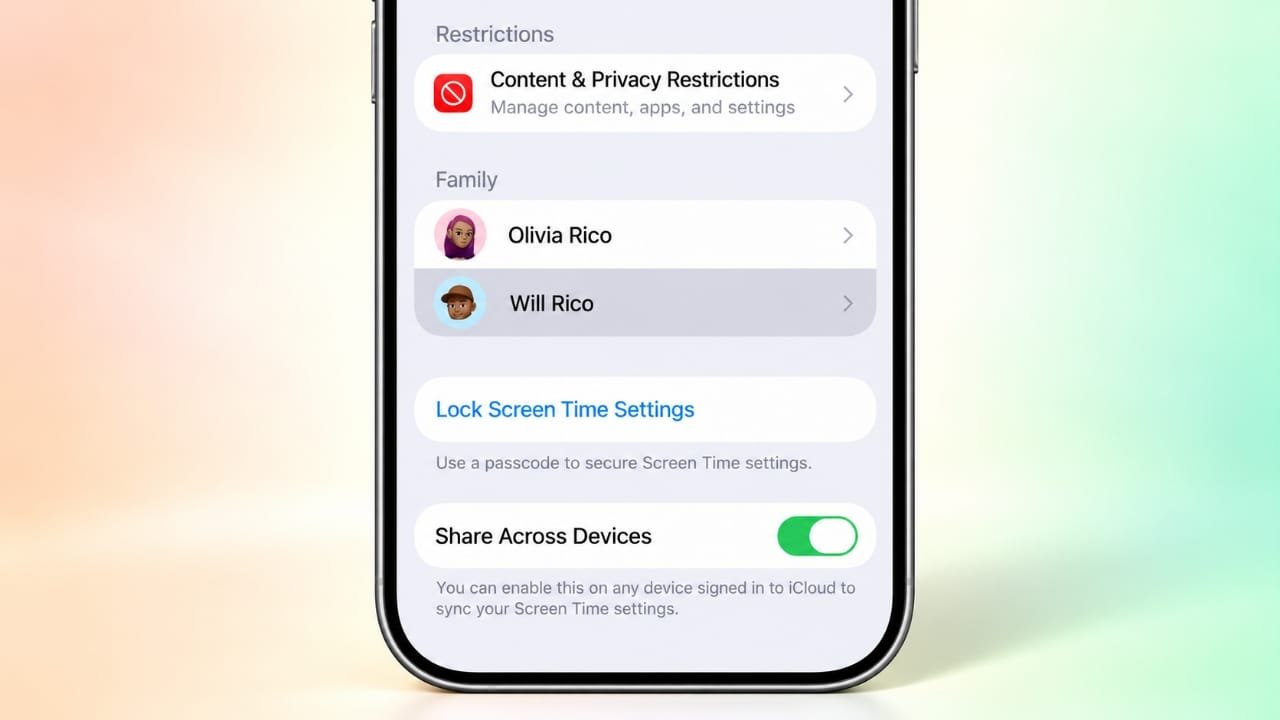
Parental controls on an iPhone help manage screen time, limit app usage, filter websites, and control purchases. Apple provides these features through Screen Time, which allows users and parents to adjust restrictions according to their needs.
If you want to turn off parental controls, open Settings > Screen Time and select the feature you want to change. You can remove an individual app limit, disable Downtime, turn off content restrictions, or stop Screen Time activity altogether.
Advertisements
The steps may differ depending on whether you manage your own iPhone or a child’s device through Family Sharing. Some changes also require the Screen Time passcode. This guide explains how to manage these settings using Apple’s built-in options.
Also read: iPhone Storage Full? Simple Ways to Free Up Space
Before Turning Off Parental Controls
Before making changes, it helps to understand how Screen Time works. It includes several features that control how an iPhone can be used.
- App Limits: Set daily usage limits for selected apps or categories.
- Downtime: Schedule periods when certain apps are restricted.
- Content & Privacy Restrictions: Manage access to websites, purchases, apps, and other features.
- Screen Time Passcode: Protects Screen Time settings from unauthorized changes.
- Family Sharing: Allows a parent or guardian to manage a child’s Screen Time settings remotely.
The Screen Time passcode is different from the passcode used to unlock the iPhone.
If you manage your own device, you can usually make changes directly in Settings. For a child’s device managed through Family Sharing, the parent or guardian may need to update the settings from their own iPhone.
How to Turn Off All Screen Time Restrictions
If you no longer need Screen Time features, you can disable the relevant controls from your iPhone’s settings.
Follow these steps:
- Open the Settings app.
- Select Screen Time.
- Look for the option to turn off App & Website Activity or disable Screen Time, depending on your iOS version.
- Enter the Screen Time passcode if requested.
- Follow the on-screen instructions to confirm your choice.
The available options and their names may vary between iOS versions. Turning off App & Website Activity can stop Screen Time reporting and disable associated features, including App Limits and Downtime.
If you only want to remove one restriction, it is usually better to change that specific setting instead of disabling everything.
How to Turn Off Downtime
Downtime allows users to schedule periods when access to certain apps is limited. If apps become unavailable at particular times, checking this setting may help.
To disable a Downtime schedule:
- Open Settings.
- Tap Screen Time.
- Select Downtime.
- Turn off the scheduling option.
This change does not automatically remove other Screen Time restrictions. If an app remains blocked, check whether an App Limit or another restriction is still active.
How to Remove an App Limit
App Limits allow you to control how much time you spend using selected apps or groups of apps. You can delete an individual limit without changing the other Screen Time settings.
Here is how:
- Open Settings > Screen Time.
- Tap App Limits.
- Select the app, category, or limit you want to remove.
- Choose Delete Limit.
- Confirm the action if prompted.
After removing the limit, the selected app will no longer be restricted by that particular time limit. Other restrictions may still apply.
How to Turn Off Content and Privacy Restrictions
Content & Privacy Restrictions help control purchases, downloads, websites, account changes, and access to certain apps or features.
If you no longer need these restrictions, follow these steps:
- Open Settings on your iPhone.
- Select Screen Time.
- Tap Content & Privacy Restrictions.
- Enter the Screen Time passcode if requested.
- Turn off the Content & Privacy Restrictions option.
Disabling this feature can remove several protections at once. Depending on your settings, it may affect purchase approvals, website filtering, access to explicit content, privacy controls, and changes to account settings.
Review the available options before turning off the entire feature. If you only need to allow one app or change a website restriction, adjusting that individual setting may be more suitable.
How to Allow Access to a Specific App or Website
You do not always need to disable parental controls completely. Screen Time provides options for allowing access to selected apps and websites while keeping other restrictions active.
Allow an App During Downtime
If an app needs to remain available during scheduled Downtime:
- Open Settings > Screen Time.
- Select Always Allowed.
- Find the app you want to permit.
- Add it to the allowed list, if the option is available.
The app may still be affected by other restrictions, depending on your configuration.
Allow Built-In Apps and Features
To manage access to certain built-in apps and features:
- Open Settings > Screen Time.
- Select Content & Privacy Restrictions.
- Open Allowed Apps & Features, or the similarly named option available on your iOS version.
- Adjust the settings for the features you want to allow.
Change Website Restrictions
If a website is blocked, you may be able to adjust the web-content settings instead of disabling all parental controls.
- Open Settings > Screen Time.
- Go to Content & Privacy Restrictions.
- Find the web-content settings under the content restrictions section.
- Choose the access level that meets your needs.
The available choices depend on the iOS version and the restrictions currently configured on the device.
How to Turn Off the Screen Time Passcode
The Screen Time passcode protects usage limits and other Screen Time settings. If you are authorized to manage the device and know the current passcode, you can remove it through Settings.
Follow these steps:
- Open Settings > Screen Time.
- Tap Change Screen Time Passcode.
- Select Turn Off Screen Time Passcode.
- Enter the current passcode if prompted.
- Follow the on-screen instructions.
Removing the passcode does not necessarily remove every existing restriction. You may still need to disable individual limits or content controls.
For a child whose iPhone is managed through Family Sharing, the parent or guardian should manage the passcode from their own device.
What to Do If You Forgot the Screen Time Passcode
If you cannot remember your Screen Time passcode, Apple’s recovery process is the recommended option. Avoid unfamiliar tools that promise to bypass the passcode, especially if they request sensitive account information.
Try the following steps:
- Open Settings > Screen Time.
- Select Change Screen Time Passcode.
- Choose the option to change the passcode again.
- If prompted, enter the Apple Account credentials associated with setting up passcode recovery.
- Follow the instructions to create a new passcode.
The exact recovery process may vary depending on your iOS version and how Screen Time was configured.
If the device belongs to a child and is managed through Family Sharing, the family organizer or parent or guardian should reset the passcode using the appropriate controls on their own device.
If recovery does not work, consult Apple’s official support resources for your device and software version.
Why Are Parental Controls Still Active?
Sometimes, changing one Screen Time setting does not remove every restriction. Several reasons may explain why an app or feature remains blocked.
Family Sharing Settings
A parent or guardian may continue managing the child’s Screen Time settings through Family Sharing. Changes may need to be made by the person responsible for managing the account.
Screen Time Settings Across Devices
If Share Across Devices is enabled, certain Screen Time settings can be synchronized across compatible devices using the same Apple Account. Review this option if restrictions appear on more than one device.
Separate Parental-Control Apps
Some families use third-party parental-control applications in addition to Apple’s Screen Time. These apps may apply their own restrictions, which must be managed separately.
Multiple Restrictions Are Enabled
Downtime, App Limits, and Content & Privacy Restrictions are separate features. Turning off one does not automatically disable the others.
Software or Settings Issues
If the settings appear correct but restrictions remain, restart your iPhone and check for an available iOS update. You can also review Apple’s support documentation for your particular device and software version.
Frequently Asked Questions
Can a child turn off parental controls without the passcode?
A Screen Time passcode is designed to prevent unauthorized changes. If a child cannot change a protected setting, they should ask the parent or guardian managing the device to review it. The available recovery options depend on how Screen Time was configured.
Does turning off Screen Time delete apps or personal data?
No. Changing Screen Time settings does not normally uninstall apps or erase personal files. It changes the restrictions and reporting features associated with Screen Time.
Will deleted App Limits come back automatically?
A deleted App Limit generally remains removed unless it is added again. However, a parent or guardian may reapply restrictions through Family Sharing, or settings may be affected by configuration changes on another device.
Can I remove just one parental control?
Yes. You can usually remove an individual App Limit, adjust Downtime, allow a specific app, or change website restrictions without disabling all Screen Time features.
Do I need the Screen Time passcode to change restrictions?
Some changes require the Screen Time passcode, particularly when the settings are protected. If you have forgotten it, use Apple’s supported recovery method or ask the parent or guardian managing the device for assistance.
Also read: How to Turn Off Mouse Acceleration for Better Mouse Control
Final Thoughts
Turning off parental controls on an iPhone is straightforward when you know which Screen Time feature is responsible for the restriction. You can disable Downtime, delete a specific App Limit, adjust website access, or turn off broader restrictions through Settings.
Before making changes, consider whether you need to remove every restriction or simply allow access to one app or feature. Making a targeted adjustment can solve the problem while keeping other useful protections in place.
For a child’s iPhone managed through Family Sharing, the parent or guardian should review and update the relevant settings. If you have forgotten the Screen Time passcode, use Apple’s official recovery options rather than relying on unverified bypass methods.

I am a passionate Tech Writer with strong industry experience. I enjoy exploring the latest technological innovations and sharing clear, helpful insights with my audience.”
Advertisements