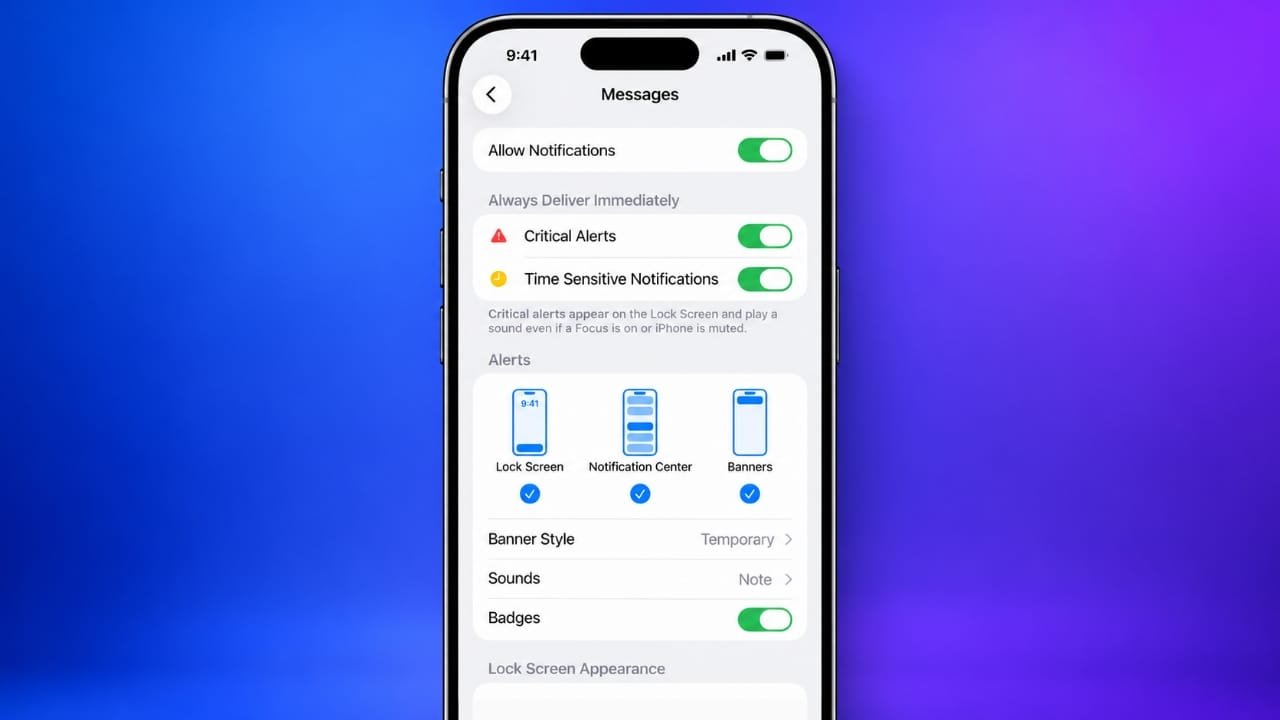
Notifications can be useful, but too many alerts can make it difficult to concentrate. Frequent sounds, pop-ups, and message alerts may interrupt your work, disturb your sleep, or distract you during important conversations.
Fortunately, the iPhone offers several ways to manage notifications. You can silence individual apps, mute specific conversations, hide private information, or use Focus mode to enjoy some quiet time.
Advertisements
In this guide, you will learn how to turn off notifications on your iPhone and adjust the settings to suit your daily routine.
Also read: How to Safely Delete an Old iPhone Backup From iCloud
How to Turn Off Notifications for Specific Apps on iPhone
Some apps send more notifications than you need. Social media platforms, shopping apps, and mobile games are common examples. If these alerts interrupt your day, you can disable them without deleting the apps.
Follow these steps:
- Open the Settings app on your iPhone.
- Tap Notifications.
- Scroll through the list and select the app you want to manage.
- Find the Allow Notifications option.
- Turn off the switch.
The selected app will no longer send regular notifications through the iPhone’s notification system while this setting is disabled.
Repeat these steps for any other apps you want to silence. You can keep alerts enabled for essential apps, such as banking services or communication tools, while turning off notifications from less important ones.
Customize Notifications Without Turning Everything Off
Disabling every notification may not be the best choice for everyone. Some alerts are important, even if you do not want them appearing on your screen all the time.
Your iPhone allows you to choose where notifications appear and how they behave. Depending on the app and iOS version, available options may include:
- Lock Screen: Displays alerts on your locked screen.
- Notification Center: Keeps notifications available for later viewing.
- Banners: Shows alerts while you are using your phone.
You can select the options that work best for you. For example, you might keep notifications in Notification Center while removing them from the Lock Screen.
Show Notifications Only in Notification Center
If you want to receive alerts without seeing them immediately, you can remove them from the Lock Screen.
Here is how to do it:
- Open Settings and select Notifications.
- Choose the app you want to change.
- Under the alert options, turn off Lock Screen notifications.
- Leave Notification Center enabled.
Now, notifications from that app can remain available in Notification Center without appearing on the Lock Screen.
This approach is useful for apps you check occasionally but do not need to monitor throughout the day.
Make Notification Banners Disappear Automatically
Some notification banners stay visible until you dismiss them, while others disappear after a short time. If you prefer temporary banners, you can change the setting for supported apps.
- Open Settings.
- Tap Notifications.
- Select the app you want to customize.
- Tap Banner Style, if available.
- Choose Temporary.
Temporary banners disappear automatically after appearing, helping keep your screen clear while you use other apps.
The available options may vary depending on your iPhone model, iOS version, and the selected app.
Turn Off Notification Sounds and Red Badges
Notification sounds can be disruptive in meetings, classrooms, or quiet environments. Red badges can also make your Home Screen look cluttered.
You can manage these options separately.
To turn off notification sounds, open Settings, select Notifications, and choose the relevant app. If a Sounds option is available, turn it off.
To remove red notification badges, open the same app settings and disable Badges.
Badges are the small symbols or numbers displayed on app icons to indicate unread messages or other pending alerts.
Turning off sounds and badges can make your iPhone less distracting without necessarily disabling all notifications.
Turn Off Flash Alerts
Some iPhones can use the camera’s LED flash to signal incoming notifications. This feature can be helpful in certain situations, but the flashing light may become distracting.
To manage it, open Settings and look under Accessibility for the Audio & Visual or related notification options. Find the LED Flash for Alerts setting, if available, and turn it off.
The exact menu location and available options may differ between iOS versions.
How to Turn Off Message Notifications on iPhone
Messages can generate frequent alerts, particularly when you participate in several group conversations. Instead of silencing your entire phone, you can control message notifications or mute individual chats.
Disable Message Notifications Completely
If you no longer want message alerts to appear on your iPhone, follow these steps:
- Open Settings.
- Tap Notifications.
- Select Messages.
- Turn off Allow Notifications.
This disables regular notifications from the Messages app. You can still open the app to read conversations and check for new messages.
If you only want fewer interruptions, consider changing the notification sounds, banners, or Lock Screen settings instead.
Reduce Repeated Message Alerts
Repeated notifications can make busy conversations more distracting than necessary.
On iOS versions that provide a repeat-alert setting, you can adjust how often message notifications repeat.
Open Settings, go to Notifications, and select Messages. Look for an option related to notification customization or repeat alerts, if available, and change it to suit your preferences.
Menu names and repeat-alert controls can vary across iOS versions. If you cannot find this option, check the available settings for your installed version.
Mute One Person or Group Without Blocking Them
You do not need to block someone just because their messages arrive too frequently. The Messages app allows you to hide alerts for individual conversations.
Follow these steps:
- Open the Messages app.
- Find the conversation you want to mute.
- Open the conversation and tap the person’s name, group name, or conversation details at the top.
- Enable Hide Alerts, or use the equivalent conversation-muting option shown on your iPhone.
Afterward, that conversation will generally stop generating regular notification alerts. Messages can still arrive, and the other person is not blocked.
You can use this feature for busy group chats or conversations that you prefer to check at your own convenience.
How to Manage Phone Call Notifications
Incoming calls can interrupt work, study sessions, and other activities. If you want fewer interruptions, Focus mode is often a practical option because it can silence calls according to your preferences.
On many iPhone versions, phone calls are managed through the Phone app’s settings and the Phone section under Settings. However, a separate Allow Notifications switch for the Phone app may not be available in every iOS version.
For greater control over incoming calls, use Focus settings to decide which people can contact you and when calls should be silenced.
Keep in mind that silencing a call notification does not necessarily block the caller or prevent the call from reaching your phone.
Use Focus Mode to Silence Notifications Temporarily
Sometimes, you need a quiet period rather than a permanent change. Focus mode helps you manage interruptions during work, sleep, study, or personal time.
Depending on your settings, Focus can silence selected notifications while allowing alerts from specific people and apps.
Turn On Do Not Disturb
Do Not Disturb is one of the easiest ways to reduce interruptions temporarily.
You can enable it through Settings:
- Open Settings.
- Select Focus.
- Tap Do Not Disturb.
- Turn it on.
You can also activate it through Control Center.
On most iPhones with Face ID, swipe down from the top-right corner of the screen. On iPhones with a Home button, swipe up from the bottom edge. Tap Focus and select Do Not Disturb.
Your iPhone will apply the notification rules configured for that Focus mode.
Remember that allowed people, repeated calls, and other exceptions may affect which alerts are silenced.
Create Different Focus Modes
Do Not Disturb is not the only available Focus option. You can use different modes for different parts of your day.
Common examples include:
- Work: Helps reduce distractions while completing professional tasks.
- Sleep: Supports a quieter nighttime routine.
- Personal: Limits interruptions during your free time.
- Do Not Disturb: Provides a general quiet period.
The available Focus modes depend on your iOS version and configuration.
To customize a mode, open Settings, select Focus, and choose the mode you want to change. You can then configure allowed people, apps, and other available options.
This makes it possible to silence unnecessary alerts while keeping important contacts or applications available.
Schedule Focus to Turn On Automatically
You do not have to activate Focus manually every time. Your iPhone can turn certain Focus modes on automatically according to a schedule or supported conditions.
To set this up:
- Open Settings and select Focus.
- Choose the Focus mode you want to schedule.
- Find Add Schedule or Add Schedule or Automation.
- Select an available scheduling option.
- Set the conditions you want to use.
Depending on the mode and iOS version, you may be able to schedule Focus based on time, location, or app usage.
For example, you could schedule Work Focus during your usual working hours or configure Sleep Focus for your regular bedtime.
Automatic scheduling can make notification management easier because you do not need to remember to switch modes on and off.
Allow Important People and Apps During Focus
Focus does not have to silence every notification. You can choose which contacts and applications are allowed to reach you.
To customize these settings:
- Open Settings and tap Focus.
- Select your preferred Focus mode.
- Open the People section to manage allowed contacts.
- Open the Apps section to manage allowed applications.
- Adjust the available options according to your needs.
This setup is useful if you want fewer interruptions but still need to receive certain calls or messages.
Review the available exceptions carefully so that your Focus settings match the level of availability you want.
Share Focus Settings Across Apple Devices
If you use several Apple devices, you may be able to apply the same Focus status across them.
On your iPhone, open Settings and select Focus. Look for Share Across Devices and enable it if you want supported devices signed in to the same Apple Account to share Focus settings.
This can help keep your notification experience consistent when moving between your iPhone and other compatible Apple devices.
Hide Notification Previews for Better Privacy
Sometimes, notifications are useful, but their contents should not be visible to anyone looking at your locked screen.
You can hide message previews without disabling notifications completely.
Follow these steps:
- Open Settings.
- Tap Notifications.
- Select Show Previews.
- Choose your preferred option.
Common choices include:
- Always: Shows notification previews according to the selected settings.
- When Unlocked: Displays previews when your iPhone is unlocked.
- Never: Hides notification previews.
Choosing When Unlocked can help protect private messages while keeping notifications available.
You can also adjust notification grouping, where supported, to organize alerts from the same app. These options allow you to improve privacy and reduce screen clutter without missing every incoming alert.
How to Turn Notifications Back On
You can restore notifications whenever you want. Most changes can be reversed through the same settings used to disable them.
To restore notifications for an app:
- Open Settings.
- Select Notifications.
- Choose the app you previously silenced.
- Turn on Allow Notifications.
You can then customize its sounds, badges, banners, and Lock Screen appearance.
If you enabled Do Not Disturb or another Focus mode, open Control Center, tap the active Focus mode, and turn it off.
You can also return to Settings, open Focus, and change the relevant mode or its schedule.
These adjustments let you return to your preferred notification setup whenever your routine changes.
Also read: App Store Missing on iPhone? How to Find and Restore It
Final Thoughts
Managing notifications on your iPhone does not mean you have to disconnect from everyone. The key is to decide which alerts deserve your attention and which ones can wait.
You can silence individual apps, mute busy conversations, remove notification sounds, hide private previews, and use Focus mode during important activities. Scheduling Focus can also help you maintain a quieter routine without making manual changes every day.
Start with a few settings that address your biggest distractions. Keep essential alerts enabled, review your preferences occasionally, and adjust them whenever your needs change.
With the right notification settings, your iPhone can remain useful without demanding your attention every few minutes.

I am a passionate Tech Writer with strong industry experience. I enjoy exploring the latest technological innovations and sharing clear, helpful insights with my audience.”
Advertisements