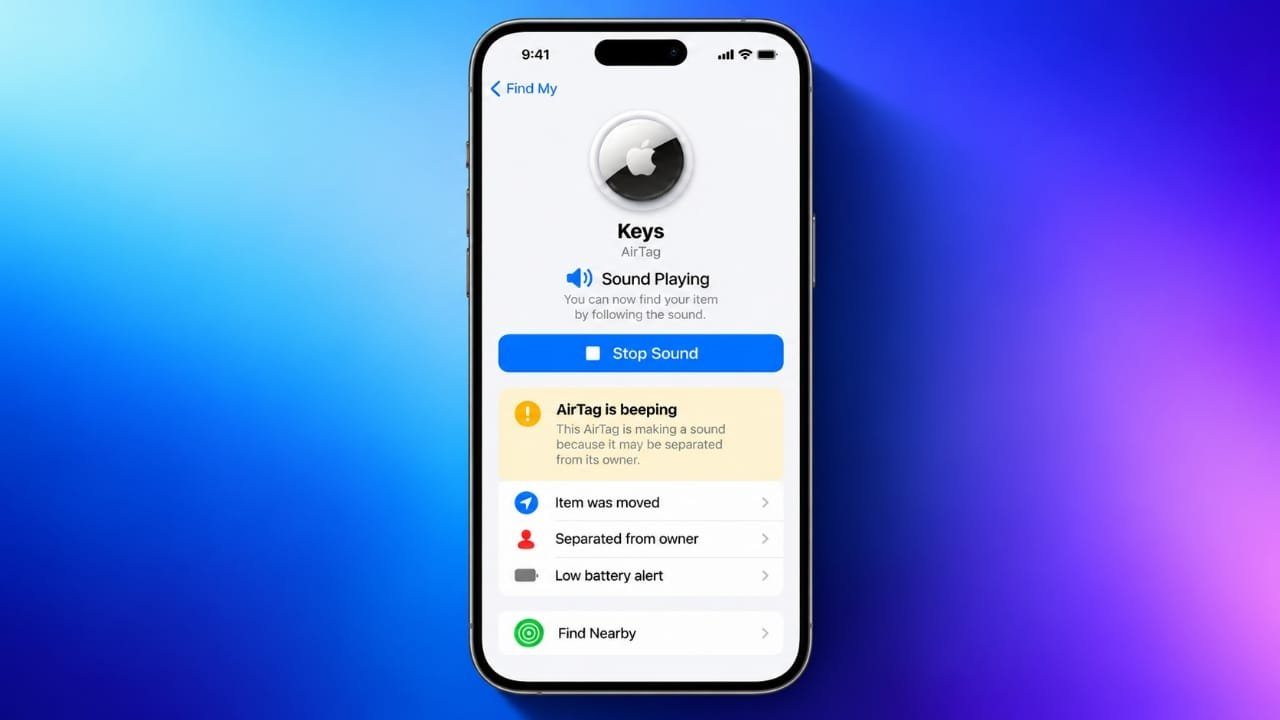
An AirTag is designed to help you keep track of things such as keys, bags, wallets, and other personal items. Most of the time, it works quietly in the background. However, hearing your AirTag suddenly make a sound can be confusing, especially when you are not expecting it.
There can be several reasons behind the sound. The AirTag may be separated from its owner, placed in Lost Mode, running on a low battery, or triggering a safety feature designed to prevent unwanted tracking.
Advertisements
Finding the reason first makes troubleshooting much easier.
Also read: How to Fix an Android Microphone That Isn’t Working
Why Is Your AirTag Making a Sound?
Here are some common situations that can cause an AirTag to beep.
1. The AirTag Has Been Away From Its Paired iPhone
AirTags communicate with Apple devices using Bluetooth. If your AirTag stays away from the iPhone associated with it for a period of time, it can eventually make a sound.
This is not necessarily a sign that the AirTag is damaged. Separation-related sounds are also part of Apple’s safety design. They can help prevent someone from secretly using an AirTag to track another person.
If your AirTag is yours and you simply left it away from your iPhone, try bringing the two devices closer together.
Try this:
- Turn on Bluetooth on your iPhone.
- Keep the AirTag close to the iPhone.
- Open the Find My app.
- Give the devices some time to reconnect.
- Check whether the sound stops.
2. The AirTag Has Been Separated From Its Owner
An AirTag can make a sound when it has been separated from its owner and is moving with another person. This is an important safety feature intended to make an unfamiliar tracker easier to notice.
For example, an AirTag could accidentally end up inside someone else’s bag or be deliberately placed on another person’s belongings. A sound can help draw attention to the tracker.
If you hear an unfamiliar AirTag nearby, check your iPhone for any tracking notification and follow Apple’s safety guidance.
3. Lost Mode Is Turned On
Lost Mode is useful when you cannot find an item attached to your AirTag. You can enable it through the Find My app.
When someone finds the lost item, they may be able to access the contact information you have provided and get in touch with you.
If you have already recovered your item but forgot to turn off Lost Mode, the AirTag may continue behaving differently than usual.
How to turn off Lost Mode
- Open Find My on your iPhone.
- Tap Items.
- Select your AirTag.
- Open the settings for the AirTag.
- Find the Lost Mode option.
- Follow the instructions to turn it off.
Once Lost Mode has been disabled, check whether the sound has stopped.
4. An Unknown AirTag Could Be Near You
If an AirTag that does not belong to you appears to be travelling with you, your iPhone may provide an unwanted-tracking notification.
Apple has built safety features into AirTag to help people identify unfamiliar trackers. The AirTag may also make a sound so that it can be found.
Do not ignore an unexpected tracking alert simply because the sound stops.
If you receive an alert:
- Check your belongings and surroundings.
- Review the notification on your iPhone.
- Follow the instructions provided by Apple.
- If you feel unsafe, move to a safe location and seek appropriate help.
Keeping safety alerts enabled can help you notice unfamiliar trackers.
5. The Battery May Be Running Low
AirTag uses a replaceable CR2032 coin-cell battery. Battery life can vary depending on usage and other conditions.
When the battery gets low, Find My may display a battery warning. A low battery can also affect how reliably the tracker operates.
How to check the battery
- Open the Find My app.
- Tap Items.
- Select your AirTag.
- Look for a low-battery message.
If your AirTag shows a low-battery warning, replace the battery with a compatible CR2032 battery.
How to Stop an AirTag From Beeping
Once you know why the AirTag is making a sound, you can choose the appropriate solution.
1. Check Bluetooth on Your iPhone
Start with the simplest possibility: the AirTag may not currently be communicating with your iPhone.
Make sure Bluetooth is enabled and keep the AirTag nearby.
You can then:
- Open your iPhone’s Bluetooth settings or Control Centre.
- Make sure Bluetooth is turned on.
- Place the AirTag close to your iPhone.
- Open Find My.
- Wait for the connection to update.
Bluetooth performance can be affected by distance, walls, furniture, and other obstacles.
2. Bring the AirTag Closer
If the AirTag has been away from your iPhone, move it closer to the phone.
Place the AirTag near the iPhone and give it a little time to reconnect. If the sound was caused by separation, reconnecting the devices may resolve the issue.
If the AirTag continues making sounds, check the other possibilities described above.
3. Use Separation Alerts for Your Belongings
Find My can notify you when you leave an AirTag-equipped item behind.
To manage this feature:
- Open Find My.
- Tap Items.
- Select your AirTag.
- Look for Notify When Left Behind.
- Configure the available options.
- Add trusted locations if appropriate.
You can also check your iPhone’s notification settings to make sure Find My notifications are allowed.
This feature can be useful for items you regularly carry because your iPhone can remind you when you leave them behind.
4. Turn Off Lost Mode After Recovering the Item
If you previously marked an AirTag as lost, check whether Lost Mode is still enabled.
After finding the item, open Find My, select the AirTag, and follow the available instructions to turn Lost Mode off.
Remember that turning off Lost Mode will not necessarily stop every AirTag sound. Safety-related sounds can have different causes.
5. Replace the Battery
A low battery is another simple thing to check.
To replace the AirTag battery:
- Press down on the stainless-steel cover.
- Turn the cover counterclockwise.
- Remove the cover.
- Take out the old battery.
- Insert a compatible CR2032 battery with the positive side facing up.
- Listen for the confirmation sound.
- Put the cover back into position.
- Turn it clockwise until it is secure.
After replacing the battery, check Find My again to see whether the low-battery warning has disappeared.
Always handle coin-cell batteries carefully and keep them away from children and pets.
6. Be Careful With Safety Alert Settings
AirTag safety notifications are designed to help identify unfamiliar trackers.
If you see an option related to Item Safety Alerts in Find My, understand what it does before changing it. Turning off safety notifications can reduce the warnings you receive about unfamiliar tracking devices.
For most people, keeping these protections enabled is useful.
What If Your AirTag Still Keeps Beeping?
If the basic steps do not solve the problem, you can try a few additional troubleshooting options.
Remove and Pair the AirTag Again
Removing an AirTag from your Apple account and setting it up again can sometimes help with connection or setup problems.
Before doing this, make sure you understand that removing the AirTag means you will need to pair it again.
In Find My:
- Open Items.
- Select the AirTag.
- Open its available settings.
- Choose the option to remove the item.
- Confirm the removal.
- Follow Apple’s setup instructions to add the AirTag again.
An AirTag is associated with one Apple Account at a time. Other devices can access it through the same account where appropriate.
Keep the AirTag Near an iPhone
AirTag firmware updates are delivered automatically rather than through a manual update button.
Keeping the AirTag close to an iPhone that is signed in to the associated Apple Account, with Bluetooth enabled, gives it an opportunity to receive available firmware updates.
If you suspect a software-related issue, keeping the devices together for some time can be worthwhile.
Reset the AirTag
Resetting should generally be considered after simpler troubleshooting steps have failed.
The reset process involves removing and reinserting the battery several times until the AirTag produces the sound indicating that it is ready to be set up again.
After a successful reset, the AirTag needs to be paired with an Apple device again.
Because the process involves repeatedly opening the battery compartment, follow Apple’s current instructions carefully rather than relying on an outdated online guide.
Should You Remove the AirTag Speaker?
You may find online guides suggesting that people physically remove the AirTag’s speaker to prevent it from making sounds.
This is not a good first troubleshooting step.
Opening or modifying the AirTag can damage the device or affect its normal operation. It can also interfere with the safety feature that makes unwanted trackers easier to identify.
Instead of physically modifying the AirTag, identify the reason for the sound and use the appropriate software or battery-related solution.
If the device appears faulty after normal troubleshooting, consider contacting Apple Support or an authorized service provider.
Frequently Asked Questions
Why does my AirTag randomly beep?
There are several possible reasons. The AirTag may be separated from its owner, operating in Lost Mode, involved in an unwanted-tracking alert, or experiencing a low-battery condition. Check Find My and your iPhone for relevant notifications.
How can I stop my AirTag from beeping?
First identify the reason for the sound. Check Bluetooth, bring the AirTag close to its associated iPhone, check Lost Mode, and look for a low-battery warning. If you receive an unfamiliar-tracker alert, follow Apple’s safety instructions instead of simply trying to silence the AirTag.
Can another person’s AirTag beep near me?
Yes. An unfamiliar AirTag can make sounds as part of Apple’s unwanted-tracking protections. Your iPhone may also show an alert if an unfamiliar AirTag appears to be travelling with you.
Also read: How to Make Your Android Phone Look Like a Windows 11 PC
Final Thoughts
An AirTag making an unexpected sound does not always mean something is wrong with the device. Separation from its owner, Lost Mode, unwanted-tracking protections, and a low battery are among the things worth checking.
Start with the simple steps: keep the AirTag near its associated iPhone, check Bluetooth, open Find My, and look for notifications. If the battery is low, replace it with a compatible CR2032 battery.
If the sound is connected to an unfamiliar AirTag travelling with you, treat the notification as a safety feature and follow the instructions provided by Apple.
Avoid physically modifying or removing the AirTag’s speaker just to stop the sound. Identifying the underlying cause is a safer way to deal with persistent beeping.

I am a passionate Tech Writer with strong industry experience. I enjoy exploring the latest technological innovations and sharing clear, helpful insights with my audience.”
Advertisements