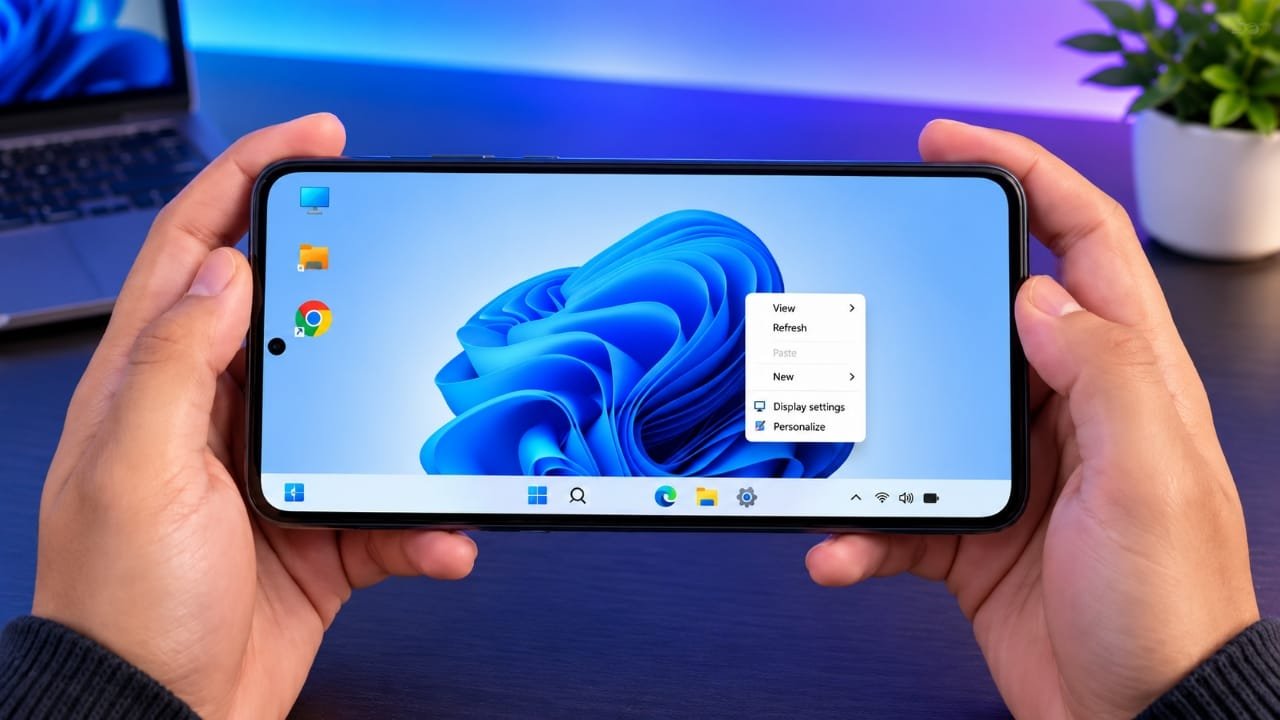
If you enjoy the look and feel of a Windows desktop but use an Android phone or tablet, you can change the way your device looks without replacing Android.
A desktop-style launcher such as HyperDroid PC Launcher can give your Android device a more computer-like interface. Depending on the features available in the version you use, you may get a taskbar, Start menu, desktop shortcuts, file manager and a window-based layout.
Advertisements
The setup is generally straightforward and does not require you to root your phone.
However, there is one important point to understand: HyperDroid does not install Windows 11 on your Android device. It only changes the Android interface to make it look and behave more like a desktop. Windows programs such as .exe files cannot simply be installed and run through the launcher.
Also read: Broken Screen Prank App – Create a Fake Cracked Screen Effect
What Is HyperDroid PC Launcher?
HyperDroid PC Launcher is an Android launcher that provides a desktop-inspired interface.
Instead of the standard Android home screen, you can get a layout that feels more like using a traditional computer. Depending on the version and device, features may include:
- Desktop-style taskbar
- Start menu
- App shortcuts
- File explorer
- Window-style app management
- Desktop-oriented browsing
- Website shortcuts
- Interface customization options
This type of launcher can be particularly useful on Android tablets and larger phones because the additional screen space makes a desktop layout easier to use.
How to Set Up HyperDroid on Android
1. Install the Launcher
Open the Google Play Store on your Android phone or tablet and search for HyperDroid PC Launcher.
Before installing anything, check the app information carefully to make sure you are selecting the intended application.
Tap Install and wait for the installation to complete. Once installed, open the launcher and follow the initial setup instructions.
2. Set HyperDroid as Your Default Launcher
If you want the desktop-style interface to appear whenever you press the Home button, you can make HyperDroid your default launcher.
Open the launcher’s settings and look for an option related to the Default Launcher or Home App.
Android may then ask you which launcher you want to use. Select HyperDroid and confirm your choice.
The exact menu names can vary depending on your phone manufacturer and Android version.
Once it is selected as the default, returning to the home screen should take you to the HyperDroid desktop instead of your previous launcher.
Explore the Desktop Interface
After completing the setup, the standard Android home screen should be replaced by the desktop-style interface provided by the launcher.
You may see a taskbar along the bottom of the screen and a Start-style menu for accessing your applications.
Open the Start menu to view the apps installed on your device. If the launcher includes an All Apps or similar section, you can use it to find applications that are not already displayed on the desktop.
You can then launch Android apps from the menu much like opening programs on a computer.
Add Your Favorite Apps to the Desktop
You don’t need to open the Start menu every time you want to launch an application.
If the launcher supports desktop shortcuts, find an app in the Start menu and press and hold its icon. Look for an option such as Add to Desktop.
Selecting it should create a shortcut on your desktop.
You can repeat this for the apps you use most often and arrange the shortcuts according to your preference.
Pin Apps to the Taskbar
Apps that you use frequently can also be easier to access from the taskbar.
Press and hold an application and check whether the launcher provides a Pin to Taskbar option. If available, selecting it will place the app on the taskbar.
This gives you quick access to commonly used applications without opening the Start menu each time.
Browse Files With a Desktop-Style File Explorer
A file manager can make a desktop-style Android setup more convenient.
HyperDroid may provide a file-explorer-style interface that allows you to browse folders and files stored on your device.
Depending on your Android version and the permissions granted to the app, you may be able to access locations containing downloads, pictures, documents and other files.
Keep in mind that Android’s storage restrictions still apply. A launcher does not automatically receive unrestricted access to every file or folder on your device.
Use Multiple Apps
One of the useful aspects of a desktop-inspired interface is multitasking.
For supported applications, the launcher may provide a window-style experience instead of displaying everything as a traditional full-screen mobile app.
You can switch between open applications using the desktop or taskbar.
This can be especially useful on tablets. For example, you might keep a browser open while working with files or using another Android application.
The exact multitasking experience depends on the Android version, device and features supported by the launcher.
Get a More Desktop-Like Browsing Experience
Some websites are easier to use when they display their desktop version instead of a mobile layout.
You can open services such as Gmail, YouTube, Canva or other web-based tools through an Android browser. If the browser supports desktop mode, some websites may display an interface closer to what you would see on a computer.
This can be useful when working from a tablet or using online productivity services.
However, enabling desktop mode does not convert the website into a Windows application. It is still running inside the Android browser.
Add Websites as Desktop Shortcuts
If you regularly visit a particular website, you may be able to create an app-like shortcut for it.
For example, you could create shortcuts for frequently used services such as Canva or YouTube Studio.
Open the website in a compatible browser and check its menu for an option such as Add to Home Screen or Install as App.
The available option and its name depend on the browser and website.
Once the shortcut has been created, you can access the website more quickly without manually entering its address every time.
Adjust the Desktop Size
The default desktop layout may not look ideal on every Android device.
If the icons, text or other elements appear too large or too small, check the launcher’s display or scaling settings.
A smaller scale can allow more content to fit on the screen, while a larger scale can make text and buttons easier to read.
Some devices and launcher versions may also provide options related to navigation or status-bar visibility.
Try different settings until the layout feels comfortable on your screen.
Change the Wallpaper and Appearance
You can also customize the desktop to make it look more personal.
Check the launcher’s Personalization, Appearance or similar settings. Depending on the available options, you may be able to change the wallpaper, colors, theme or Start menu appearance.
You don’t have to recreate Windows 11 exactly. A simple wallpaper, properly sized icons and an uncluttered desktop can make the interface easier to navigate.
Tips for a Better Desktop Experience
A few accessories and settings can make the setup more practical.
Use Landscape Mode
A horizontal screen provides more space for the taskbar, desktop shortcuts and supported app windows.
This is one reason desktop-style launchers often feel more comfortable on tablets.
Connect a Mouse
A Bluetooth or compatible USB mouse can make it easier to select icons, navigate menus and interact with desktop-style elements.
Add a Keyboard
A Bluetooth keyboard can be helpful if you regularly write emails, edit documents or perform other tasks that require a lot of typing.
Use a Larger Screen
A desktop interface generally benefits from additional screen space. An Android tablet or large-screen phone can provide a more comfortable experience than a small display.
With a suitable Android tablet, keyboard and mouse, you can create a setup that feels somewhat closer to using a small computer.
What Can You Do With a Windows-Style Android Interface?
A desktop-inspired Android setup can be useful for everyday activities such as:
- Browsing websites
- Using online productivity services
- Managing files
- Opening Android applications
- Switching between supported apps
- Working with a keyboard and mouse
- Using an Android tablet in a laptop-style setup
- Customizing the Android home screen
It can also be an interesting way to give an older tablet or spare Android device a different role.
Does HyperDroid Install Windows 11?
No.
HyperDroid does not replace Android with Windows 11.
Your phone or tablet continues to run Android. The launcher simply changes the appearance and provides a desktop-style interface on top of the Android system.
It also does not provide native Windows software support.
For example, you cannot download a Windows .exe program and expect HyperDroid to run it like a Windows computer.
Instead, you continue using Android applications and compatible websites through Android.
Does HyperDroid Require Root Access?
A normal Android launcher does not generally require root access.
You can install a launcher like a regular Android application and select it as your default home app without rooting the device.
You also don’t normally need to unlock the bootloader or modify the Android operating system just to use a desktop-style launcher.
However, specific features can depend on your Android version, device hardware, permissions and the version of the launcher you install.
Can You Switch Back to Your Normal Launcher?
Yes.
If you decide that the desktop-style interface isn’t right for you, you can change your default launcher from Android’s settings.
Look for a section such as Default Apps, Home App or Default Launcher and select your previous launcher.
The location of this setting varies between manufacturers such as Samsung, Xiaomi, OnePlus, Motorola and others.
Frequently Asked Questions
Can I make my Android phone look like Windows 11?
Yes. A desktop-style Android launcher such as HyperDroid can provide features including a taskbar, Start-style menu and desktop shortcuts. It does not install the actual Windows 11 operating system.
Can HyperDroid run Windows programs?
No. HyperDroid is an Android launcher and does not provide native support for Windows .exe applications.
Do I need root access?
Root access is normally not required for installing and using an Android launcher. You can install it like other Android apps and choose it as your default launcher.
Is a tablet better for this setup?
A tablet can be more comfortable because its larger screen provides additional space for desktop shortcuts, menus and supported windows.
Can I connect a keyboard and mouse?
If your Android device supports compatible Bluetooth or USB accessories, you can connect a keyboard and mouse. This can make typing and navigating a desktop-style interface easier.
Can I return to my old launcher?
Yes. You can change the default home app from Android’s settings and select your preferred launcher again.

Also read: Gesture – Draw a Simple Gesture to Open Apps and Perform Action
Final Thoughts
HyperDroid PC Launcher can be an interesting option if you want to give your Android phone or tablet a Windows-inspired desktop appearance.
It does not turn Android into a real Windows 11 PC, and it cannot run Windows .exe programs simply by installing the launcher. Instead, it changes the Android interface and adds a more traditional desktop-style experience.
Features such as a taskbar, desktop shortcuts, file browsing and supported multitasking can make an Android tablet feel more computer-like.
For a more comfortable setup, try using the launcher in landscape mode with a larger display. Adding a keyboard and mouse can also make everyday navigation and typing easier.

I am a passionate Tech Writer with strong industry experience. I enjoy exploring the latest technological innovations and sharing clear, helpful insights with my audience.”
Advertisements