With the growing availability of 5G networks, many Android users want to experience faster internet speeds and improved network performance. As a result, people often search for ways to turn a 4G phone into a 5G device. Unfortunately, there are many misleading claims online suggesting that a simple app, hidden setting, or secret code can instantly unlock 5G on any smartphone.
The reality is much simpler. A phone must be built with 5G hardware to connect to a 5G network. However, if your device already includes 5G support and is still operating on 4G, there are a few official steps you can take to enable 5G.
Also read: ChatGPT Launches Lockdown Mode to Strengthen Security Against Prompt Injection Risks
Is It Possible to Change a 4G Phone Into a 5G Phone?
In most cases, the answer is no.
A smartphone designed only for 4G connectivity cannot be upgraded to true 5G through software alone. 5G technology requires specialized hardware components, including a compatible modem and antennas, which are installed during manufacturing.
If these components are not present inside the phone, no application, update, or setting can add genuine 5G capability.
How to Find Out Whether Your Phone Supports 5G
Before making any changes, it’s important to confirm that your device is actually compatible with 5G.
You can usually check by following these steps:
- Open Settings.
- Go to Mobile Network, SIM Cards, or a similar option.
- Select your active SIM card.
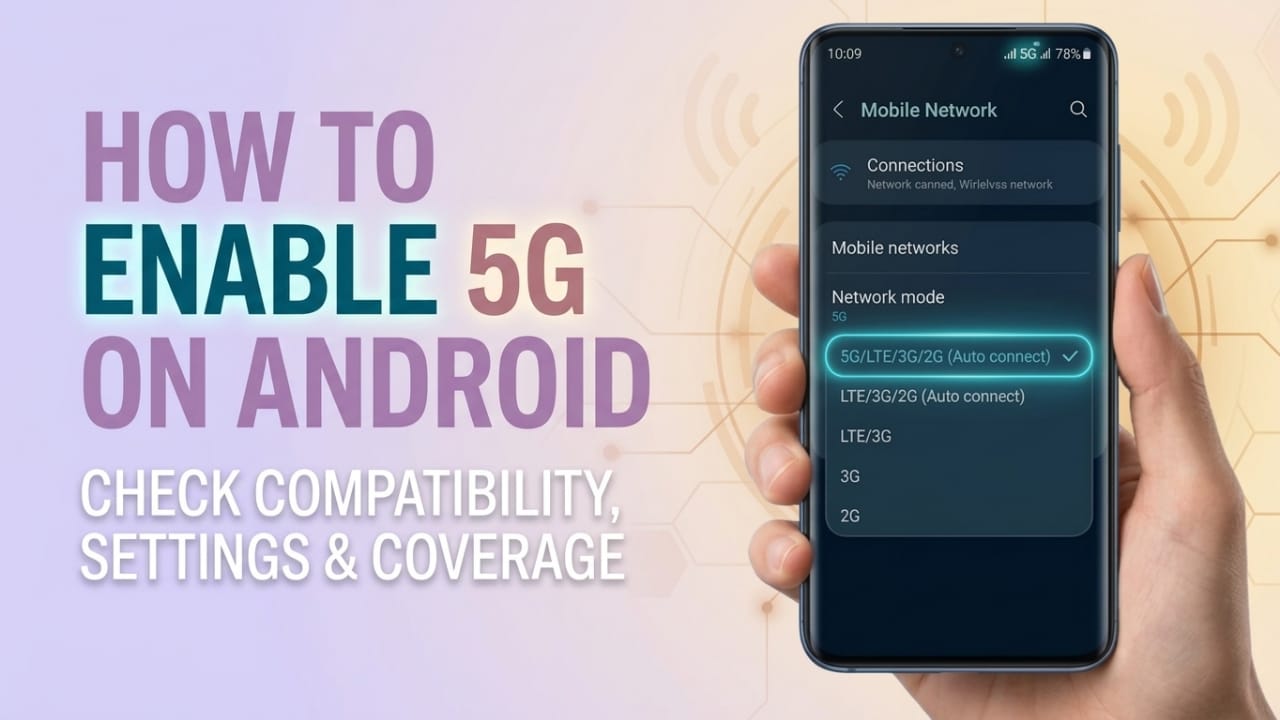
- Look for Preferred Network Type or Network Mode.
If you see options such as:
- 5G Auto
- Prefer 5G
- 5G/4G/3G/2G
your device likely supports 5G.
If the available options only include:
- 4G/3G/2G
- LTE/3G/2G
your phone probably does not have 5G hardware.
Steps to Enable 5G on a Supported Android Phone
If your smartphone already includes 5G support, try the following methods.
1. Install the Latest Software Updates
Phone manufacturers sometimes activate or improve 5G functionality through software updates.
To check for updates:
- Open Settings
- Tap Software Update or System Update
- Download and install any available updates
Once the installation is complete, restart your phone.
2. Select a 5G Network Mode
After updating your device, verify that 5G is enabled.
Navigate to:
Settings → Mobile Network → Preferred Network Type
Choose a setting such as:
- 5G Auto
- Prefer 5G
- 5G/4G/3G/2G
The exact wording may vary depending on the phone brand.
3. Confirm That Your SIM Card Supports 5G
Most recently issued SIM cards are compatible with 5G networks. However, very old SIM cards may not support newer network technologies.
If you’re unsure, contact your mobile service provider and ask whether your current SIM is 5G-ready.
4. Check Network Availability
Even with a 5G-compatible phone, you can only connect to 5G where coverage is available.
If your area does not currently have 5G service, the device will continue using 4G or other available networks. Checking your carrier’s coverage information can help determine whether 5G is available in your location.
Useful Tips for Better Network Performance
Restart the Device
A quick restart can refresh network connections and help the phone reconnect to the strongest available signal.
Use Automatic Network Selection
Open:
Settings → Mobile Network → Network Operators
Enable automatic network selection so your phone can choose the best available network without manual intervention.
Reinsert the SIM Card
Removing the SIM card and inserting it again can refresh the connection between the phone and your mobile network.
Keep Carrier Settings Updated
Some devices receive carrier-related configuration updates that improve compatibility and network performance. Installing these updates can help ensure the best possible connection.
Be Careful With Misleading 4G-to-5G Claims
You may come across videos, websites, or apps that promise to convert any 4G phone into a 5G device using:
- Secret dial codes
- Third-party applications
- APK files
- Developer settings
- Hidden engineering menus
These methods cannot add the hardware required for 5G connectivity.
In some cases, such tricks may only change visual settings or display options. In others, they may create network issues or expose the device to security risks.
What to Do If Your Phone Supports Only 4G
If your smartphone was built exclusively for 4G networks, the only reliable way to use 5G is to switch to a device that includes built-in 5G support.
The good news is that many affordable Android smartphones now offer 5G connectivity, making it easier than ever to upgrade without spending a large amount of money.
Benefits of Using 5G
Compared with 4G, 5G networks can provide several advantages:
- Faster download and upload speeds
- Reduced network latency
- Smoother video streaming
- Improved online gaming performance
- Quicker app downloads and updates
As network coverage continues to expand, more users are choosing 5G-capable devices to take advantage of these improvements.
Also read: Instagram Reels Is Changing How Indians Discover and Buy Products, Says New Meta Report
Conclusion
A 4G-only smartphone cannot be transformed into a true 5G device because 5G requires dedicated hardware. However, if your Android phone already supports 5G, updating the software, selecting the correct network settings, using a compatible SIM card, and ensuring local 5G coverage can help you access the service.
Always rely on official settings and manufacturer-supported methods. Avoid apps or online tricks that claim to unlock 5G on unsupported devices, as they cannot provide genuine 5G functionality.

I am a passionate Tech Writer with strong industry experience. I enjoy exploring the latest technological innovations and sharing clear, helpful insights with my audience.”