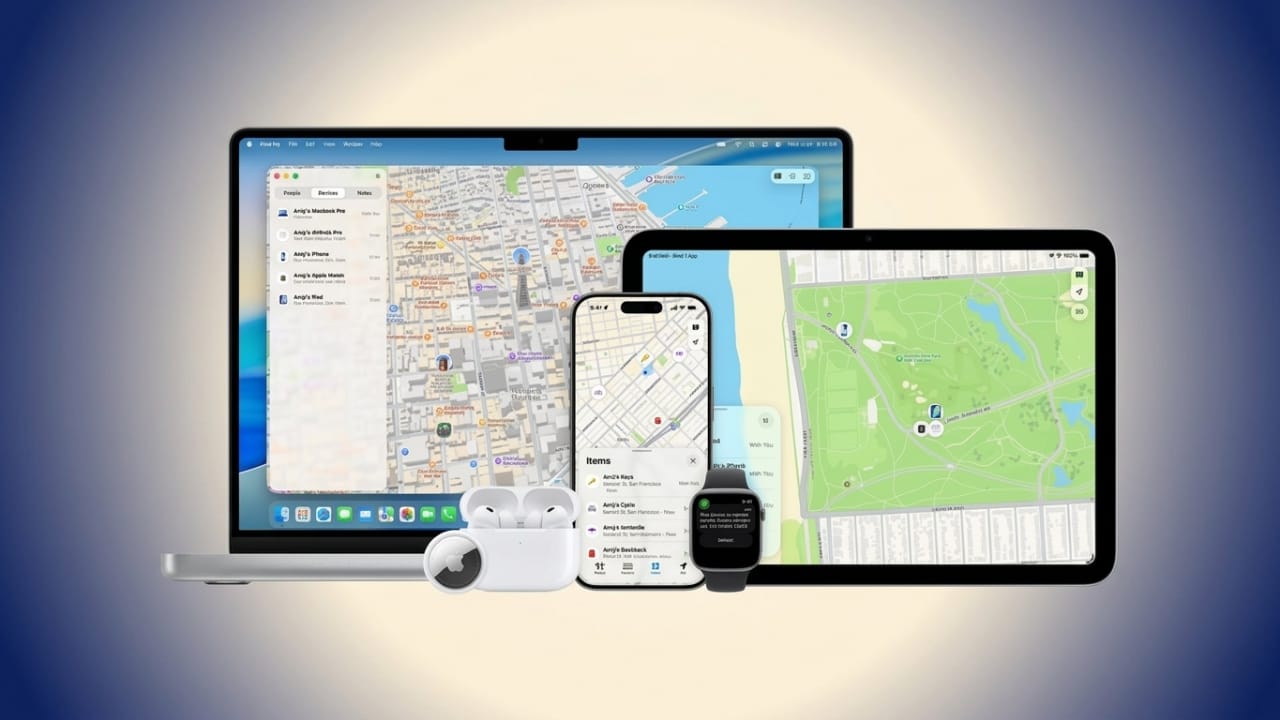
Losing your iPhone can feel stressful, especially because it stores photos, messages, and other personal data. Thankfully, Apple offers a built-in tool called Find My that helps you track your device, protect your information, and even erase everything if necessary.
This feature gives you control over your phone even when it’s not in your hands—provided it was set up earlier.
Advertisements
Also read: Google Starts 2026 Strong with Record Subscriptions and Search Growth
What You Need Before It Works
For accurate tracking, your iPhone should be:
- Turned on
- Connected to the internet
- Logged in with your Apple ID
- Enabled with the Find My feature
- Set with location services turned on
If your phone is offline, don’t worry. Find My can still show its last known location. In some cases, it can even detect your device using nearby Apple devices through Apple’s network.
How to Access Find My
You can use Find My in two ways:
- Open it on another Apple device
- Visit iCloud through a web browser
In both cases, you’ll need your Apple ID and password to log in.
Steps to Locate Your iPhone
- Open the Find My app or visit iCloud Find My in a browser
- Log in using your Apple ID
- Go to the “Devices” section
- Select your missing iPhone
Once selected, you’ll see its location on a map (if available).
If the phone is nearby, use the Play Sound option to help you find it.
If it’s far away, you can check directions to its location.
How to Lock Your iPhone Remotely
If you think your phone is lost or stolen, locking it is a smart move.
- Open Find My and select your device
- Turn on Lost Mode
- Set or confirm a passcode
- Add a contact number and a short message
Once activated, your iPhone will be locked. It will also stop Apple Pay and other payment features to prevent misuse.
How to Erase Your iPhone Data
If you’re sure you won’t get your phone back, you can erase everything remotely.
- Open Find My and sign in
- Select your iPhone from the list
- Choose the option to erase the device
- Confirm your action
This will delete all data from your iPhone. After that, the device cannot be used again without your Apple ID login.
Also read: Click
Final Tip
It’s always a good idea to enable Find My and keep your settings updated. Taking a few minutes to set it up can save you from major trouble later if your phone goes missing.
This guide keeps things simple while helping you stay in control of your device and your data.

I am a passionate Tech Writer with strong industry experience. I enjoy exploring the latest technological innovations and sharing clear, helpful insights with my audience.”
Advertisements