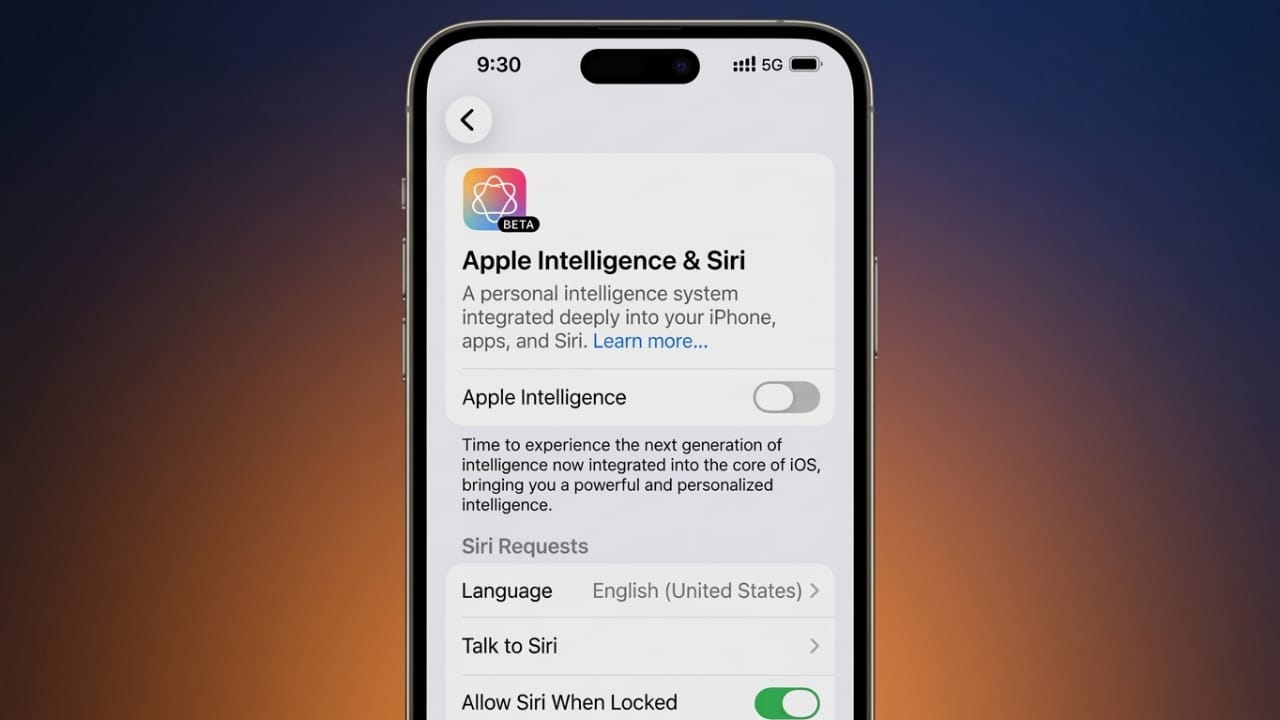
Apple has added a range of AI-based tools under the name “Apple Intelligence.” These features aim to make everyday tasks easier by offering writing help, smart replies, and quick summaries. While useful for some, not everyone enjoys using them.
If you prefer a simpler experience or want more control over your device, you can easily switch these features off.
Advertisements
Also read: ElevenLabs Introduces an AI Music App for Instant Song Creation and Discover
What Is Apple Intelligence?
Apple Intelligence is a built-in system that adds smart features across apps like Messages, Mail, Notes, Safari, and Siri. It can suggest text while you type, summarize long content, and provide quick reply options.
Why Some People Choose to Turn It Off
Not everyone finds these features helpful. Here are a few common reasons people disable them:
- They don’t use AI-based suggestions
- They want more control over privacy
- They prefer fewer background processes
- They want to keep the device running smoothly
- They find automatic suggestions distracting
If any of these points sound familiar, turning off Apple Intelligence may suit you better.
Steps to Turn Off Apple Intelligence on iPhone or iPad
Follow these simple steps:
Step 1: Open the Settings app on your device
Step 2: Scroll down and tap Apple Intelligence & Siri (the name may vary slightly depending on your device)
Step 3: Find the Apple Intelligence option and switch it off
Turn Off Only Selected Features (Optional)
If you don’t want to disable everything, you can control specific features instead:
- Writing Suggestions: Turn off writing tools in settings
- Smart Replies: Disable automatic replies in Messages or Mail
- Summaries: Switch off notification summaries
This allows you to keep only the features you actually use.
How to Disable Apple Intelligence on Mac
Here’s how you can do it on a Mac:
Step 1: Click the Apple menu and open System Settings
Step 2: Look for the Apple Intelligence section
Step 3: Turn off the main feature or disable individual tools like suggestions and summaries
What Happens After You Turn It Off?
Disabling Apple Intelligence won’t affect your device in a major way:
- Your apps will continue to work normally
- Only AI-based features will stop
- Your personal data and files will remain safe
- You can turn the features back on anytime
Things to Remember
- Some functions linked to Siri may still work partially
- Settings locations can change after software updates
- Not all devices support these features fully
Also read: WhatsApp CarPlay Beta App: A Safer Way to Stay Connected on the Road
Final Thoughts
Apple Intelligence can be helpful, but it’s not essential. If you prefer a clean and distraction-free experience, turning it off is a simple and practical choice.
The good part is that you’re always in control—you can enable it again whenever you feel the need.

I am a passionate Tech Writer with strong industry experience. I enjoy exploring the latest technological innovations and sharing clear, helpful insights with my audience.”
Advertisements