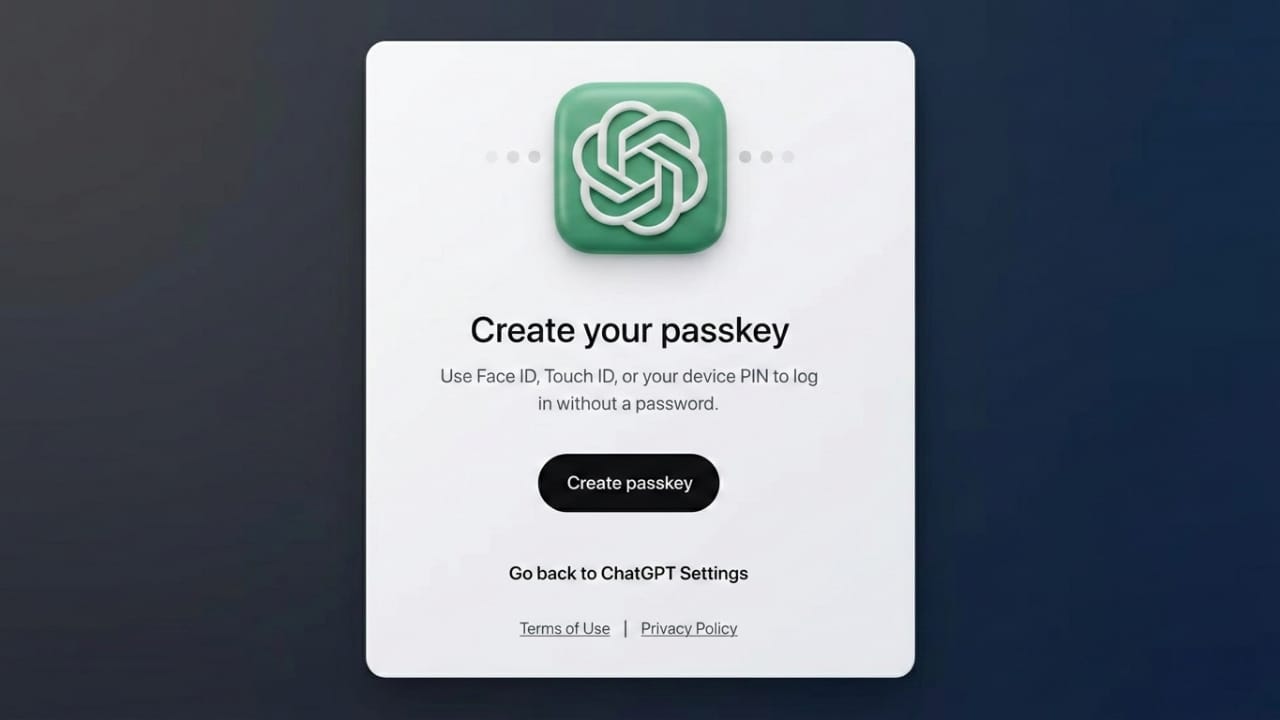
Online security has become more important than ever. If you regularly use OpenAI services, protecting your account should be a priority. One of the newest and safest ways to do this is by using passkeys instead of traditional passwords.
Passkeys provide a simple and secure way to log in without remembering complex passwords. In this guide, you will understand what passkeys are, how they work, and how you can enable them to keep your OpenAI account safe.
Advertisements
Also read: How to Create Visual Content Using Sora AI (Simple Guide for Beginners)
What Are Passkeys?
Passkeys are a modern sign-in method that removes the need for traditional passwords. Instead of typing a password every time you log in, your identity is confirmed using your device.
Common verification methods include:
- Fingerprint scan
- Face recognition
- Device PIN
- Hardware security key
This system uses advanced encryption technology known as public-key cryptography. Because of this design, passkeys are far more resistant to common threats such as phishing attempts, password leaks, or database breaches.
Why You Should Use Passkeys for Your OpenAI Account
Passkeys offer several advantages compared to regular passwords.
Better Security
Passwords can sometimes be guessed, reused, or stolen through phishing attacks. Passkeys eliminate these risks because your login verification happens directly on your device.
No Password to Remember
You don’t need to create or memorize complicated passwords. Your device handles the authentication process.
Device-Level Protection
Passkeys work through your trusted device, making unauthorized access much harder.
Faster Login Experience
Signing in becomes quick and convenient. A fingerprint or face scan can log you in within seconds.
Requirements Before You Enable Passkeys
Before setting up passkeys, make sure the following requirements are met:
- You are using a modern smartphone, tablet, or computer.
- Your browser supports passkeys (such as Chrome, Edge, Safari, or Firefox).
- Your device has biometric authentication or a secure screen lock enabled.
These features allow your device to safely store and verify your passkey.
Steps to Set Up Passkeys for Your OpenAI Account
Follow these simple steps to enable passkeys.
1. Log in to Your OpenAI Account
Visit the official OpenAI website and sign in using your usual login method.
2. Open Your Account Settings
After signing in, go to your profile section or account settings.
3. Find the Security Settings
Look for the section related to security or login options.
4. Enable Passkeys
Choose the option to add or activate passkeys.
Your device will ask you to confirm your identity using one of the following:
- Fingerprint
- Face recognition
- Device PIN
5. Complete the Setup
After verification, the passkey will be securely saved on your device.
The next time you sign in, you can use biometric verification instead of entering a password.
Can Passkeys Work on Multiple Devices?
Yes. You can create passkeys on several devices, including:
- Smartphones
- Laptops
- Tablets
Some systems, such as iCloud Keychain or Google Password Manager, can securely sync passkeys across your devices. This makes logging in easy wherever you are.
What Happens If You Lose Your Device?
If your device is lost or no longer accessible, you can still protect your account.
You should:
- Sign in using another registered device.
- Open your account’s security settings.
- Remove the lost device from the passkey list.
It is also a good idea to keep a backup login option available so you can recover your account if needed.
Passkeys vs Traditional Passwords
| Feature | Password | Passkey |
|---|---|---|
| Can be guessed | Yes | No |
| Risk of phishing | High | Very low |
| Easy to remember | No | Yes |
| Supports biometrics | No | Yes |
Passkeys provide both stronger protection and a smoother login experience compared to traditional passwords.
Extra Security Tips for OpenAI Accounts
Even if you enable passkeys, following basic security practices is still important:
- Keep your device software updated
- Use screen lock or biometric protection
- Avoid logging in on shared or public computers
- Enable two-factor authentication if it is available
Combining multiple security measures helps keep your account safer.
Also read: How to Make Eye-Catching AI Images with Google Gemini Pro (Beginner-Friendly Guide)
Final Words
Switching to passkeys is one of the easiest ways to improve the security of your OpenAI account. This method removes the risks associated with weak or reused passwords and allows you to sign in quickly using your device’s built-in authentication.
If you want a safer and more convenient login experience, enabling passkeys is a smart step toward better online account protection.

I am a passionate Tech Writer with strong industry experience. I enjoy exploring the latest technological innovations and sharing clear, helpful insights with my audience.”
Advertisements