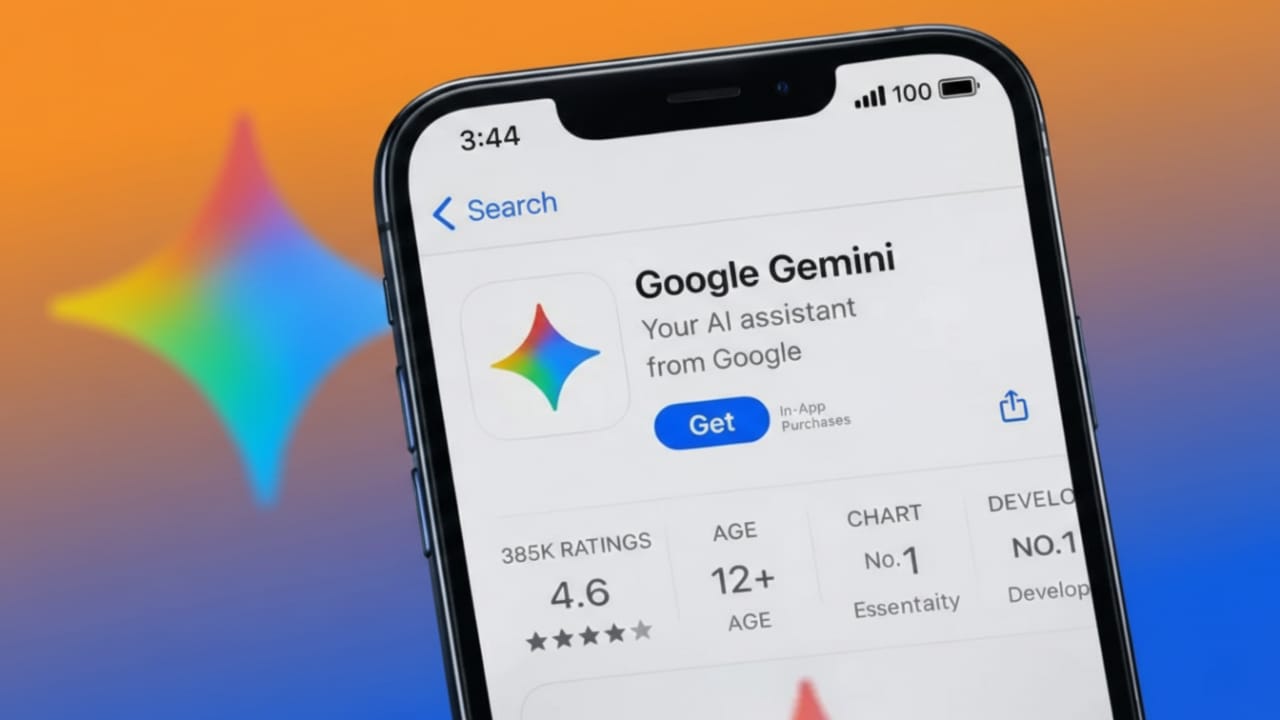
Creating AI images is no longer complicated or limited to professionals. With Google Gemini Pro, anyone can turn a simple text idea into a beautiful image in just a few seconds. You don’t need design skills or special software. All you need is a clear description.
This guide explains how Gemini Pro creates images, how to write better prompts, and how to improve your results step by step—using plain, easy English.
Advertisements
Also read: ElevenLabs Explained: A Simple Guide to Creating Realistic AI Voices
What Is Google Gemini Pro?
Google Gemini Pro is a powerful AI system built by Google. It understands written instructions and can generate different types of content. In supported versions, it can also create images from text descriptions.
Instead of drawing or editing images by hand, you describe what you want to see. Gemini Pro then produces an image based on your words.
Where Can You Use Gemini Pro for Image Creation?
You can access Gemini Pro through:
- The Gemini website
- Supported Google tools and services
- Developer platforms that use the Gemini API
Image generation features may depend on your location and account type. Always check if image creation is available in your version.
Step 1: Open Gemini
Visit the official Gemini website and sign in with your Google account.
Once logged in, you’ll see a text box where you can type your request. This is where you describe the image you want.
Step 2: Write a Clear and Detailed Prompt
Your image quality depends on how well you explain your idea.
A short prompt like this:
“Sunset”
gives very basic results.
A better version would be:
“A peaceful sunset over snowy mountains, orange light reflecting on a still lake, realistic style, high detail”
Clear descriptions help the AI understand your vision.
Step 3: Describe Style, Mood, and Details
To get better visuals, include extra details such as:
- Art style: realistic, illustrated, anime, watercolor, 3D
- Lighting: soft light, evening glow, dramatic shadows
- Viewpoint: close-up, wide view, aerial angle
- Quality hints: high detail, sharp focus, ultra clear
Example prompt:
“A futuristic city at night with glowing neon signs, cyberpunk style, detailed buildings, cinematic lighting”
These small additions can change the entire look of the image.
Step 4: Improve the Image with Small Changes
If the first image doesn’t match your expectations, adjust your prompt instead of starting over.
You can try phrases like:
- “Make the colors brighter”
- “Add more depth to the scene”
- “Increase realism”
- “Blur the background slightly”
Each adjustment helps Gemini refine the output.
Tips for Getting Better Results with Gemini Pro
These simple tips can greatly improve your images:
- Be clear and specific
Short prompts usually lead to weak results. - Mention colors when possible
Colors help define the scene better. - Set the mood
Words like calm, dramatic, dark, or lively affect the final image. - Don’t overload instructions
Too many conflicting details can confuse the AI. - Use inspiration wisely
You can mention general styles without copying specific copyrighted works.
What Kinds of Images Can You Create?
Gemini Pro can generate many types of visuals, including:
- Social media graphics
- Blog header images
- Product design concepts
- Wallpapers
- Fantasy artwork
- Realistic portraits
- Illustration-style visuals
These images can be useful for content creation, inspiration, or personal projects.
Is Google Gemini Pro Free?
Gemini offers free access with certain limits. Some advanced features or higher-performance models may require a paid plan. Pricing and limits can change, so it’s best to check the details in your Gemini account.
Common Errors Beginners Should Avoid
- Using one-word prompts
- Skipping style or lighting details
- Expecting perfect results instantly
- Not refining the prompt
AI image creation works best through small improvements and experimentation.
Also read: How to Create Visual Content Using Sora AI (Simple Guide for Beginners)
Final Thoughts
Making great images with Google Gemini Pro doesn’t require technical knowledge. It’s about learning how to explain your ideas clearly. The better you describe what you want, the better the image will look.
Start with simple prompts. Try different styles. Make small changes. Over time, you’ll become confident at creating high-quality AI images using just words.

I am a passionate Tech Writer with strong industry experience. I enjoy exploring the latest technological innovations and sharing clear, helpful insights with my audience.”
Advertisements