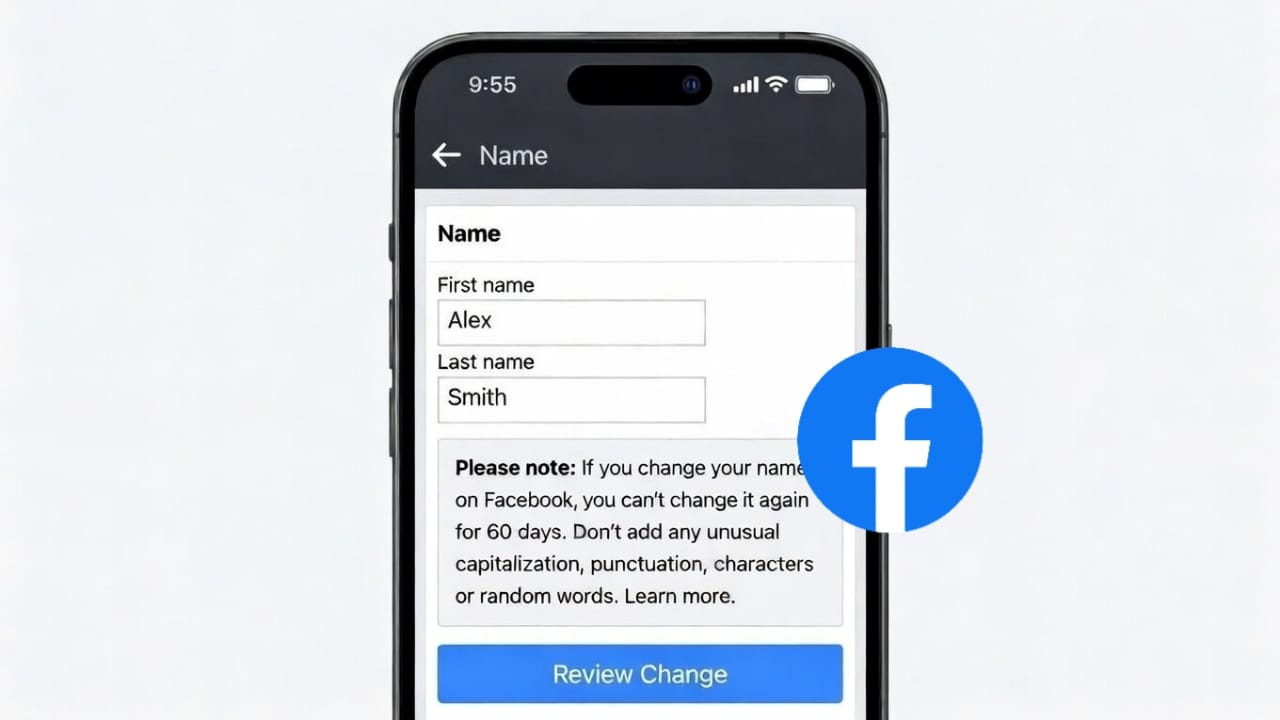
Facebook gives you the option to update your name and username whenever you need to. This helps if you want to fix a spelling error, use a professional name, or update your profile after a personal change. The process is official, safe, and easy to follow on both mobile and desktop.
Below is a clear, step-by-step guide written in simple language.
Advertisements
Also read: Move Your Facebook Photos to Google Drive – Easy Step-by-Step Guide
Facebook Name vs Username: What’s the Difference?
Before making any changes, it’s important to know how these two are different.
Facebook Name
This is the name people see on your profile, posts, comments, and friend requests.
Facebook Username
This creates your profile link, such as facebook.com/yourusername. It is unique and works like your online address.
Both options are updated separately and follow their own rules.
How to Change Your Name on Facebook
You can change your display name using the Facebook app or a web browser.
Steps for Android and iPhone
- Open the Facebook app
- Tap the menu icon (three lines)
- Go to Settings & privacy
- Tap Settings
- Open Personal details
- Select Name
- Enter your new first and last name
- Review and save
Facebook may take up to 24 hours to review the change.
Steps for Desktop (Laptop or PC)
- Open Facebook in your browser
- Click your profile picture
- Choose Settings & privacy
- Open Settings
- Click Personal details
- Select Name
- Enter your updated name
- Save the changes
Important Rules for Changing Your Facebook Name
- You can change your name only once every 60 days
- Numbers, symbols, and unusual formatting are not allowed
- The name should look like a real personal name
- In some cases, Facebook may ask for identity confirmation
Following these rules helps avoid delays or rejections.
How to Change Your Facebook Username
Your username controls your profile link and can be changed separately from your name.
Steps to Update Your Username
- Open Facebook
- Go to Settings & privacy
- Tap Settings
- Open Personal details
- Select Username
- Type a new available username
- Save changes
Usernames must be unique. You can use letters, numbers, and periods.
What Changes After Updating Your Username?
- Your profile link changes instantly
- Old profile links may stop working
- Friends and followers remain the same
If you use Facebook for work or sharing links, it’s a good idea to inform people about the new URL.
Can You Change Name and Username at the Same Time?
Yes, both can be updated, but not together. Each setting must be changed separately, and one does not affect the other.
Common Reasons for Changing Facebook Name or Username
- Fixing spelling mistakes
- Using a professional or business-friendly name
- Updating name after marriage
- Making a long or complex username shorter
Facebook allows these updates as long as its guidelines are followed.
Also read: How to Protect Your Facebook Account From Hackers: A Simple, Complete Guide
Final Words
Updating your Facebook name or username is a simple process when done through the official settings. Just remember the time limits for name changes and the uniqueness rule for usernames. Keeping your profile details accurate makes it easier for friends, family, and contacts to find and recognize you.

I am a passionate Tech Writer with strong industry experience. I enjoy exploring the latest technological innovations and sharing clear, helpful insights with my audience.”
Advertisements