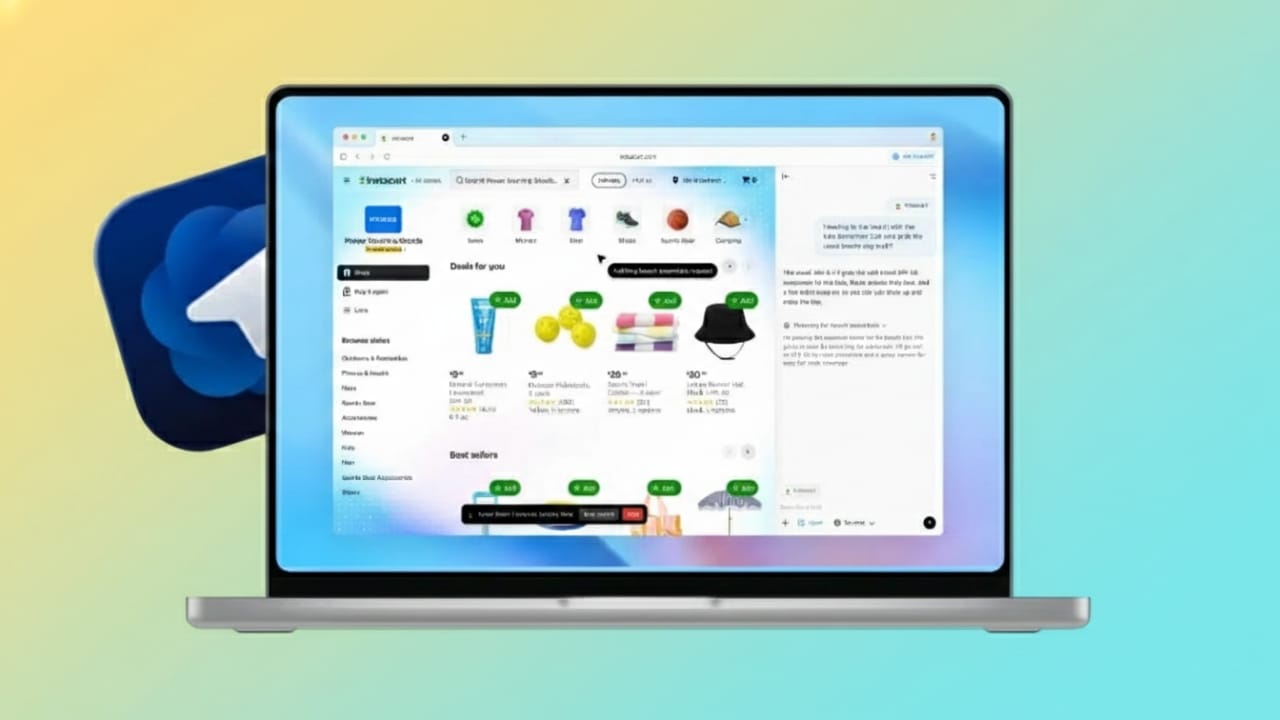
ChatGPT Atlas changes the way people use the internet. It brings AI directly into the browser, so you can read, search, and work without jumping between tabs. Everything happens in one place, making everyday browsing easier and faster.
This browser is useful for students, content writers, office workers, and anyone who spends time online. With Atlas, you focus more on the task and less on managing tools.
Also read: How to Use ChatGPT Record on macOS for Audio Notes and Meeting Summaries
Getting Started with ChatGPT Atlas
What the Atlas browsing experience feels like
Using Atlas feels smooth and distraction-free. ChatGPT is built into the browser itself, so there is no need to open separate AI websites or extensions. You read a page and interact with AI right beside it. This saves time and improves productivity.
Searching the internet with Atlas
Atlas comes with a smart address bar at the top. Click on it, type what you are looking for, and press Enter. Search results appear instantly.
When you open a new tab, Atlas shows useful suggestions such as frequently visited websites and past searches. This helps you reach information faster, especially when repeating tasks.
You can also choose your preferred search engine. Atlas supports different engines, and you can change the default one from the Settings menu under search options.
Finding Information on Any Page
Looking for a specific word or sentence on a long webpage is simple. Use the find option by pressing Command + F. Type the word, and Atlas highlights all matches on the page.
You can move through results using the arrow buttons. This feature is very helpful when reading long articles, reports, or guides.
Understanding the Atlas Interface
The Atlas layout is clean and easy to understand. Navigation buttons like back, forward, and refresh stay on the top-left side. The address bar remains in the center, and tabs are placed neatly across the top.
You can manage tabs in many ways:
- Pin important tabs so they stay open
- Mute tabs that play unwanted audio
- Duplicate tabs to work on the same page twice
- Move tabs into a new window
Keyboard shortcuts make things even faster. You can open, close, restore, and switch tabs using simple key combinations. Atlas also lets you search through all open tabs whenever needed.
Using the ChatGPT Sidebar While Browsing
One of the best features of Atlas is the built-in ChatGPT sidebar. It stays next to the webpage you are viewing, allowing instant interaction.
With the sidebar, you can:
- Summarize long articles
- Rewrite selected text
- Understand difficult paragraphs
- Draft emails or short content
You never have to leave the page you are on. This keeps your focus intact and saves valuable time.
Smart Tools Inside ChatGPT Atlas
Autofill for forms
Atlas helps fill forms quickly using saved information. It can remember addresses, passwords, and payment details.
You can manage these options from Settings under Web Browsing. Everything is editable, so you stay in control of your data.
Address details
You can add, update, or remove saved addresses at any time. This is useful when filling shipping or contact forms online.
Passwords and passkeys
Atlas can save login details securely. You can view, change, or delete saved passwords whenever needed.
It also supports passkeys on supported websites. Passkeys allow you to sign in without typing passwords, offering better security and convenience.
Payment methods
Atlas can store card details on your device to speed up online checkouts. Wallet options like PayPal depend on the website you are using.
Downloading Files in Atlas
Downloading files is straightforward. Click on a download link, and a small indicator appears at the bottom-right corner. Click it to open the file.
You can see all downloads from the profile menu. Atlas also lets you choose where downloaded files are saved by changing the download location in Settings.
Switching Between ChatGPT Workspaces
If you use more than one ChatGPT account, Atlas makes switching easy. From the profile menu, you can select a different workspace.
Each workspace keeps its own settings, history, and saved context. This helps separate personal browsing from professional work.
Safe Search Features
Atlas includes a Safe Search option to filter explicit results from search engines. This affects search results only, not ChatGPT responses.
Filtered content includes adult material, explicit images, and graphic violence. Adults can turn Safe Search on or off from the search settings.
For users under 18, Safe Search stays enabled by default. In some regions, it may remain locked due to local rules.
Installing ChatGPT Atlas on macOS
Why Atlas stands out
Atlas is OpenAI’s first browser designed around AI from the ground up. It removes the need to constantly switch between tabs and tools.
The browser can understand what is on your screen, summarize content, and assist with simple online tasks, all within the same window.
System requirements
Atlas currently works only on macOS devices with Apple Silicon processors. Supported chips include M1, M2, M3, and M4 series.
Your macOS version must be 12 or newer. Intel-based Macs are not supported yet. Windows and mobile versions are planned for the future.
All ChatGPT plans are supported, including free and paid tiers, as well as business and education accounts.
Step-by-Step Installation Process
Step 1: Check your device
Make sure your Mac uses Apple Silicon and runs a compatible macOS version. You also need an active ChatGPT account.
Step 2: Download Atlas
Open a browser and visit the official Atlas download page. Choose the Mac version. A DMG file will download to your system.
Step 3: Install the app
Open the DMG file and drag the Atlas icon into the Applications folder. Launch the app from there. If macOS shows a warning, confirm to continue.
Step 4: Sign in
Log in using your ChatGPT account. This connects the AI to your browsing activity so it can understand page context.
Step 5: Import browser data
Atlas allows you to import bookmarks, history, and saved passwords from Chrome. You can start the import from the menu and allow access when prompted.
Step 6: Set Atlas as default
You can choose Atlas as your default browser from Settings. This gives smoother integration and added benefits for new default users.
Step 7: Customize settings
Atlas offers many customization options. You can control privacy, search preferences, and how AI interacts with web pages. Visibility controls let you decide when AI can access page content.
Step 8: Add Atlas to the Dock
If it is not already there, drag the Atlas icon to your Dock for quick access.
Step 9: Keep Atlas updated
Atlas receives regular updates with new features and improvements. You can check for updates in the About section or enable automatic updates.
Also read: How to Safely Report Fraud or Suspicious Activity in ChatGPT
Final Thoughts
ChatGPT Atlas blends AI and web browsing in a natural way. It reduces effort, saves time, and helps users work more efficiently online. Built-in safety features make it suitable for families, while powerful tools support students and professionals alike.
With easy installation and ongoing updates, Atlas is a strong choice for anyone using a supported Mac in 2026.

I am a passionate Tech Writer with strong industry experience. I enjoy exploring the latest technological innovations and sharing clear, helpful insights with my audience.”