Many apps ask for access to your phone’s location when you first open them. While this permission is useful for apps like Google Maps and weather services, not every app needs to know where you are. Games, photo editors, and other apps may work perfectly well without access to your location.
If you have allowed location access to several apps, reviewing their permissions is a good way to improve your privacy. You can turn off location access for individual apps without deleting them from your phone. Both Android and iPhone offer simple settings to help you control which apps can use your location.
Advertisements
Also read: How to Fix Android Phone Not Showing All Files When Connected to a PC
How to Turn Off Location Tracking for Apps on Android
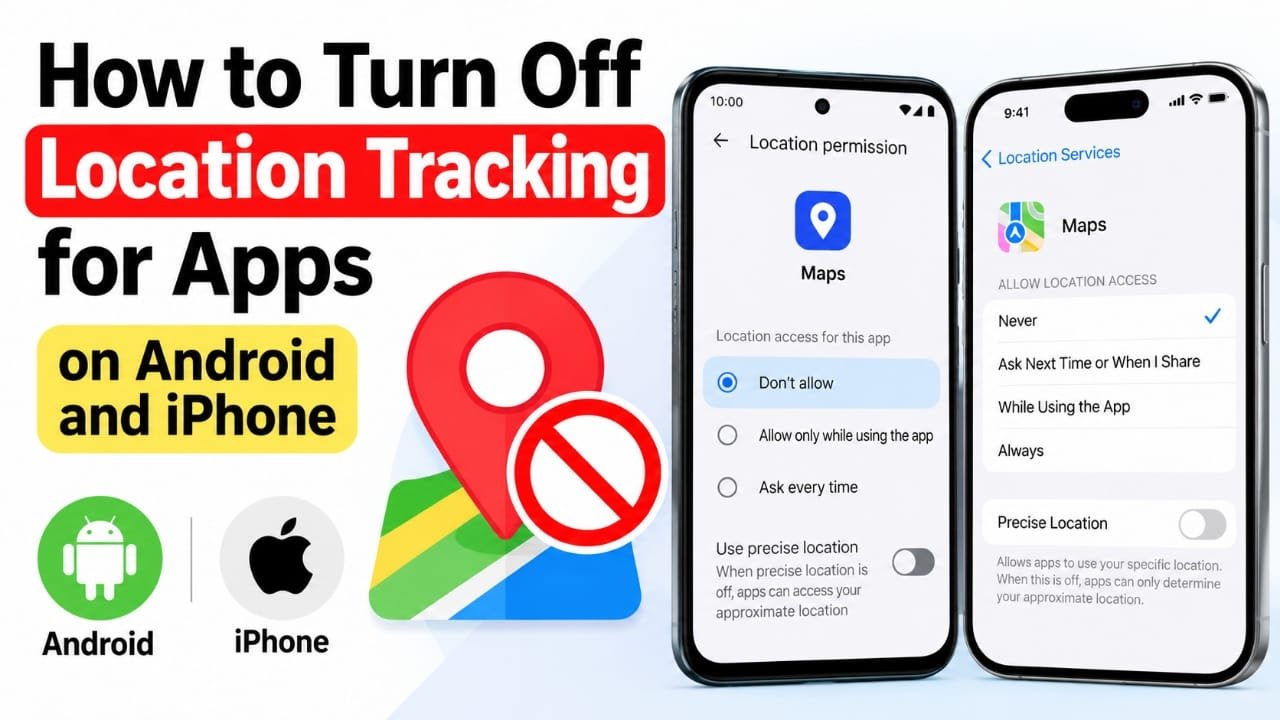
Android allows you to manage location permissions separately for each app. Follow these steps to stop an app from accessing your location.
- Open the Settings app on your Android phone.
- Tap Location. On some devices, you may need to look under Privacy or Security and privacy.
- Select App location permissions or a similarly named option.
- Find and tap the app whose location access you want to change.
- Choose Don’t allow to prevent the app from accessing your phone’s location.
If you still want the app to use your location occasionally, select Allow only while using the app, if available. This option restricts location access to the time when you are actively using the app.
Some Android phones also provide a Use precise location setting. Turning it off allows an app to receive a less accurate location instead of your exact position, where supported.
Keep in mind that menu names and available options can vary depending on your phone’s manufacturer and Android version.
How to Turn Off Location Tracking for Apps on iPhone
iPhone users can also control location access for individual apps through the Privacy & Security settings.
Follow these steps:
- Open Settings on your iPhone.
- Tap Privacy & Security.
- Select Location Services.
- Scroll through the list of apps and choose the one you want to manage.
- Under location access options, select Never to prevent the app from accessing your location.
If the app needs your location only while you are using it, choose While Using the App instead. This can be a useful option for apps that provide location-based features without needing continuous access.
You can also find the Precise Location switch on the same screen for supported apps. Turn it off if the app only needs to know your general area rather than your exact position.
These settings can help you decide which apps should have access to your location and which ones should not.
Does Turning Off Location Access Stop All Tracking?
No. Disabling location permissions limits an app’s access to your phone’s location services, but it does not necessarily prevent every method of estimating your whereabouts.
For example, some online services can use your IP address to estimate your general location. Other information, such as data you share directly with an app, may also provide clues about where you are.
The information an app can access depends on how it works, the permissions you have granted, and the data you choose to share. Turning off location access is still a useful privacy measure, but it should not be considered a guarantee of complete anonymity.
Why You Should Review App Location Permissions
Checking location permissions from time to time can help you understand how apps use your personal information.
Consider these simple practices:
- Allow location only when necessary: Navigation and ride-booking apps may need your location to provide their main features.
- Disable unnecessary access: If an app works without your location, consider selecting the option that blocks access.
- Use approximate location when possible: Some apps do not need your exact position to function properly.
- Review permissions regularly: An app’s features and your privacy preferences may change over time.
These small steps can help you maintain better control over your phone’s privacy without giving up useful app features.
Frequently Asked Questions (FAQs)
How do I turn off location access for an app?
Open your phone’s Settings, go to the location permissions section, select the app, and change its permission to prevent location access. The exact steps may vary by device.
Can I turn off location access for just one app?
Yes. Both Android and iPhone allow you to manage location permissions separately for individual apps. You do not need to disable location services for your entire phone.
Does turning off location access stop all tracking?
No. An app may still estimate your general location through your IP address or other information it can access. Disabling location permission mainly restricts access to your device’s location services.
What is the difference between precise and approximate location?
Precise location provides a more exact position, while approximate location identifies a broader area. Turning off precise location can be helpful when an app does not need to know your exact whereabouts.
Will an app stop working if I disable its location permission?
That depends on the app. Some apps will continue working normally, while others may lose certain features, such as turn-by-turn navigation or location-based recommendations. You can change the permission again whenever needed.
Also read: How to Build a Website with Grok: A Beginner’s Step-by-Step Guide
Final Thoughts
Managing location permissions is a simple way to improve privacy on Android and iPhone. You can block access for individual apps, allow location use only when an app is active, or disable precise location when an approximate position is sufficient.
Take a few minutes to review your installed apps and decide which ones genuinely need this information. By granting only the permissions that make sense, you can continue using your favorite apps while maintaining greater control over your location data.

I am a passionate Tech Writer with strong industry experience. I enjoy exploring the latest technological innovations and sharing clear, helpful insights with my audience.”
Advertisements