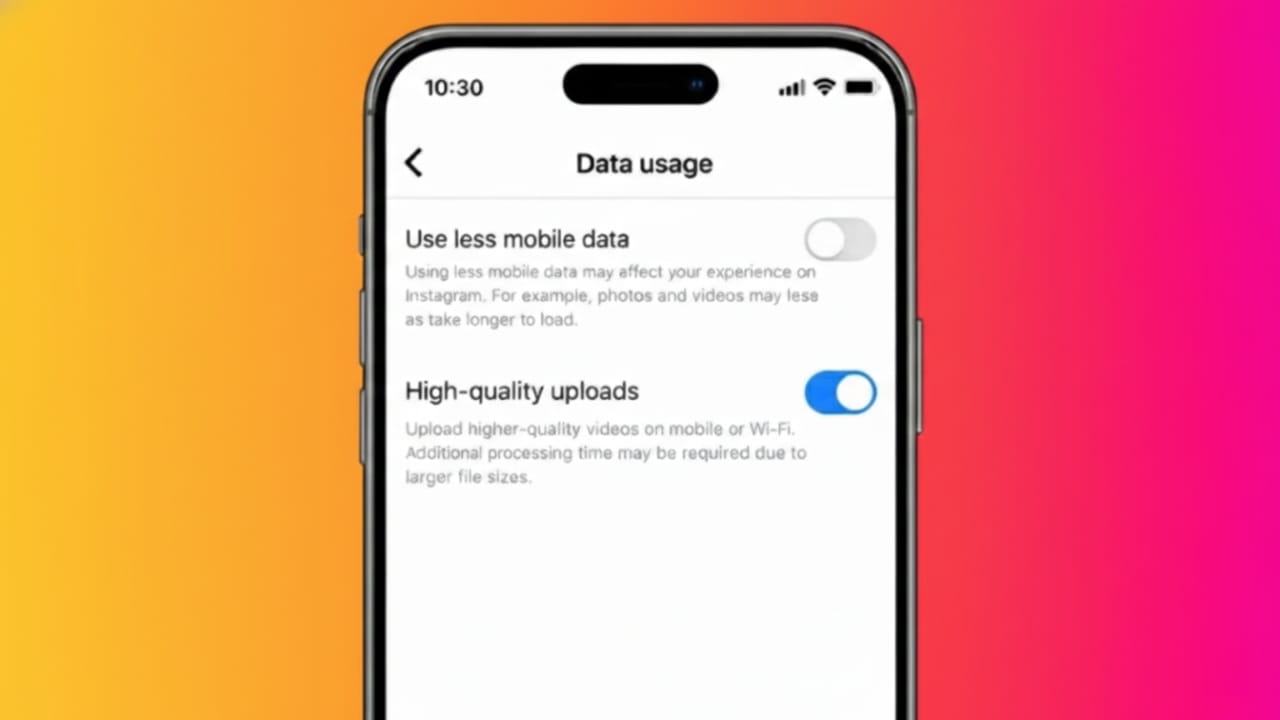
Instagram reduces the size of photos and videos before publishing them. This helps content load faster and saves data, but it can also reduce sharpness and detail. If your uploads look slightly blurry or less clear, there is a simple setting you can change to improve the quality.
In this article, you’ll learn what high-quality uploads mean, why they are useful, and how to turn them on easily.
Also read: How to Save, Find, and Remove Drafts on Instagram
What High-Quality Uploads Mean on Instagram
High-quality uploads allow Instagram to process your photos and videos with less compression. When this option is active, your content keeps more detail, better colors, and clearer video quality.
Instagram will still optimize files for performance, but the loss in quality is much lower than with default settings.
Why You Should Turn This Setting On
This option is especially helpful if you:
- Share photos from a good smartphone or camera
- Upload reels or videos often
- Want your posts to look clean and professional
- Run a creator or business account
The only thing to keep in mind is data usage. Higher quality uploads use more internet data than standard uploads.
Steps to Turn On High-Quality Uploads
You can enable this option on both Android and iPhone by following these steps:
Step 1: Open Instagram Settings
- Open the Instagram app
- Go to your profile page
- Tap the three-line menu at the top right
- Select Settings and privacy
Step 2: Find Media Quality Options
- Scroll down and open Data usage and media quality
- Look for upload or media quality settings
Step 3: Enable the Highest Quality Option
- Turn on Upload at highest quality
Once enabled, Instagram will try to upload your photos and videos in better quality whenever possible.
Should You Use This on Mobile Data?
If you have limited mobile data, use this feature carefully. Reels and long videos can consume a lot of data when uploaded in high quality.
For a better experience:
- Upload content using Wi-Fi
- Turn on data saver only when necessary
- Upload large files from a strong and stable internet connection
Does This Setting Apply to Stories and Reels?
Yes. When high-quality uploads are enabled, they work for:
- Feed posts
- Stories
- Reels
Keep in mind that the final result also depends on the original file quality and your internet speed.
Tips to Get the Best Possible Upload Quality
- Record photos and videos in good lighting
- Avoid heavy editing before uploading
- Upload content directly through the Instagram app
- Keep the app updated to the latest version
These small habits help Instagram process your content more effectively.
Also read: How to Create and Use Saved Replies on Instagram
Final Words
If visual quality matters to you, turning on high-quality uploads is worth it. It takes less than a minute and can make a noticeable difference in how your content appears. Just try to upload over Wi-Fi to avoid extra data usage.

I am a passionate Tech Writer with strong industry experience. I enjoy exploring the latest technological innovations and sharing clear, helpful insights with my audience.”