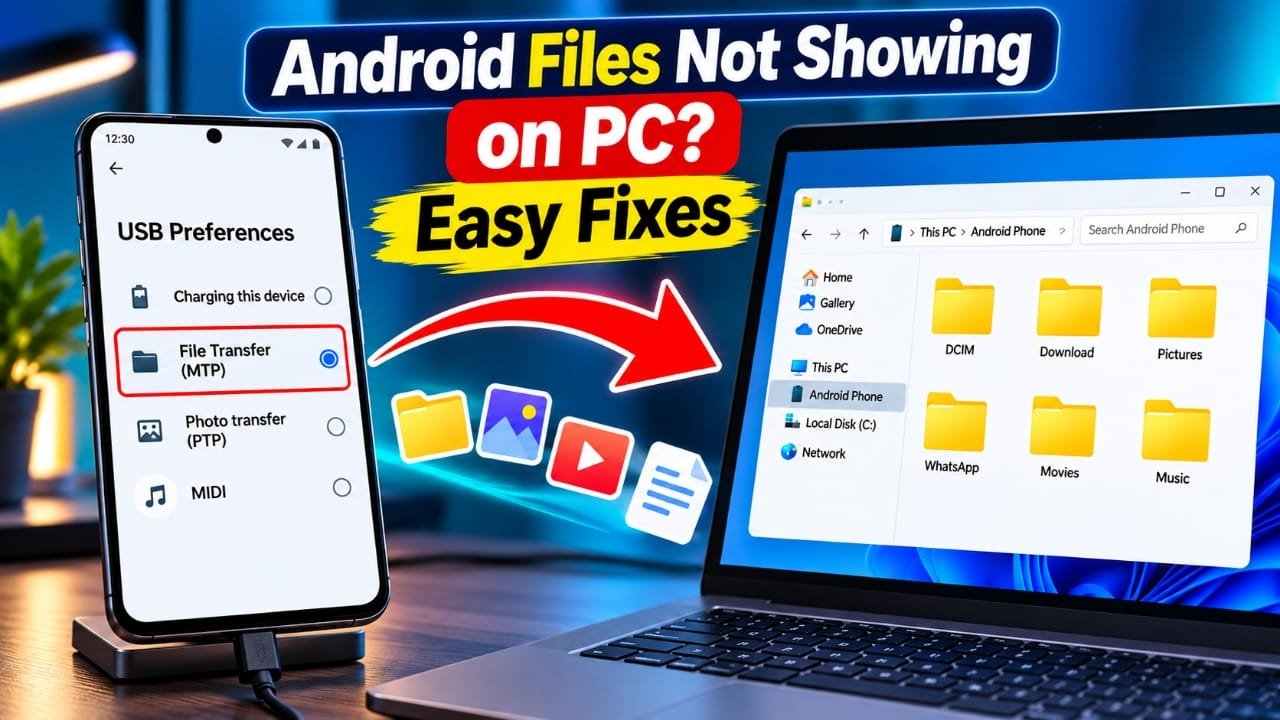
Connecting an Android phone to a computer is a simple way to transfer photos, videos, documents, and other important files. However, sometimes you connect your phone to a laptop and find that certain folders are missing or the phone’s storage appears empty.
This issue can happen on Android phones from Samsung, Xiaomi, Vivo, OPPO, Realme, and other brands. In most cases, the problem is related to USB connection settings, a faulty cable, Windows driver issues, or files stored in protected folders.
Advertisements
The good news is that you can try several troubleshooting methods before using any additional software. Here is how to fix an Android phone that does not show all files on a Windows PC.
Also read: How to Build a Website with Grok: A Beginner’s Step-by-Step Guide
Why Are Android Files Missing When Connected to a PC?
There are several reasons why your computer might not display all the files stored on your phone.
- Incorrect USB mode: Your phone may be set to charge only instead of transferring files.
- Phone screen is locked: Android may restrict access to internal storage until you unlock the device.
- Media files are not refreshed: Some newly created files might not appear immediately in the computer’s file browser.
- USB cable problems: Certain cables support charging but do not support data transfer.
- Windows driver errors: An outdated or malfunctioning MTP driver can prevent the computer from reading your phone correctly.
- Hidden or protected folders: Some folders are hidden by Windows or restricted by your phone’s privacy settings.
Identifying the cause can help you choose the right solution without changing unnecessary settings.
1. Change the USB Connection to File Transfer Mode
The first thing to check is your phone’s USB connection mode. Many Android devices use charging mode by default when connected to a computer.
Follow these steps to enable file transfer.
Step 1: Connect your Android phone to your computer using a USB cable that supports data transfer.
Step 2: Unlock your phone and swipe down from the top of the screen to open the notification panel.
Step 3: Look for a notification such as Charging this device via USB or USB preferences. Tap it to open the connection settings.
Step 4: Select File Transfer or Transferring files (MTP). The exact wording may differ depending on your Android version and phone manufacturer.
Step 5: Open File Explorer on your Windows computer, select This PC, and open your phone’s name.
You should now be able to access the folders that Android makes available through USB, including DCIM, Download, and other accessible directories.
If the folders still do not appear, keep the phone unlocked and try disconnecting and reconnecting the cable.
2. Unlock Your Phone Before Opening Its Storage
Android protects personal information when a device is locked. As a result, your computer may display an empty folder or fail to show the phone’s internal storage.
To check whether this is the problem, unlock your phone using your PIN, password, pattern, or fingerprint. Keep the screen unlocked while opening the phone’s storage on your computer.
If the phone displays a permission prompt, approve the connection if you trust the computer.
You can also disconnect the USB cable, unlock the phone, reconnect it, and select File Transfer again.
This simple step can resolve many connection problems without requiring changes to system settings.
3. Refresh the Phone’s Media Files
Sometimes, a computer does not immediately display recently added photos or videos. This may happen because the media index has not updated or the connection needs to be refreshed.
Try these steps first:
- Disconnect your phone from the computer.
- Restart the phone.
- Wait a few minutes for Android to finish starting up and updating its media information.
- Reconnect the phone and select File Transfer.
- Open the relevant folder in File Explorer again.
You can also check whether the missing files appear in your phone’s File Manager. If the files are missing there too, the issue may be related to their location or storage rather than the PC connection.
Should You Clear the Media Storage Cache?
Some troubleshooting guides recommend clearing the cache of the Media Storage system component. However, this option is not available on every Android device, and clearing cache does not guarantee that missing files will appear.
Before changing system app settings, try restarting your phone and reconnecting it. Avoid selecting Clear data or Clear storage for system components unless you understand the consequences and have checked your device manufacturer’s guidance.
4. Check Hidden Files in Windows File Explorer
Windows can hide certain files and folders from the normal view. If you are looking for a specific directory, enabling the hidden-items setting may help.
Follow these steps on Windows 11:
- Open File Explorer.
- Select View from the top menu.
- Open Show.
- Enable Hidden items.
On Windows 10, open File Explorer, select the View tab, and tick the Hidden items checkbox.
Now check the relevant folder again.
Keep in mind that this setting only displays files and folders that Windows is permitted to access. It does not bypass Android security restrictions or make protected folders available to your computer.
5. Check the WhatsApp Media Folder
If your WhatsApp photos or videos are missing from your computer, they may be stored in a different location than you expect.
On many Android devices, WhatsApp media files are stored under the following path:
Internal Storage/Android/media/com.whatsapp/WhatsApp/Media
To check this location:
- Connect your phone to the computer.
- Unlock the phone and select File Transfer.
- Open the phone’s internal storage.
- Navigate to
Android, thenmedia. - Open
com.whatsapp, followed byWhatsAppandMedia.
Depending on your WhatsApp version, device, and storage configuration, the folder structure may differ.
Also, not every photo or video you receive is necessarily saved to your phone’s storage. Some media may remain within a chat or may not have downloaded yet. Check the file in WhatsApp and your phone’s File Manager if you cannot find it on the computer.
6. Use a USB Cable That Supports Data Transfer
A USB cable can charge your phone correctly while failing to transfer files. This is particularly common with cables designed only for charging.
If your phone charges but does not appear properly on your computer, try another cable that explicitly supports USB data transfer.
You should also check the following:
- Try a different USB port on your computer.
- Avoid loose connectors or damaged cables.
- Connect the phone directly to the computer instead of using an unreliable USB hub.
- Check the phone’s charging port for visible debris or damage. Do not insert metal objects into the port.
- If possible, test the phone with another computer.
If another cable works, the original cable may be the source of the problem.
7. Update or Reinstall the MTP USB Driver in Windows
Windows uses Media Transfer Protocol (MTP) to access files on many Android phones. If the relevant driver has a problem, the phone may not appear correctly in File Explorer.
You can check the driver through Device Manager.
Step 1: Connect your phone to the computer and select File Transfer.
Step 2: Right-click the Windows Start button and open Device Manager.
Step 3: Expand Portable Devices and look for your phone. Depending on the connection, it may appear under another category, such as USB devices or Other devices.
Step 4: If your phone has a warning symbol or is not working correctly, right-click the relevant device and select Update driver.
Step 5: Follow the available Windows instructions.
If the problem continues, you may be able to select Browse my computer for drivers and then Let me pick from a list of available drivers on my computer. If MTP USB Device is listed as a compatible option, select it and follow the instructions.
The available options depend on your Windows version and device. If you cannot find a suitable driver, check Windows Update or the support website for your phone manufacturer.
Avoid installing drivers from unknown websites.
8. Check Secure Folder and Private Safe
Some Android phones include privacy features that keep selected photos, videos, and documents separate from ordinary internal storage.
For example, Samsung offers Secure Folder, while some other manufacturers provide features named Private Safe, Safe, or Private Space.
Files stored inside these protected areas may not appear when you browse the phone through a USB connection, even if the device is unlocked.
If you are looking for a missing file, open the relevant privacy feature on your phone and check whether the file is stored there.
If you want to transfer it, use the feature’s built-in export or move option, if available, to place the file in a regular, accessible folder. Make sure you are comfortable with the privacy implications before moving sensitive files.
9. Check the Default USB Configuration
If you frequently transfer files between your phone and computer, repeatedly selecting File Transfer can become inconvenient.
Some Android devices let you change the default USB configuration through Developer Options. However, this setting is not available on every device, and the phone may still require you to unlock it or approve a connection.
If your phone supports this option, follow these steps:
- Open Settings and select About phone.
- Find Build number or the corresponding software information option.
- Tap the build number seven times, if your device uses this method.
- Enter your screen lock credentials if requested.
- Return to Settings and open Developer options. Its location varies by manufacturer.
- Find Default USB configuration, if available.
- Select File Transfer.
You may need to reconnect your phone before the change takes effect.
Developer Options includes advanced settings, so change only the option you need. If you are unsure about this setting, continue selecting File Transfer manually whenever you connect the phone.
10. Check Whether the Files Are Actually Stored on Your Phone
If you have tried the previous methods and some files are still missing, check their actual storage location.
Open your phone’s File Manager and search for a missing photo, video, or document. If you can find the file, check its folder path and compare it with the location you opened on your computer.
Some files may be stored in app-specific directories, cloud services, protected storage, or removable SD card storage rather than the folder you expected.
If you use a memory card, confirm that it is detected by your phone and check whether your computer can access it through the phone or a compatible card reader.
This step helps distinguish a USB connection problem from a file-location issue.
Frequently Asked Questions
Why does my Android phone show an empty folder on my PC even when File Transfer is enabled?
Your phone may be locked, waiting for permission, or experiencing a USB connection or driver problem. Unlock the phone, approve any connection prompt, reconnect the cable, and check whether File Transfer is selected.
If the folder remains empty, try another data-capable cable and USB port.
Why are my new WhatsApp photos missing from my laptop?
The photos may be stored in a different folder, may not have downloaded to the device, or may not have been saved to the phone’s media storage. Check WhatsApp and your phone’s File Manager first. On many devices, the WhatsApp media folder is located under Android/media/com.whatsapp/WhatsApp/Media.
Will clearing the Media Storage cache delete my photos and videos?
Clearing a cache is generally intended to remove temporary files, but system app behavior varies across Android versions. Do not assume that every storage-related option is harmless. Avoid selecting Clear data or Clear storage unless you have confirmed what the option does on your device.
Why does my phone charge but not show files on my computer?
The cable may support charging without supporting data transfer. A faulty USB port, incorrect connection mode, or Windows driver issue can also cause this problem. Try another data-capable cable and select File Transfer on your phone.
Can I access every Android folder from Windows?
No. Android restricts access to some system directories, app-specific locations, and protected storage areas. File Transfer provides access to supported folders, but it does not remove Android’s security restrictions.
Do I need an app to transfer Android files to a PC?
Usually, no. Windows File Explorer and Android’s built-in File Transfer mode are sufficient for many common transfers. Additional software may be useful for specific devices or workflows, but download it only from a trustworthy source.
Also read: LINE vs WhatsApp: Which Messaging App Is Better for You?
Final Words
When an Android phone does not display all its files on a PC, the problem is often related to USB settings, phone permissions, cable compatibility, or Windows drivers.
Start by unlocking your phone and selecting File Transfer. Then check the USB cable, refresh the connection, inspect the correct folder, and troubleshoot the Windows driver if necessary.
If the missing files are inside a protected folder or restricted Android directory, you may need to access them through the phone itself. Following these steps should help you identify the cause and transfer the files that your device makes available without changing unnecessary security settings.

I am a passionate Tech Writer with strong industry experience. I enjoy exploring the latest technological innovations and sharing clear, helpful insights with my audience.”
Advertisements