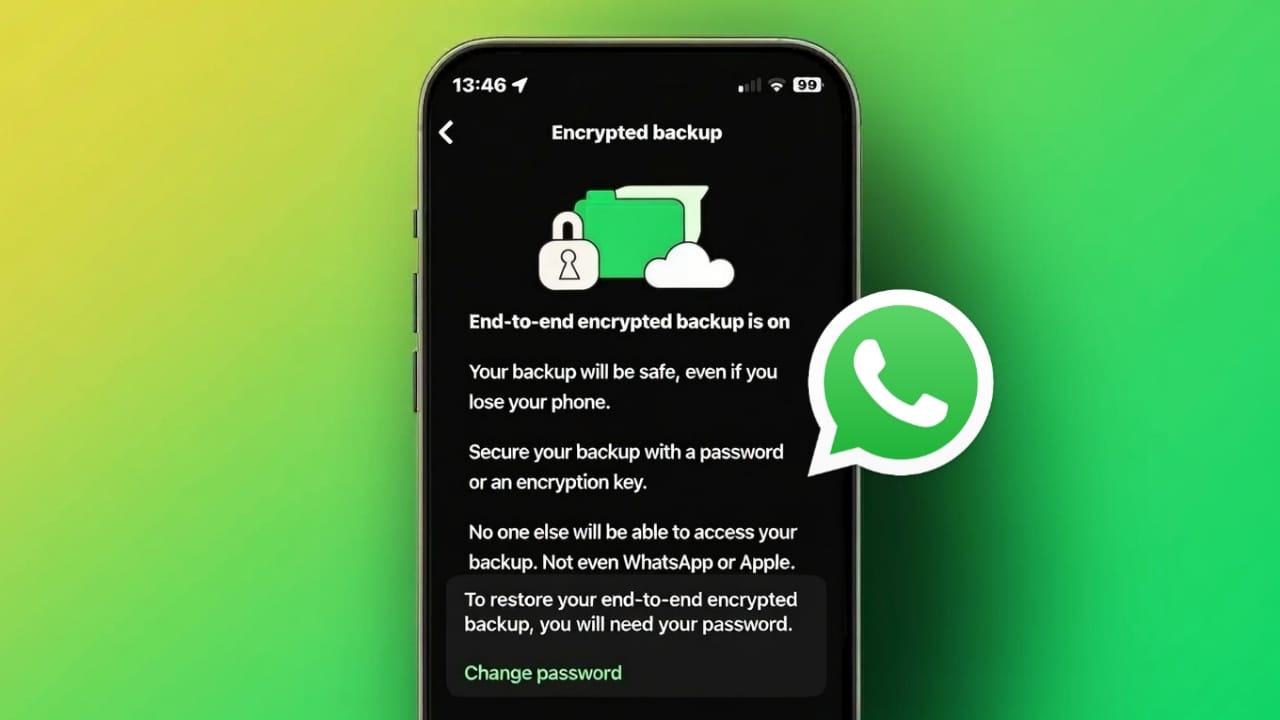
WhatsApp offers a special security feature that protects your chat backups with strong encryption. This option adds an extra layer of privacy to your data stored on Google Drive or iCloud. Even today, many people are unsure how secure cloud backups really are. That is why WhatsApp introduced end-to-end encrypted backups, giving users full control over their own data.
In this guide, you will learn what encrypted backups mean, why they are important, and how to enable them step by step on both Android and iPhone. Everything is explained in simple language, so anyone can follow along easily.
Also read: How to Create WhatsApp Chat Shortcuts on iPhone
Why Encrypted WhatsApp Backups Are Important
Normally, chat backups are stored in the cloud for safety. With encryption turned on, these backups are locked using a private key or password that only you control. Without that key, no one can read your messages.
This protection helps in many ways:
- Hackers cannot open your backup files.
- Unauthorized apps or tools cannot read your chats.
- Even WhatsApp itself cannot see your backup content.
In short, your personal conversations stay private, even when stored online. This feature is especially useful if you care about long-term privacy and data safety.
How WhatsApp Encrypted Backup Security Works
WhatsApp uses multiple safety layers to protect your backup. These layers work together to keep your data secure from start to finish.
1. Encryption before upload
Your chat data is locked on your phone before it is sent to the cloud. This means it is already protected during transfer.
2. Secure cloud storage
The backup stored on Google Drive or iCloud remains encrypted. Cloud services can store the file, but they cannot open it.
3. User-controlled key or password
You create either a password or a 64-digit encryption key. This key is never shared with WhatsApp and stays under your control.
4. Safe restoration process
When you restore chats, WhatsApp checks for the correct key. If the key is wrong, restoration fails automatically.
5. Protection for older backups
Once encryption is enabled, even older backups are secured. Nothing remains unprotected after activation.
Together, these steps ensure that only you can access your chat history.
How to Enable Encrypted Backup on Android
Turning on encrypted backup on Android takes only a few minutes.
- Open WhatsApp and tap the three-dot menu.
- Go to Settings → Chats → Chat Backup.
- Tap End-to-End Encrypted Backup.
- Read the information shown and tap Turn On.
- Choose how you want to protect your backup:
- A password (easy to remember), or
- A 64-digit encryption key (more secure).
- Enter and confirm your password, or safely write down the key.
- Tap Create to start encryption.
Do not close WhatsApp during this process. Once finished, your backup on Google Drive will be fully encrypted.
How to Enable Encrypted Backup on iPhone (iOS)
iPhone users can also activate this feature without any difficulty.
- Open WhatsApp and go to Settings.
- Tap Chats → Chat Backup.
- Select End-to-End Encrypted Backup.
- Tap Turn On and read the instructions.
- Choose a password or an encryption key.
- Confirm your choice and tap Create.
Wait until the process is complete. After that, your iCloud backup will be protected with encryption.
Common Issues and Simple Solutions
Forgotten password
If you forget your password, the backup cannot be restored. There is no recovery option, so always remember it.
Lost encryption key
If the key is lost, the backup is permanently inaccessible. This is done to protect user privacy.
Slow backup process
Large chat histories take more time to encrypt. A stable internet connection helps reduce delays.
Not enough cloud storage
Make sure your Google Drive or iCloud has enough free space. Delete unnecessary files if needed.
Tips to Keep Your WhatsApp Backup Safe
- Store your encryption key in a secure offline place.
- Use a strong, unique password that you do not use anywhere else.
- Turn on two-step verification for your cloud account.
- Keep WhatsApp updated to the latest version.
- Avoid using public Wi-Fi while creating or restoring backups.
These small steps can greatly improve your data security.
Also read: How to Record WhatsApp Calls in 2026 (Using WhatsApp Call Recorder App)
Final Thoughts
WhatsApp’s end-to-end encrypted backup feature gives you strong control over your privacy. It keeps your chats safe in the cloud and blocks unauthorized access completely. Both Android and iPhone users can enable it quickly with just a few taps.
If you value your personal conversations, turning on encrypted backups is a smart and simple step. With the right password or key, your data stays protected at all times.

I am a passionate Tech Writer with strong industry experience. I enjoy exploring the latest technological innovations and sharing clear, helpful insights with my audience.”