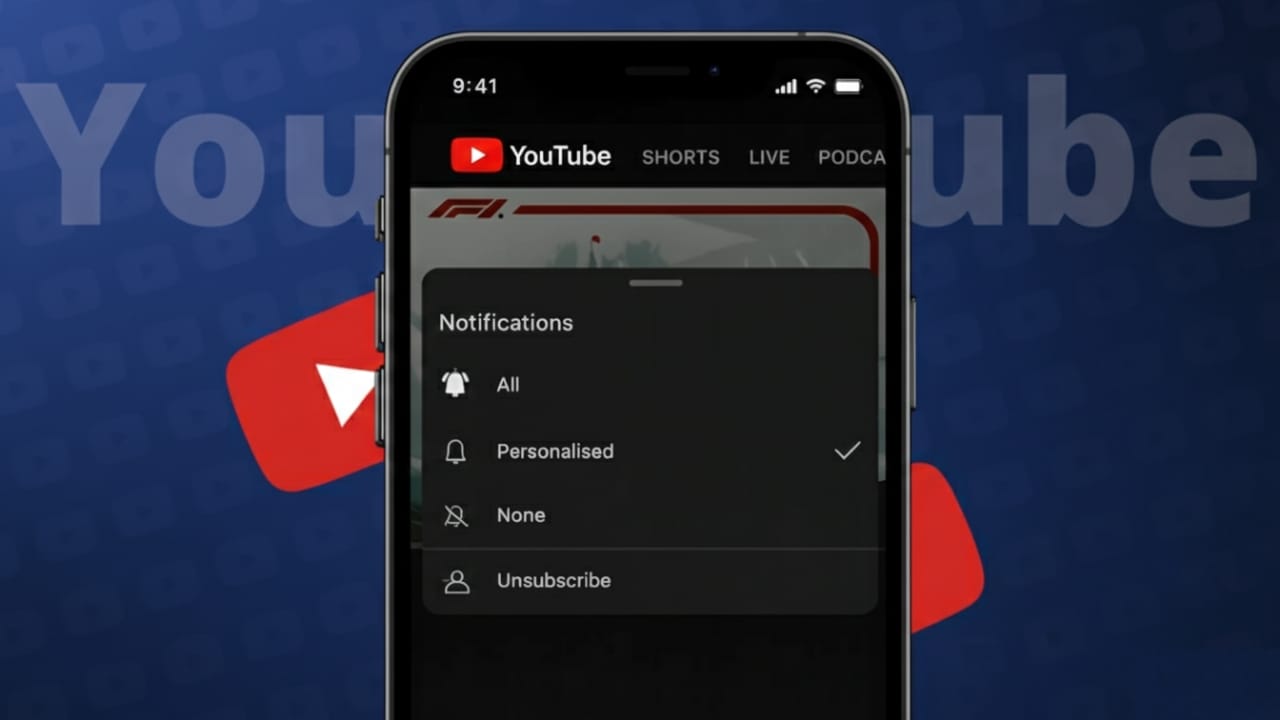
After using YouTube for years, it’s common to follow too many channels. Over time, your subscription feed can feel messy and hard to manage. This often leads to one simple question: Is there a way to unsubscribe from all YouTube channels at once?
Let’s clear this up and look at what YouTube officially allows, along with the safest ways to clean up your subscriptions.
Also read: How to Log Out of Your Amazon Account on the App and Website
Is There a One-Click Option to Unsubscribe From Everything?
No. YouTube does not provide a single button to unsubscribe from all channels at once.
This is done on purpose. A mass unsubscribe feature could cause accidental changes or misuse of accounts. To protect users, YouTube requires subscriptions to be removed manually.
That said, there are still safe and approved ways to unsubscribe quickly.
Method 1: Remove Subscriptions From the YouTube Subscriptions Page (Best Option)
This is the most reliable and fully supported method.
Steps on Desktop (Windows or Mac)
- Open YouTube in your browser
- Sign in to your account
- Click Subscriptions from the left menu
- Select Manage at the top right
- A list of all subscribed channels will appear
- Click Subscribed next to any channel
- Confirm Unsubscribe
Changes apply instantly and safely.
Method 2: Speed Things Up Using Desktop Tabs
If you want to unsubscribe faster:
- Open several channels in new browser tabs
- Click Subscribed, confirm, and close the tab
- Move to the next one
This still requires manual action but reduces scrolling and saves time.
Method 3: Unsubscribe Using the YouTube Mobile App
This is the official method for phones.
Steps on Android and iPhone
- Open the YouTube app
- Tap Subscriptions
- Tap All to view your full list
- Open a channel
- Tap Subscribed
- Confirm Unsubscribe
Bulk removal is not available on mobile, but this method is safe and approved.
Why You Should Stay Away From Third-Party Tools
Some websites or browser extensions claim they can unsubscribe you from all channels automatically. Most of these tools ask for:
- Full Google account access
- Permission to run scripts
- Sign-in rights to your YouTube account
Using such tools can put your account at risk and may violate YouTube’s rules. This can lead to security issues or account limitations. If account safety matters to you, it’s best to avoid them.
What Changes After You Unsubscribe?
- Channels disappear immediately from your subscription list
- Video recommendations slowly adjust over time
- Your watch history still affects suggestions unless cleared
- You can subscribe again anytime
- Your past comments and likes remain untouched
Unsubscribing only affects your feed, not your activity history.
Another Option: Start Fresh Without Cleanup
If you want a clean experience without removing subscriptions one by one, you can:
- Create a separate Google account for YouTube
- Use one account for education and another for entertainment
This gives you a fresh feed while keeping your original account unchanged.
Also read: How to Remove WhatsApp Call History on Android and iPhone
Final Thoughts
There is no official way to unsubscribe from all YouTube channels in one click, and that’s intentional. The safest solution is using YouTube’s built-in tools, even if it takes some time.
Avoid shortcuts that promise instant results. Once the cleanup is done, your YouTube feed becomes cleaner, more relevant, and easier to enjoy again.

I am a passionate Tech Writer with strong industry experience. I enjoy exploring the latest technological innovations and sharing clear, helpful insights with my audience.”