WhatsApp calling is convenient, but it can become annoying when someone keeps calling at the wrong time. In many cases, you don’t want to block that person because you still wish to chat with them. Thankfully, WhatsApp gives you safe and official ways to reduce or completely silence call disturbances without cutting off communication.
This article explains practical options that work on both Android and iPhone, using only WhatsApp’s built-in features.
Also read: How to Show a Full Profile Photo on WhatsApp Without Cropping
Is It Possible to Stop Calls Without Blocking?
WhatsApp does not offer a direct button to block calls from only one person while keeping chats active. However, you can still manage call interruptions smartly. With notification controls and privacy settings, calls can be silenced or ignored without blocking the contact.
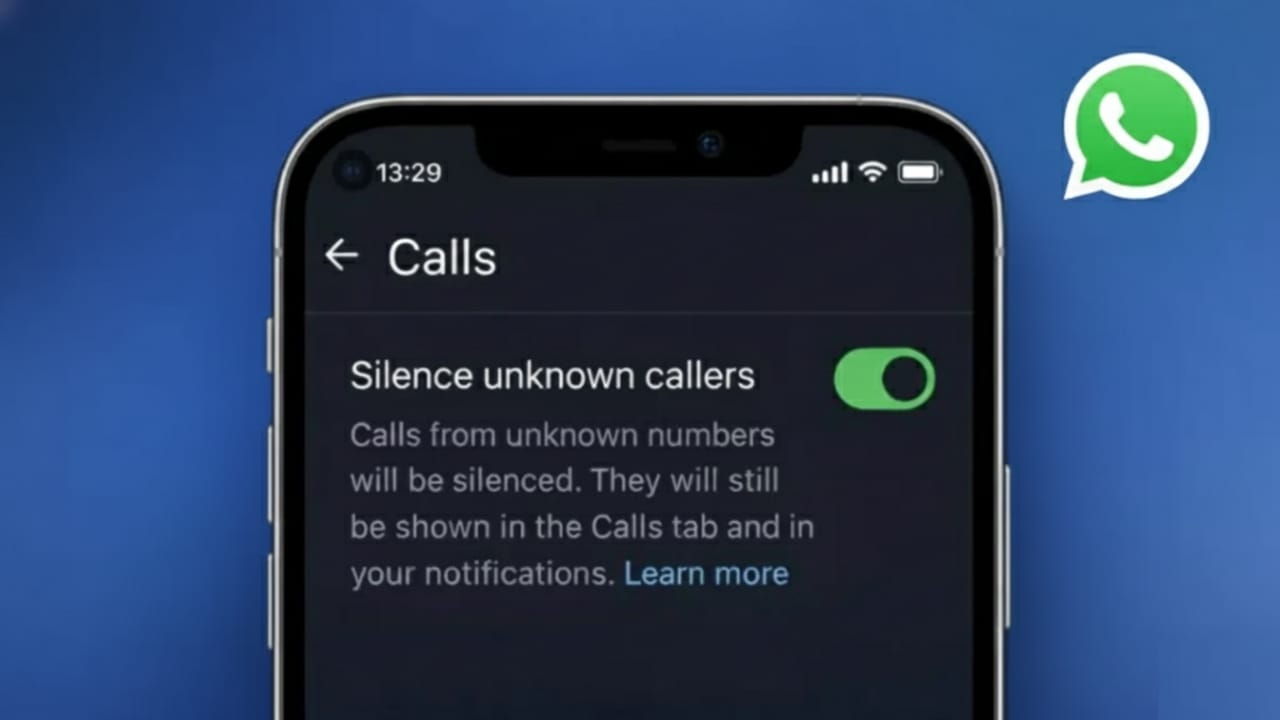
Option 1: Silence Calls From Numbers Not Saved in Contacts
If the caller’s number is not saved on your phone, WhatsApp already has a built-in solution.
How to enable it:
- Open WhatsApp
- Go to Settings
- Tap Privacy
- Select Calls
- Turn on Silence Unknown Callers
What this does:
- Calls from unknown numbers won’t ring
- No vibration or sound
- Call logs will still appear in the Calls tab
This feature is official, safe, and works on both Android and iPhone.
Option 2: Silence Call Notifications for a Saved Contact
If the person is already in your contacts, you can mute their call alerts using custom notifications.
Steps:
- Open the chat with that person
- Tap their name at the top
- Go to Custom Notifications
- Enable Custom Notifications
- Set the call ringtone to Silent
- Turn off vibration
Result:
- Calls won’t ring or vibrate
- The contact stays unblocked
- Messages still arrive normally
This is one of the best options if you want peace without creating awkward situations.
Option 3: Mute the Chat to Reduce Overall Disturbance
Muting a chat does not stop calls directly, but it helps lower distractions from the same contact.
How to do it:
- Open the chat
- Tap the contact’s name
- Choose Mute Notifications
- Select Always
Now, even if they call, you won’t be distracted by message alerts at the same time.
Option 4: Use Your Phone’s Do Not Disturb Mode
Your phone’s system settings can also help manage WhatsApp calls.
How it helps:
- Turn on Do Not Disturb mode
- Allow calls only from selected contacts
- WhatsApp calls from others remain silent
This method gives full control over interruptions without blocking anyone on WhatsApp.
What WhatsApp Does NOT Allow
It’s important to stay clear of risky tricks. WhatsApp does not officially support:
- Blocking only calls while allowing chats
- Automatically rejecting calls from a specific saved contact
- Third-party apps claiming to offer these features
Using unofficial tools can risk account security and privacy.
Best Method Based on Your Situation
| Situation | Recommended Option |
|---|---|
| Saved contact calls too often | Custom notification silence |
| Unknown numbers calling | Silence Unknown Callers |
| Need temporary peace | Do Not Disturb mode |
| Still want to chat | Avoid blocking |
Also read: Create WhatsApp Stickers Without Any Extra App on Android and iPhone
Final Words
If you want to stop WhatsApp calls from one person without blocking them, the safest and most respectful solution is to silence call notifications for that contact. WhatsApp’s privacy and notification tools are designed to handle exactly this situation.
By using official settings, you protect your privacy, avoid conflict, and keep communication open—without unnecessary interruptions.

I am a passionate Tech Writer with strong industry experience. I enjoy exploring the latest technological innovations and sharing clear, helpful insights with my audience.”