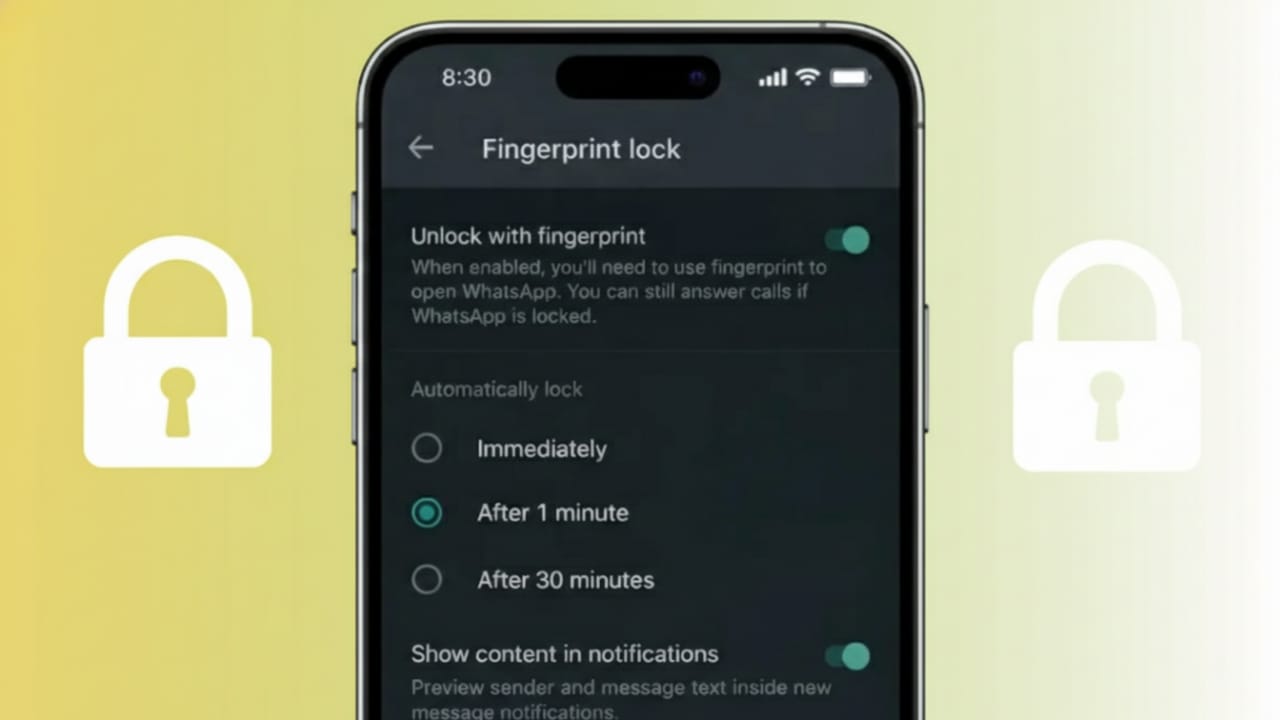
Your WhatsApp account often holds private chats, personal photos, and important work messages. If someone else gets hold of your phone, they can easily open the app unless it is protected. To solve this problem, WhatsApp includes its own security option that lets you lock the app using Face ID or a fingerprint on both iPhone and Android devices.
Below is a simple and clear explanation of how this feature works, how to turn it on, and what you should keep in mind before using it.
Also read: How to Turn On WhatsApp End-to-End Encrypted Chat Backup (Android & iPhone)
What Does WhatsApp App Lock Do?
WhatsApp app lock adds an extra security step before the app opens. Even when your phone is already unlocked, WhatsApp will still ask for Face ID, Touch ID, or a fingerprint to continue.
This protection only applies to opening the app. It does not stop messages from arriving, calls from coming in, or notifications from showing up.
Locking WhatsApp with Face ID or Touch ID on iPhone
iPhone users can protect WhatsApp using Face ID or Touch ID, depending on their device.
Steps to Turn On App Lock on iPhone
- Open WhatsApp
- Tap Settings at the bottom
- Go to Privacy
- Select App Lock
- Enable Require Face ID or Require Touch ID
Once this is active, WhatsApp will ask for biometric verification whenever you open the app.
Choose When WhatsApp Locks Automatically
You can decide how quickly WhatsApp should lock after you stop using it:
- Right away
- After 1 minute
- After 15 minutes
- After 1 hour
Pick the option that fits your daily usage.
Locking WhatsApp with Fingerprint on Android
On Android phones, WhatsApp uses fingerprint authentication for app locking.
Steps to Enable Fingerprint Lock on Android
- Open WhatsApp
- Tap the three-dot menu in the top corner
- Go to Settings
- Tap Privacy
- Select Fingerprint lock
- Turn on Unlock with fingerprint
After setup, WhatsApp will ask for your fingerprint each time you try to open it.
Auto-Lock Settings on Android
You can choose when WhatsApp should lock itself:
- Immediately
- After 1 minute
- After 30 minutes
You also have the option to hide message content in notifications for better privacy.
Will App Lock Stop Calls or Notifications?
No. App lock only protects access to the app itself. It does not block:
- Incoming WhatsApp calls
- Message delivery
- Notification alerts
You may still see who sent a message, but the chat stays locked until you verify your identity.
Can You Use Phone Lock and WhatsApp Lock Together?
Yes, and it is a good idea. Even if someone unlocks your phone, WhatsApp will remain protected with its own lock.
This is especially useful if you share your phone or use WhatsApp for professional communication.
What If Face ID or Fingerprint Does Not Work?
If biometric verification fails several times:
- On iPhone, you will be asked for your device passcode
- On Android, the phone may ask you to unlock the device first
This ensures you can always regain access to your account.
Important Points to Remember
- App lock does not encrypt your chats
- Chat backups remain unchanged
- You must turn on app lock again after reinstalling WhatsApp
- Lock settings apply only to the current device
Why Using WhatsApp App Lock Is a Good Idea
People use this feature to:
- Keep personal chats private
- Protect work-related conversations
- Stop unauthorized access
- Add one more layer of security
It is especially helpful if you often leave your phone unattended.
Also read: How to Remove WhatsApp Cache on Android and iPhone (Simple & Safe Guide)
Final Words
Using Face ID or fingerprint lock on WhatsApp is one of the simplest ways to protect your conversations. Since this feature is built into the app, there is no need to rely on third-party tools. With just a few quick settings, you can secure your chats on both iPhone and Android.
If privacy is important to you, enabling WhatsApp app lock is a smart and practical choice.

I am a passionate Tech Writer with strong industry experience. I enjoy exploring the latest technological innovations and sharing clear, helpful insights with my audience.”