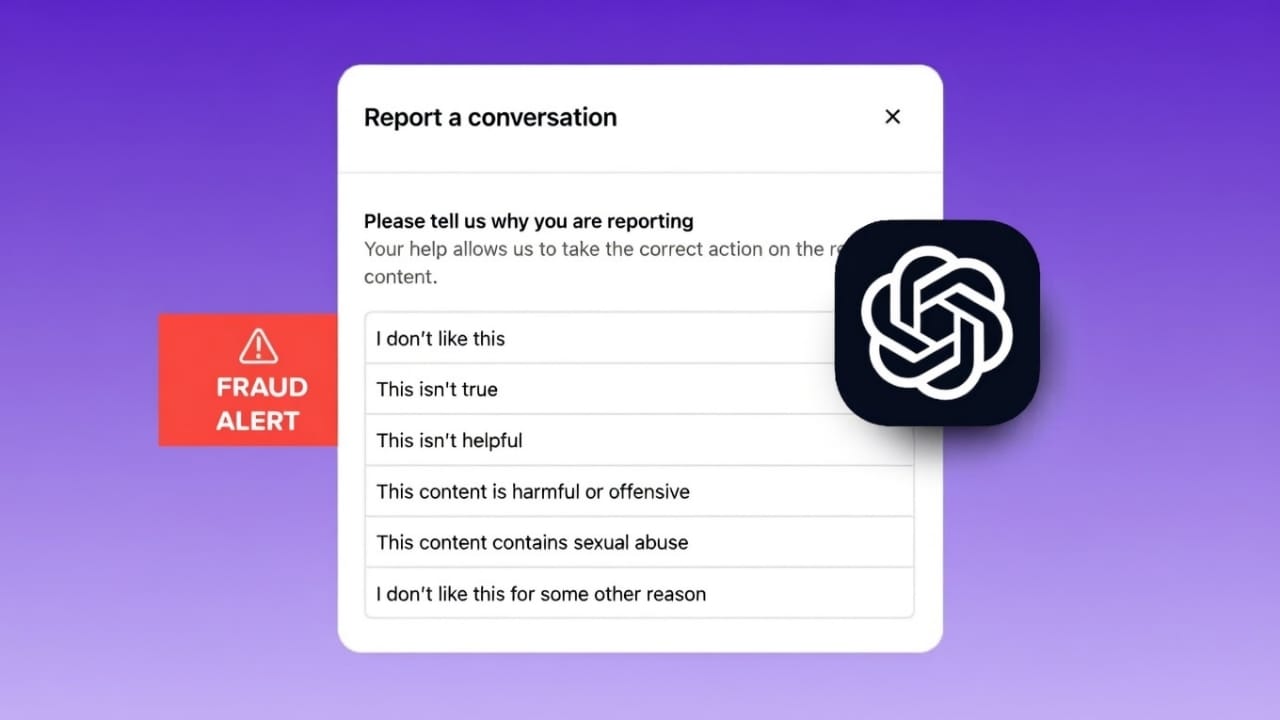
Keeping your online accounts secure is very important. ChatGPT has built-in security systems to protect users, but sometimes you may notice strange activity or warning messages. Knowing what to do in these situations can help you protect your account, data, and payments.
This guide explains how to report suspicious activity safely, why unusual activity warnings appear, and how to fix them in a simple and clear way.
Also read: How to Use ChatGPT Record on macOS for Audio Notes and Meeting Summaries
What Counts as Suspicious Activity?
Suspicious activity means anything that looks unusual or unauthorized. For example:
- Login alerts you do not recognize
- Unexpected billing or charges
- Sudden changes in account settings
- Access problems caused by security warnings
If you notice any of these, act quickly.
Step 1: Secure Your Account First
Before reporting the issue, make sure your account is safe. This helps stop further misuse.
Change Your Password Right Away
Go to your account settings and create a new password.
Use a strong password that you have never used anywhere else.
This simple step greatly reduces the risk of hacking.
Log Out of All Devices
In the security section, choose the option to sign out from all sessions.
This removes access from any unknown or suspicious devices immediately.
Rotate API Keys (For API Users Only)
If you use the ChatGPT API:
- Open the API key management page
- Create a new API key
- Delete the old key right away
This prevents unauthorized use of paid API services.
Step 2: Report the Issue to OpenAI Support
Once your account is secure, report the problem officially.
Send an email to support@openai.com and clearly include:
- The email address linked to your ChatGPT account
- A simple explanation of what you noticed
- Billing details, if money is involved
- Screenshots or proof, if available
The support team reviews reports carefully and will guide you on the next steps. Reporting early helps reduce potential damage.
Why You See “Unusual Activity” Warnings
Many users suddenly see unusual activity errors. These alerts are part of ChatGPT’s security system. They are designed to prevent spam, abuse, and automated misuse.
In most cases, the block is temporary and not a permanent ban.
Common Reasons for Unusual Activity Errors
Understanding the cause helps avoid the problem in the future.
VPN or Proxy Use
VPNs hide your real location, which can look risky to security systems.
Too Many Requests
Sending messages too fast or in large numbers can trigger limits.
Shared Networks
Public Wi-Fi uses shared IP addresses. If one person misuses the service, others may be affected.
Bots or Automation Tools
Automated tools often break usage rules and get flagged quickly.
Browser Extensions
Some ad blockers or privacy tools can interfere with normal connections.
Location Restrictions
Accessing from unsupported regions or masking your location can cause issues.
How to Fix Unusual Activity Errors
Try the steps below one by one.
1. Slow Down Your Usage
If you were sending many prompts quickly, pause for 15–30 minutes before trying again.
Tip: Short breaks between sessions help avoid limits.
2. Change Your Internet Network
Disconnect from public or office Wi-Fi.
Switch to home Wi-Fi or mobile data, then refresh the page.
Tip: Private networks are more stable and secure.
3. Turn Off VPN or Proxy
Disable all VPN apps and proxy extensions.
Reload the ChatGPT website.
Tip: Use VPNs only when necessary, not during troubleshooting.
4. Clear Browser Cache and Cookies
Old or broken data can cause session errors.
- Open browser settings
- Clear cookies and cache
- Restart the browser
Tip: Clearing cache regularly improves browsing performance.
5. Check OpenAI Server Status
Sometimes the issue is not on your side.
If servers are under maintenance, wait and try later.
Tip: Most service issues are fixed quickly.
6. Restart Your Device
Close all apps and restart your phone or computer.
Open your browser again after the restart.
Tip: Restarting refreshes system and network connections.
7. Try a Different Browser or Device
Use another browser like Chrome or Firefox.
You can also try logging in from a different device.
Tip: This helps bypass browser-specific problems.
8. Disable Browser Extensions
Turn off ad blockers or security extensions temporarily.
Refresh the page after disabling them.
Tip: Incognito mode is useful for testing without extensions.
9. Contact OpenAI Support
If nothing works:
- Visit the official OpenAI support page
- Submit a detailed request
- Attach screenshots or error messages
The support team usually responds with clear guidance.
Tips to Prevent Future Issues
Follow these habits to stay safe:
- Avoid using VPNs while on ChatGPT
- Do not send requests too quickly
- Check your account activity regularly
- Avoid bots or automation tools
- Follow platform rules and usage limits
Good practices reduce the chance of account restrictions.
Also read: How to Fix Apple CarPlay Not Working on iPhone (Easy & Complete Guide)
Final Thoughts
Reporting fraud or suspicious activity in ChatGPT should always be done responsibly. Security warnings are there to protect users, not to punish them.
Secure your account first, then report the issue clearly.
Fix unusual activity errors step by step and avoid risky behaviors like VPNs, bots, or excessive usage.
Quick and careful action helps keep your account safe and your ChatGPT experience smooth.

I am a passionate Tech Writer with strong industry experience. I enjoy exploring the latest technological innovations and sharing clear, helpful insights with my audience.”