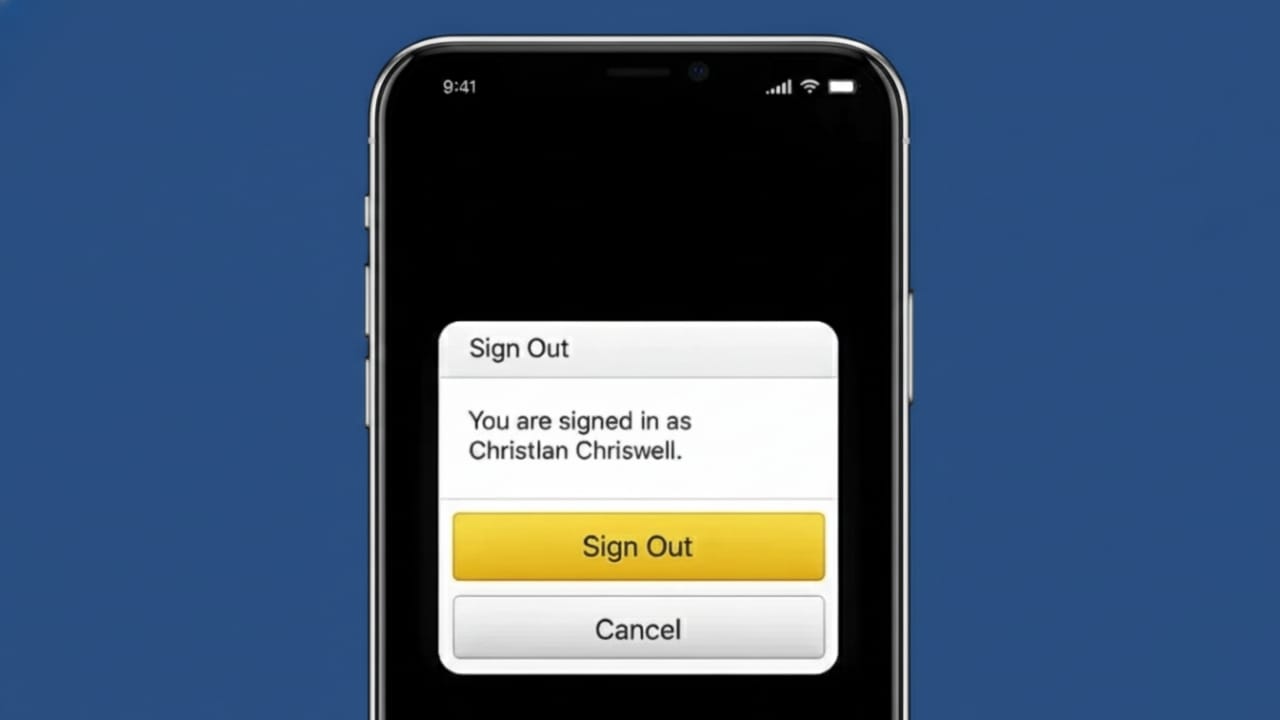
Remaining signed in to Amazon makes shopping faster, but logging out is sometimes the safer choice. This is especially important when you use a shared device, switch between accounts, or want to protect your personal details after placing orders.
Below is a simple and safe guide to help you sign out of your Amazon account using the official app or the Amazon website.
Also read: How to Stop Contact Syncing on Instagram (Complete Beginner Guide)
When It’s a Good Idea to Log Out of Amazon
You should consider signing out if:
- You are using a friend’s or family member’s phone or computer
- More than one person accesses the same device
- You want to switch to a different Amazon account
- You notice activity you don’t recognize
- You plan to reset, sell, or give away your device
Logging out helps protect your orders, payment information, and account settings.
How to Sign Out of the Amazon App (Android and iPhone)
The steps are almost identical on both Android and iOS devices.
Steps to Log Out:
- Open the Amazon app
- Tap the menu icon (three lines) at the top or bottom
- Scroll down and select Settings
- Tap Sign Out
- Confirm when prompted
Once you sign out, the app will return to the Amazon sign-in screen.
How to Log Out of Amazon on a Web Browser
If you are using Amazon on a computer or mobile browser, follow these steps:
Steps to Log Out:
- Open Amazon in your browser
- Move to Account & Lists
- Select Sign Out
You will be logged out immediately.
How to Sign Out of Amazon on All Devices
If you suspect your account is active on other devices, you can manage access directly from your account.
Steps to Secure Your Account:
- Sign in to Amazon
- Go to Your Account
- Open Manage Your Content and Devices
- Review the list of connected devices
- Remove any device you don’t recognize
- Change your password to improve security
This reduces the risk of unauthorized access.
What Happens After You Log Out
After signing out of Amazon:
- Your order history stays saved in your account
- The shopping cart on that device may be cleared
- You’ll need your password to log in again
- Purchases cannot be made without signing in
- Your account information remains protected
Fixing Problems When You Can’t Find the Sign-Out Option
If the sign-out option is missing or not working, try these steps:
- Update the Amazon app
- Restart your phone or computer
- Clear the app cache
- Sign out using a web browser instead
Most issues are resolved after updating the app.
Also read: How to Remove WhatsApp Call History on Android and iPhone
Final Words
Logging out of your Amazon account is quick and helps keep your information safe. Whether you’re protecting your privacy or switching accounts, Amazon offers easy and secure ways to sign out. Always remember to log out when using shared or public devices to keep your account secure.

I am a passionate Tech Writer with strong industry experience. I enjoy exploring the latest technological innovations and sharing clear, helpful insights with my audience.”