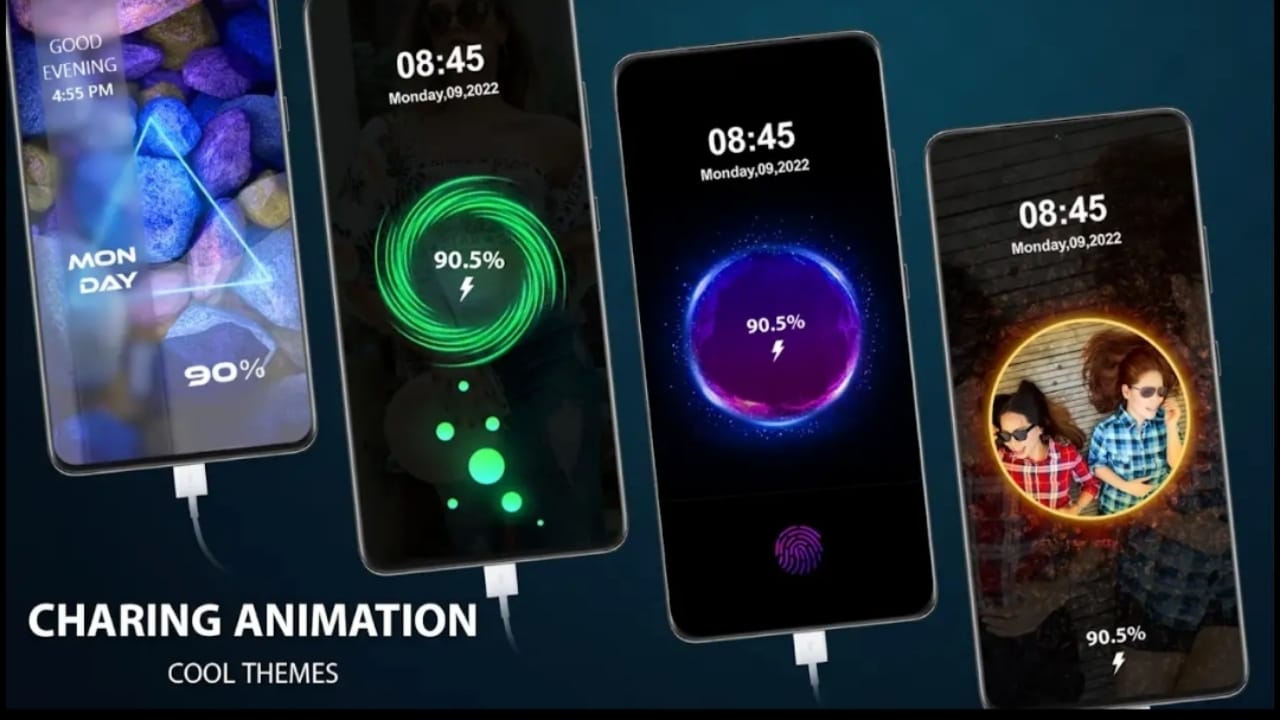
Charging your Android phone can look more interesting with custom charging animations. Instead of the normal battery icon, your screen can show smooth animations, colorful effects, or stylish designs when you connect the charger.
This guide explains what charging animations are, how they work, which permissions they need, and how you can safely use them on your Android device.
Also read: How to Protect Your Facebook Account From Hackers: A Simple, Complete Guide
What Is a Custom Charging Animation?
A custom charging animation is a visual effect that appears on your phone screen when charging starts. It replaces the plain charging screen with creative visuals like:
- Animated effects
- Colorful charging rings
- Stylish progress bars
- Theme-based charging designs
These animations are only for appearance. They do not improve charging speed and do not harm your battery or phone performance.
How Do Charging Animation Apps Work?
Charging animation apps detect when your phone is connected to a charger. As soon as charging begins, the app shows an animation on top of your screen.
These apps do not change system files and do not replace Android’s battery system. They simply display a visual layer while charging is active.
Permissions Required by Charging Animation Apps
To function correctly, these apps may ask for the following permissions:
Display Over Other Apps
This allows the animation to appear on the lock screen or above other screens.
Battery Status Access
Used to detect when charging starts or stops.
Notification Access (Optional)
Some apps use this permission to trigger animations more reliably.
These permissions are normal for overlay-based visual apps.
Important Safety Tips (Must Read)
- Always install apps from the Google Play Store only
- Do not allow permissions that are unrelated to charging animations
- Read user reviews and ratings before installing
- Avoid apps that ask for sensitive access like contacts or messages
Following these steps helps keep your device safe.
Step-by-Step Guide to Set Charging Animation on Android
Step 1: Download a Trusted Charging Animation App
Open the Google Play Store and install a reliable charging animation app.
Recommended App: Animated Charging Effects & Custom Animation App Google Play Store Link:
Install
Step 2: Open the App and Allow Necessary Permissions
When you open the app for the first time:
- Allow “Display over other apps”
- Allow battery-related access
These permissions are required for the animation to appear during charging.
Step 3: Select Your Preferred Charging Animation
The app offers multiple styles such as:
- Glow and ring effects
- Particle animations
- Animated icons
- Text-based charging effects
- Colorful charging progress bars
Choose the animation that matches your style.
Step 4: Test the Charging Animation
After selecting an animation:
- Plug in your charger
- Wait for the animation to appear
- Adjust settings like animation size, color, or speed if available
About the Recommended App
The Animated Charging Effects & Custom Animation App allows users to personalize their charging screen with different visual effects. It uses standard Android permissions for overlay and battery detection and focuses only on visual customization.
Before enabling features, always check the app’s permissions, ratings, and recent user reviews.
Tips for Better Performance
- Choose simple animations if your phone is older
- Avoid very bright effects if you prefer battery efficiency
- Turn animations on or off easily from the app settings
These tips help maintain a smooth experience.
Also read: Best Ways to Transfer Your Data from Android to iPhone Without Losing Anything
Final Conclusion
Custom charging animations are an easy and safe way to personalize your Android phone. By using a trusted app from the Google Play Store and granting only essential permissions, you can enjoy stylish charging visuals without affecting security or performance.
Always stay cautious with permissions and rely on user feedback. With the right setup, your phone can display a fresh and attractive animation every time you plug in the charger.

I am a passionate Tech Writer with strong industry experience. I enjoy exploring the latest technological innovations and sharing clear, helpful insights with my audience.”