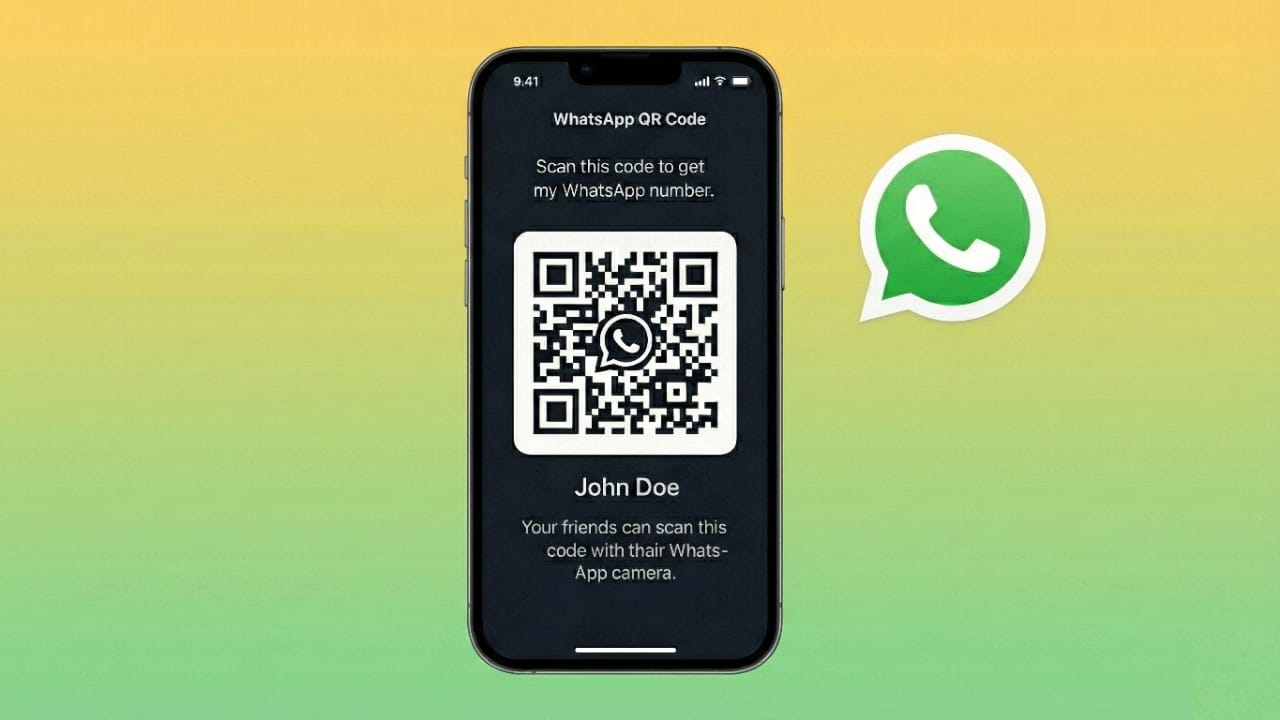
WhatsApp offers each user a unique QR code that makes adding contacts quick and effortless. Instead of typing someone’s phone number, they can simply scan your code and start chatting right away. This feature is handy for personal use, business promotion, and even sharing group invites.
Below is a clear and beginner-friendly guide to finding, sharing, scanning, and managing your WhatsApp QR code safely.
Also read: How to Move Your WhatsApp Chats to Arattai Messenger — A Simple Guide
What Exactly Is a WhatsApp QR Code?
Your WhatsApp QR code is a small image that represents your phone number in a scannable form. When someone scans it, your WhatsApp chat opens instantly.
People commonly use it for:
- Sharing business or personal contact details
- Adding it to social media profiles
- Displaying in shops, cafés, or restaurants
- Events or marketing material
- Quick exchange of contact info with friends
WhatsApp also lets you replace (reset) your QR code anytime if you want more control over who can reach you.
Where to Locate Your WhatsApp QR Code
You can access your QR code in just a few taps on both Android and iPhone.
Steps:
- Open WhatsApp
- Go to Settings
- Tap the QR code icon beside your name
Your personal QR code will appear on the screen.
How to Share Your WhatsApp QR Code
Sharing your code is simple and works the same across devices.
Method 1: Share Directly
- Open your QR code in WhatsApp
- Tap the Share icon
- Choose where you want to send it, such as:
- Bluetooth
- Other messaging apps
The receiver can instantly scan the code using their phone.
Method 2: Save the QR Code as an Image
If you want to upload your QR code online or keep it for later, you can save it to your gallery.
- Open the QR code
- Tap Share
- Select Save to Gallery
You can now use this image on websites, posters, or business pages.
How Others Can Scan Your WhatsApp QR Code
No additional app is required. The scanning option is built into WhatsApp.
How to scan a WhatsApp QR code:
- Open WhatsApp
- Go to Settings
- Tap the QR code icon
- Switch to the Scan Code tab
- Point the camera at the QR code
A chat window will open automatically.
How to Reset Your WhatsApp QR Code
If your code gets shared more widely than expected or you want extra privacy, you can reset it within seconds.
Steps to reset:
- Open your QR code
- Tap the three-dot menu
- Select Reset QR Code
- Confirm the action
Your previous code becomes invalid, and a new one is generated instantly.
Safety Tips When Using Your WhatsApp QR Code
To avoid unwanted messages or spam, keep these tips in mind:
- Share your QR code only with people you trust
- Reset it if it has been shared without your knowledge
- Try not to post it publicly unless it’s for business use
- Be cautious of messages from unknown numbers after sharing it
Your QR code works the same as giving out your phone number, so treat it responsibly.
Also read: How to Stop WhatsApp From Saving Photos on Your Phone – Easy Step-by-Step Guide
Final Thoughts
Using your WhatsApp QR code is one of the easiest ways to let others connect with you. It saves time, removes the need to type phone numbers, and helps you avoid mistakes. With built-in options to share, scan, and reset your code, WhatsApp gives you full control over your contact privacy. Use the feature wisely to enjoy smooth and secure communication.

I am a passionate Tech Writer with strong industry experience. I enjoy exploring the latest technological innovations and sharing clear, helpful insights with my audience.”