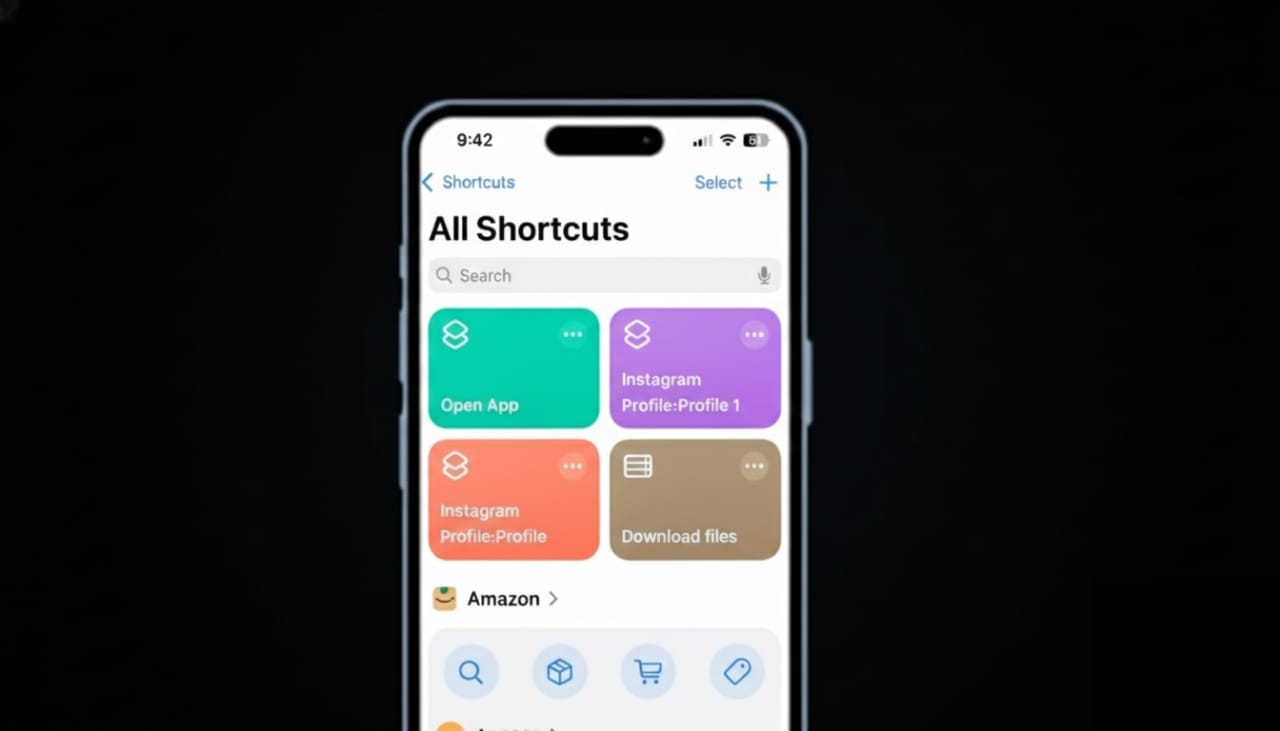
Most iPhone users have the Shortcuts app on their device, but very few actually use its full power. One of its best features is automation. With automation, your iPhone can take care of routine tasks on its own, without you opening settings again and again.
You can use it to save battery, control focus modes, manage connections, or start apps at the right time. Once set, everything runs quietly in the background.
This article explains what automation in iOS Shortcuts really is, why it matters, and how you can set it up easily for everyday use.
Also read: How to Protect Your Instagram Account From Hackers (Simple & Complete Guide)
What Does Automation in iOS Shortcuts Mean?
Automation allows your iPhone to perform actions automatically when a certain condition is met. Instead of doing things manually, your phone responds on its own.
For example, your iPhone can:
- Switch on Low Power Mode when the battery gets low
- Turn on Focus mode at night
- Disable Wi-Fi when you leave home
- Start music when Bluetooth earphones connect
All of this works using Apple’s built-in Shortcuts app. No extra apps are required.
Why Automation Is Worth Using
Automation reduces effort and saves time. Once you set it up, it keeps working without reminders.
Main Advantages
- Handles repeated tasks automatically
- Reduces the need to change settings manually
- Helps save battery life
- Makes daily routines smoother
- Works fully within iOS
If you use your iPhone every day, automation makes life easier without adding complexity.
What You Need Before Creating Automations
Before you begin, check the following:
- Your iPhone is updated to a recent iOS version
- The Shortcuts app is available on your device
- Background App Refresh is enabled for Shortcuts
Most automations do not need an internet connection to work.
How to Create Automation in iOS Shortcuts
Follow these simple steps carefully.
Step 1: Open Shortcuts
Open the Shortcuts app on your iPhone.
Tap the Automation tab at the bottom.
Step 2: Start a New Automation
Tap Create Personal Automation.
If you already have automations, tap the plus (+) icon first.
Step 3: Select a Trigger
Choose when you want the automation to run. Common options include:
- Time of day
- Battery percentage
- App opened or closed
- Location changes
- Bluetooth connection
- Focus mode activation
Pick the trigger that matches your routine.
Step 4: Add Actions
Tap Add Action and choose what your iPhone should do.
Popular actions include:
- Turn on Low Power Mode
- Enable or disable Focus
- Open specific apps
- Adjust volume
- Switch Wi-Fi or Bluetooth on or off
You can add more than one action in a single automation.
Step 5: Final Review
Tap Next.
Turn off Ask Before Running if the option appears.
Confirm by tapping Don’t Ask.
Your automation is now active and ready to work.
Practical Automation Ideas for Daily Life
Here are some simple automations that actually help.
Battery Saver Setup
Trigger: Battery falls below 30%
Action: Enable Low Power Mode
Morning Routine Automation
Trigger: 7:00 AM
Actions:
- Turn off Do Not Disturb
- Set volume to a comfortable level
- Open the Weather app
Night Routine Automation
Trigger: 11:30 PM
Actions:
- Enable Focus mode
- Lower screen brightness
- Turn off Wi-Fi
Work Focus Automation
Trigger: Work Focus turned on
Actions:
- Open Calendar
- Open Notes
- Enable silent mode
Difference Between Shortcuts and Automation
Many people mix these two up.
- A shortcut runs only when you tap it
- An automation runs on its own when conditions are met
Automation is better for tasks you don’t want to remember every day.
Common Issues and How to Fix Them
Automation Asking for Approval
Some automations require confirmation due to system security rules. This is normal and cannot always be turned off.
Automation Not Working
If something doesn’t run:
- Check Focus or battery restrictions
- Make sure Background App Refresh is enabled
- Restart your iPhone if needed
Privacy and Security Information
All automations run directly on your iPhone.
Your personal automation data is not uploaded to external servers.
Apple designs Shortcuts with strong privacy protections in place.
Also read: How to Silence WhatsApp Calls From One Person Without Blocking Them
Final Words
Automation in iOS Shortcuts is one of the most useful yet ignored iPhone features. When set up properly, it lets your phone handle routine tasks without effort. From saving battery to managing daily schedules, it boosts efficiency in a simple way.
If you still adjust the same settings every day, automation can save you time. Start with one or two automations and slowly build more. Your iPhone will feel smarter without becoming complicated.

I am a passionate Tech Writer with strong industry experience. I enjoy exploring the latest technological innovations and sharing clear, helpful insights with my audience.”