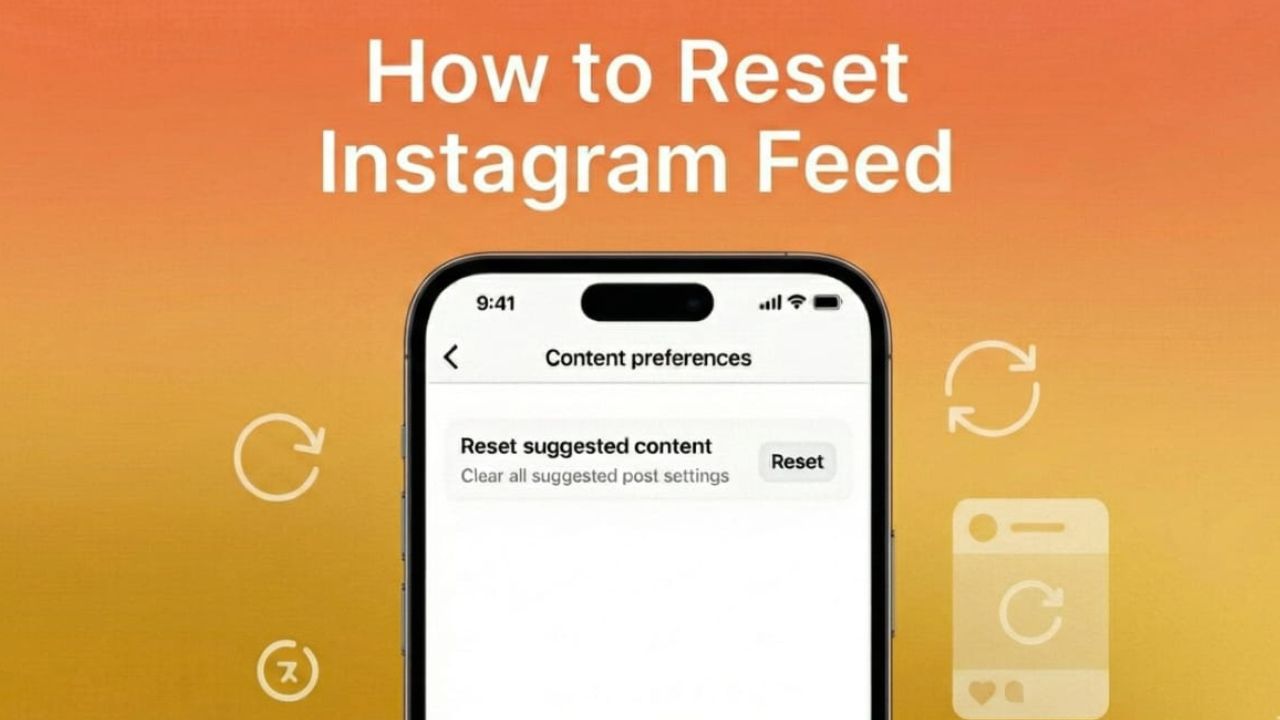
Sometimes your Instagram feed stops showing the kind of posts you enjoy. Maybe your Explore tab is filled with random topics, or the app keeps recommending things you don’t care about. In such cases, resetting your feed can give you a fresh start. Instagram now allows you to clear older activity signals so the app can rebuild your recommendations from scratch.
Below is a simple guide to help you understand how this works and how to do it safely.
1. What “Resetting Your Feed” Really Means
When you reset your Instagram feed, nothing important on your account gets deleted. Your photos, videos, followers, and chats stay exactly the same.
What changes is the data Instagram uses to decide what to show you.
This includes signals like:
- Posts and Reels you liked
- Content you interacted with
- Topics you engaged with
- Explore page activity
- Your past watch history
Once this data is cleared, Instagram shows more neutral content until it starts learning your new interests again.
2. Why People Reset Their Instagram Feed
You might want to reset your feed for many reasons, such as:
- Your Explore page is filled with topics you’re no longer interested in
- You accidentally liked or watched something and now see similar posts everywhere
- You want to refresh your interests
- Your feed feels messy and unrelated to your personality
- You simply want to start over and let Instagram relearn your preferences
Resetting gives you better control over the type of content you see every day.
3. How to Reset Your Instagram Feed (Android & iPhone)
Instagram doesn’t display this option very openly, but you can find it using the steps below:
Steps:
- Open the Instagram app
- Go to your Profile
- Tap the three-line menu (top right)
- Select Settings and privacy
- Scroll down to What you see
- Tap Content preferences
- Choose Reset suggested content
- Confirm the action
After doing this, your recommendation history will be cleared.
4. How to Reset Only Your Explore Page (Optional)
If you don’t want a complete reset, you can just clean up your Explore tab manually.
Steps:
- Open Instagram
- Go to the Search/Explore page
- Tap the three dots on any post you don’t like
- Select Not interested
Doing this regularly helps Instagram understand what you want to avoid and gradually refreshes the Explore section.
5. What a Reset Does Not Change
Resetting your feed only affects recommendation signals. It does not:
- Remove your followers
- Delete your posts or Reels
- Erase your chats
- Turn off ads
- Change your privacy settings
Your account stays the same—only the suggested content gets refreshed.
6. How to Build a Better Feed After the Reset
Once you reset your feed, Instagram pays attention to your new actions. To shape your feed properly:
- Like posts that match your real interests
- Save content you want more of
- Tap Not interested on topics you dislike
- Follow accounts that post what you enjoy
- Mute or unfollow accounts you don’t relate to anymore
- Interact regularly with content that genuinely appeals to you
Within a few days, your feed will start becoming more accurate and personalised.
Also read: How to Move WhatsApp and Telegram Chats From One Android Phone to Another Without Losing Media
Final Thoughts
Resetting your Instagram feed is an easy way to fix recommendations that no longer reflect your interests. By clearing old activity signals, you give Instagram a chance to understand what you want today, not what you liked months ago.
Follow the steps and engage with content thoughtfully—you’ll soon notice a cleaner, more enjoyable feed that truly matches your taste.

I am a passionate Tech Writer with strong industry experience. I enjoy exploring the latest technological innovations and sharing clear, helpful insights with my audience.”