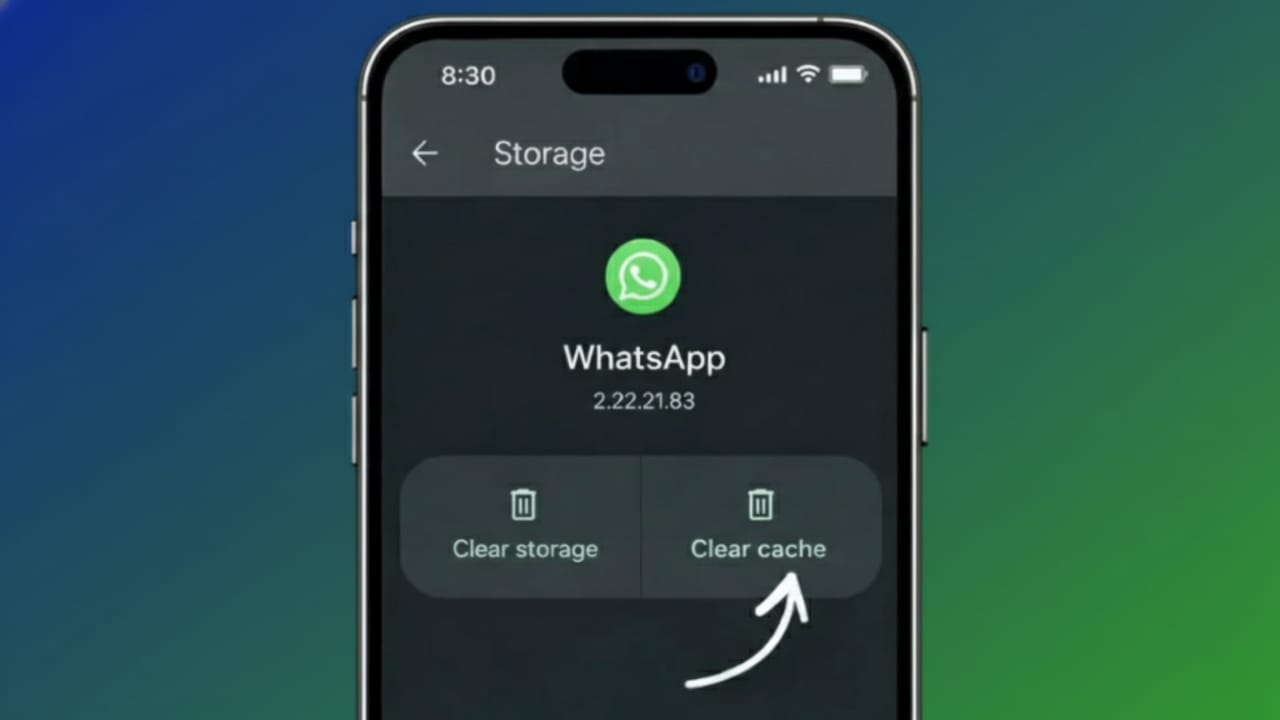
WhatsApp saves small temporary files on your phone to help chats, photos, videos, and voice notes open faster. These files are called cache. With regular use, this cache keeps growing and may start using a lot of storage or make the app feel slow.
Clearing the cache is an easy way to free space and fix minor problems like lag, slow loading, or random crashes—without deleting your chats.
This guide explains what WhatsApp cache is, why it builds up, and how to clear it safely on both Android and iPhone.
Also read: How to Record WhatsApp Calls in 2026 (Using WhatsApp Call Recorder App)
What Is WhatsApp Cache and Why It Increases
Cache is temporary data that WhatsApp stores to improve speed and performance. It usually includes:
- Photo and video previews
- Voice note temporary files
- Sticker and emoji thumbnails
- Recently opened chat information
Cache is helpful, but when it becomes too large, it can cause problems such as:
- Unnecessary storage usage
- Slower app performance
- Freezing or small glitches
Clearing the cache removes only these temporary files. Your messages, media, and account stay untouched.
How to Clear WhatsApp Cache on Android
Android phones allow you to clear cache directly from system settings.
Method 1: Clear Cache Using App Settings
- Open Settings on your phone
- Go to Apps or App Management
- Find and tap WhatsApp
- Select Storage
- Tap Clear Cache
The cache will be removed instantly.
Important:
Do not select Clear Data. That option resets the app and may remove local information.
Method 2: Clear Cache Through Phone Storage Tools
Some Android devices offer built-in storage cleanup options.
- Open Settings
- Go to Storage
- Tap Clean Up or Temporary Files
- Select WhatsApp cache
- Confirm deletion
This option is commonly available on phones from brands like Samsung, Xiaomi, Realme, and others.
How to Reduce WhatsApp Cache on iPhone
iPhones do not have a direct “clear cache” button for apps. However, you can still free up space safely.
Method 1: Use WhatsApp’s Storage Management
- Open WhatsApp
- Go to Settings
- Tap Storage and Data
- Select Manage Storage
- Review large files and chats
- Delete media you no longer need
This removes cached media files while keeping your messages safe.
Method 2: Reinstall WhatsApp (If Needed)
If WhatsApp is taking too much space and other steps don’t help:
- Back up your chats to iCloud
- Delete the WhatsApp app
- Restart your iPhone
- Reinstall WhatsApp
- Restore chats from backup
Reinstalling automatically clears all cache files.
Does Clearing WhatsApp Cache Delete Chats?
No. Clearing cache does not remove:
- Chat messages
- Contacts
- Call history
- Your WhatsApp account
Only temporary files are deleted. Your data remains safe.
When Should You Clear WhatsApp Cache?
Clearing cache can help if:
- WhatsApp is using too much storage
- The app feels slow or unresponsive
- Media files are not loading properly
- The app crashes often
Doing this occasionally is completely safe.
Cache vs Data: Know the Difference
This is important to understand:
- Clear Cache: Removes temporary files only
- Clear Data: Resets the app and deletes local information
Always choose Clear Cache, not Clear Data, unless you want a full reset.
Also read: How to Turn On WhatsApp End-to-End Encrypted Chat Backup (Android & iPhone)
Final Words
Removing WhatsApp cache is a simple and safe way to free storage and keep the app running smoothly. Android users can clear cache directly from settings, while iPhone users can manage storage or reinstall the app if required. When done correctly, none of these methods affect your chats.
If WhatsApp feels slow or your phone storage is filling up, clearing the cache is a smart first step.

I am a passionate Tech Writer with strong industry experience. I enjoy exploring the latest technological innovations and sharing clear, helpful insights with my audience.”