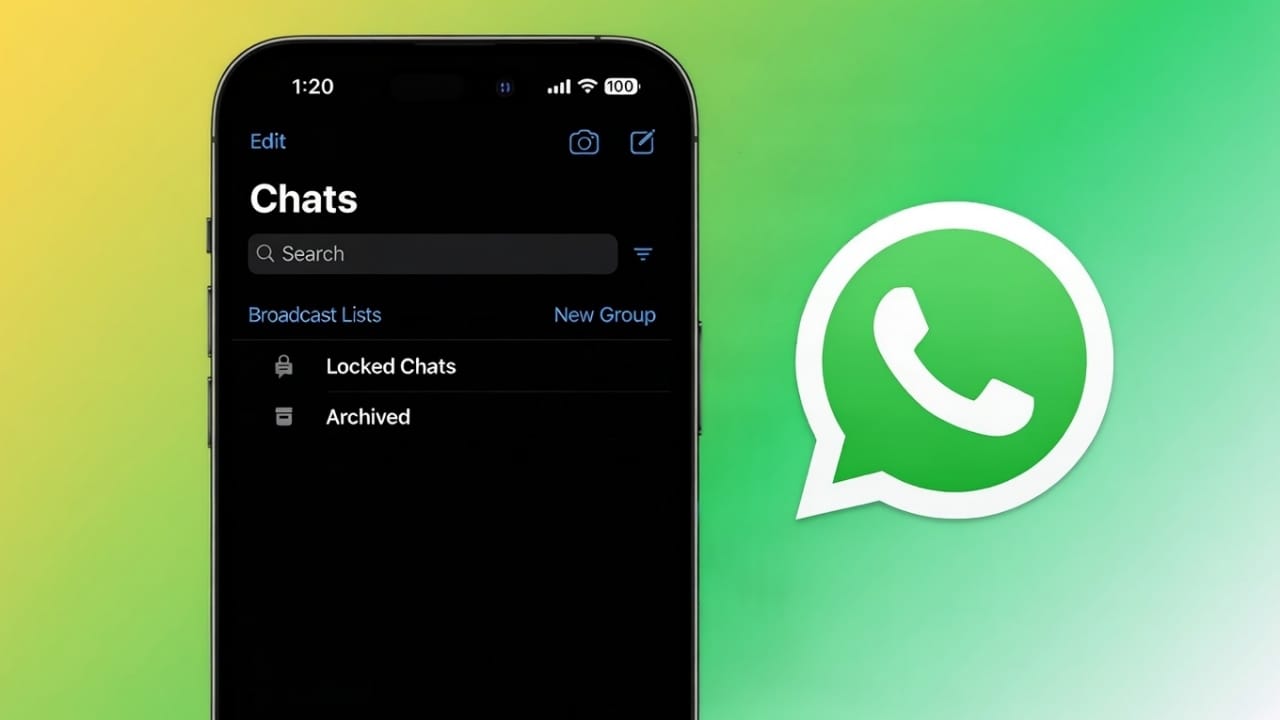
Many people share their iPhones with family members, friends, or colleagues. In such cases, keeping personal WhatsApp conversations private becomes important. Fortunately, WhatsApp on iPhone offers a built-in Chat Lock feature that helps you secure individual and group chats using Face ID, Touch ID, or your phone’s passcode.
This guide explains what Chat Lock is, how to use it, and what changes after you enable it.
Also read: How to Remove WhatsApp Call History on Android and iPhone
What Is WhatsApp Chat Lock?
Chat Lock is a privacy tool that hides selected chats behind biometric security. Once you lock a chat:
- The conversation moves to a separate Locked Chats section
- Message previews disappear from notifications
- You must use Face ID, Touch ID, or passcode to open it
This works for both personal chats and group conversations.
Before You Begin
Make sure the following things are ready on your iPhone:
- A recent version of iOS
- Latest WhatsApp update installed
- Face ID, Touch ID, or passcode already enabled
Without these, Chat Lock may not work properly.
How to Lock a Personal Chat
Follow these simple steps:
- Open WhatsApp on your iPhone
- Open the chat you want to protect
- Tap the contact’s name at the top
- Select Chat Lock
- Turn on the Lock This Chat option
- Confirm with Face ID, Touch ID, or passcode
After this, the chat will no longer appear in your main chat list.
How to Lock a Group Chat
You can lock group chats in the same way:
- Open the group chat
- Tap the group name at the top
- Tap Chat Lock
- Turn on Lock This Chat
- Confirm your identity
Even if new messages come in, the group will stay locked.
Where Are Locked Chats Kept?
Your locked chats are stored separately. To access them:
- Scroll to the top of your chat list
- Tap Locked Chats
- Verify with Face ID or Touch ID
Only after authentication can you see these conversations.
How Notifications Change
Once a chat is locked:
- Notifications will not show message details
- You may only see “New message” instead of text
- No preview appears on your lock screen
This keeps your private messages safe from others looking at your phone.
How to Remove Chat Lock
If you want to unlock a chat:
- Open Locked Chats
- Open the locked conversation
- Tap the contact or group name
- Select Chat Lock
- Turn off the lock
- Confirm your identity
The chat will return to your normal list.
Important Things to Remember
- Locked chats are still included in backups
- Chat Lock works only on the current device
- If you delete WhatsApp, locked chats are removed from the phone
- You can lock as many chats as you want
- Archived chats can also be locked
Simple Privacy Tips
For better security, you can also:
- Turn on WhatsApp screen lock in settings
- Hide message previews in iPhone notifications
- Use Face ID instead of passcode for quick access
- Lock sensitive personal and group chats
Also read: How to Hide Your Online Status on WhatsApp: Simple Privacy Settings Explained
Final Words
WhatsApp Chat Lock is a simple yet powerful privacy feature for iPhone users. It helps you protect important conversations without making your messaging complicated. If privacy is important to you, using Chat Lock is definitely a smart choice.

I am a passionate Tech Writer with strong industry experience. I enjoy exploring the latest technological innovations and sharing clear, helpful insights with my audience.”